How to Perform Street Sign Detection in VIDIZMO
Street sign detection identifies and locates street, highway, and road signs in your content. Use the VIDIZMO Vision Indexer to process images and videos and display these detections as insights on the playback page. You can then search for items that contain street signs or use these detections as inputs for redaction workflows.
This article explains how to run street sign detection using automatic processing and on-demand processing, including options for redacting detected street signs.
For a comprehensive guide on object redaction for all detection classes, see How to Perform Object Redaction using VIDIZMO Vision Indexer.
Prerequisites
- Ensure the VIDIZMO Vision Indexer is configured and enabled for Street Sign Detection. See: Configuring VIDIZMO Vision Indexer for Object Detection
- You must belong to a group with feature permissions for Street Sign Detection and content processing (for example, Upload and Manage My Content). See: Enable Features in the VIDIZMO Portal
- To perform on-demand processing during upload, enable Custom Upload. See: How to Custom Upload Media
- To redact detected street signs, you need the Redaction feature permissions.
Street Sign Detection via Automatic Processing
When Street Sign Detection is enabled in the VIDIZMO Vision Indexer configuration, VIDIZMO automatically processes your uploads for this detection type.
Automatic processing takes place when:
- Content is uploaded to your Portal.
- Content is ingested.
- A copy of the content is created.
- A VIDIZMO Live session is saved and published as a recording.
Automatic Detection on Upload
- Select the + Add New Media button
- Select Upload Media, then upload your file.
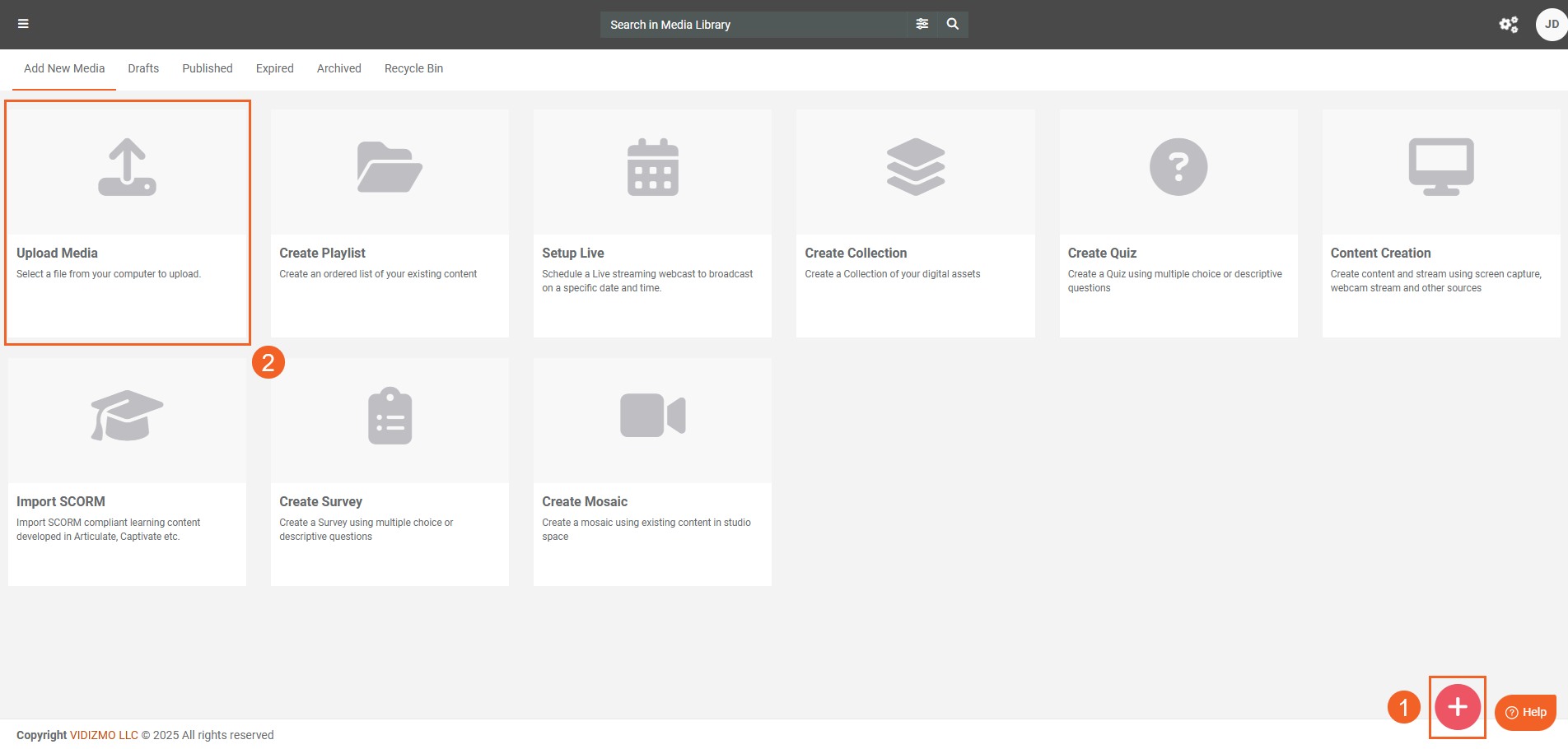
- The upload moves to Processing based on your configurations.
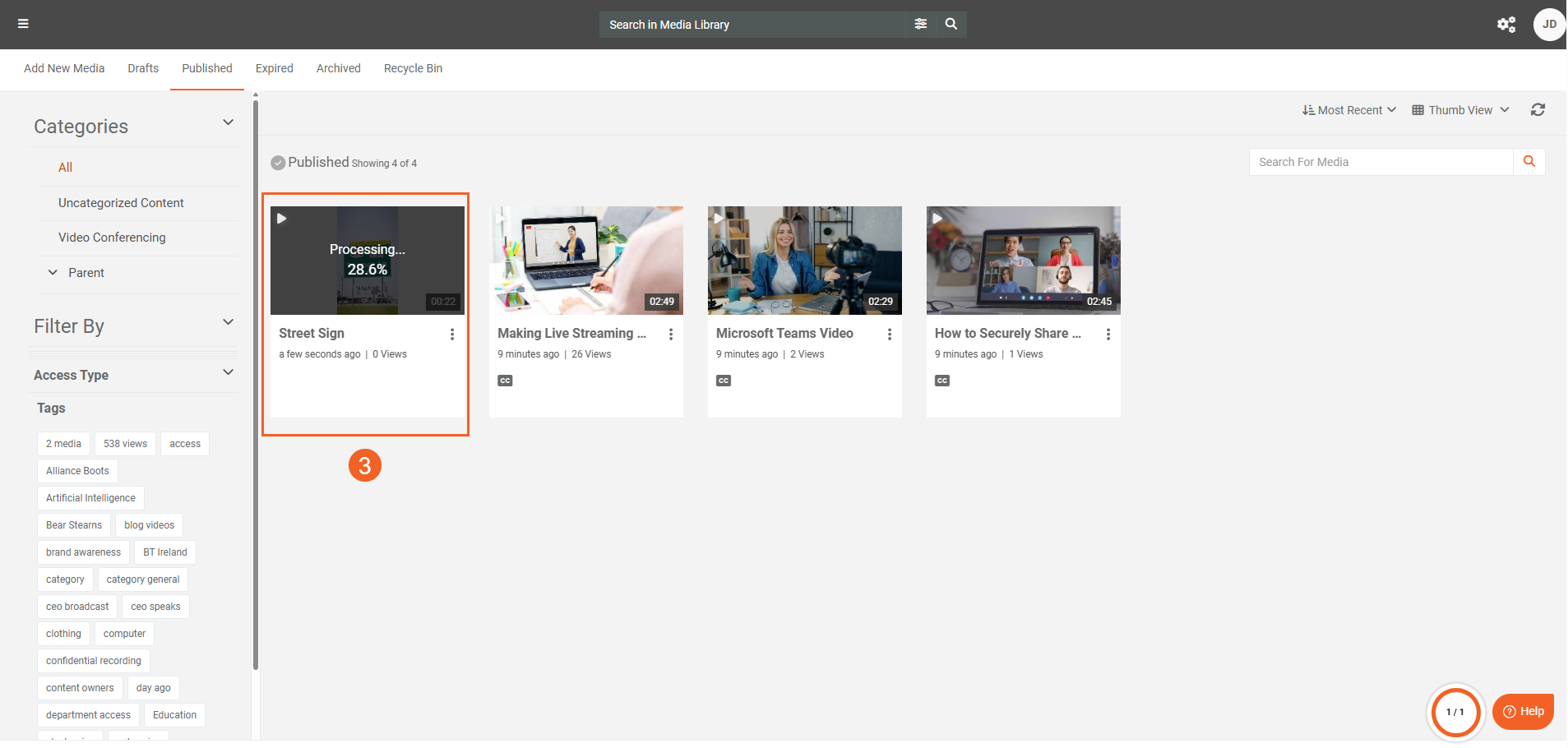
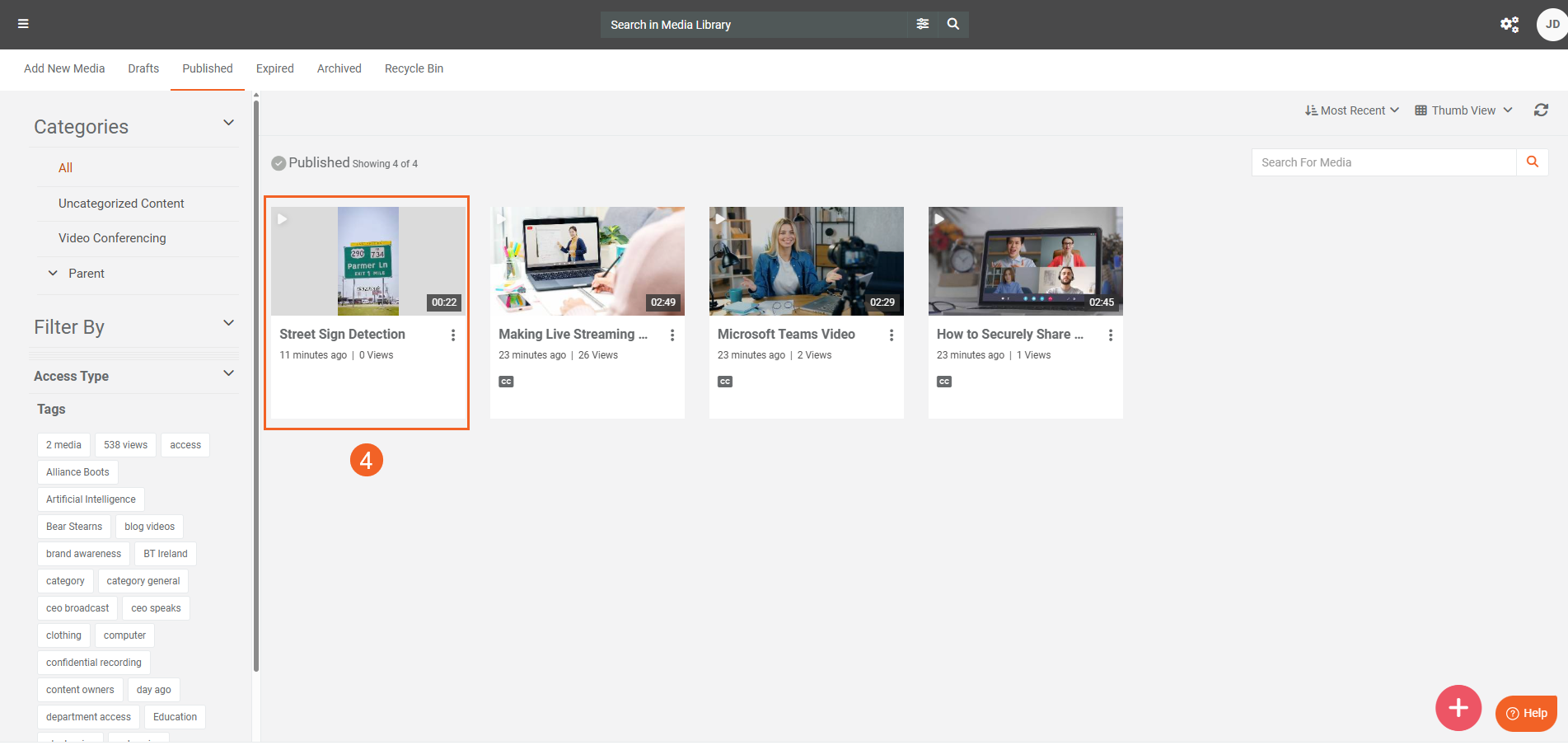
- After processing completes, open the content's playback page.
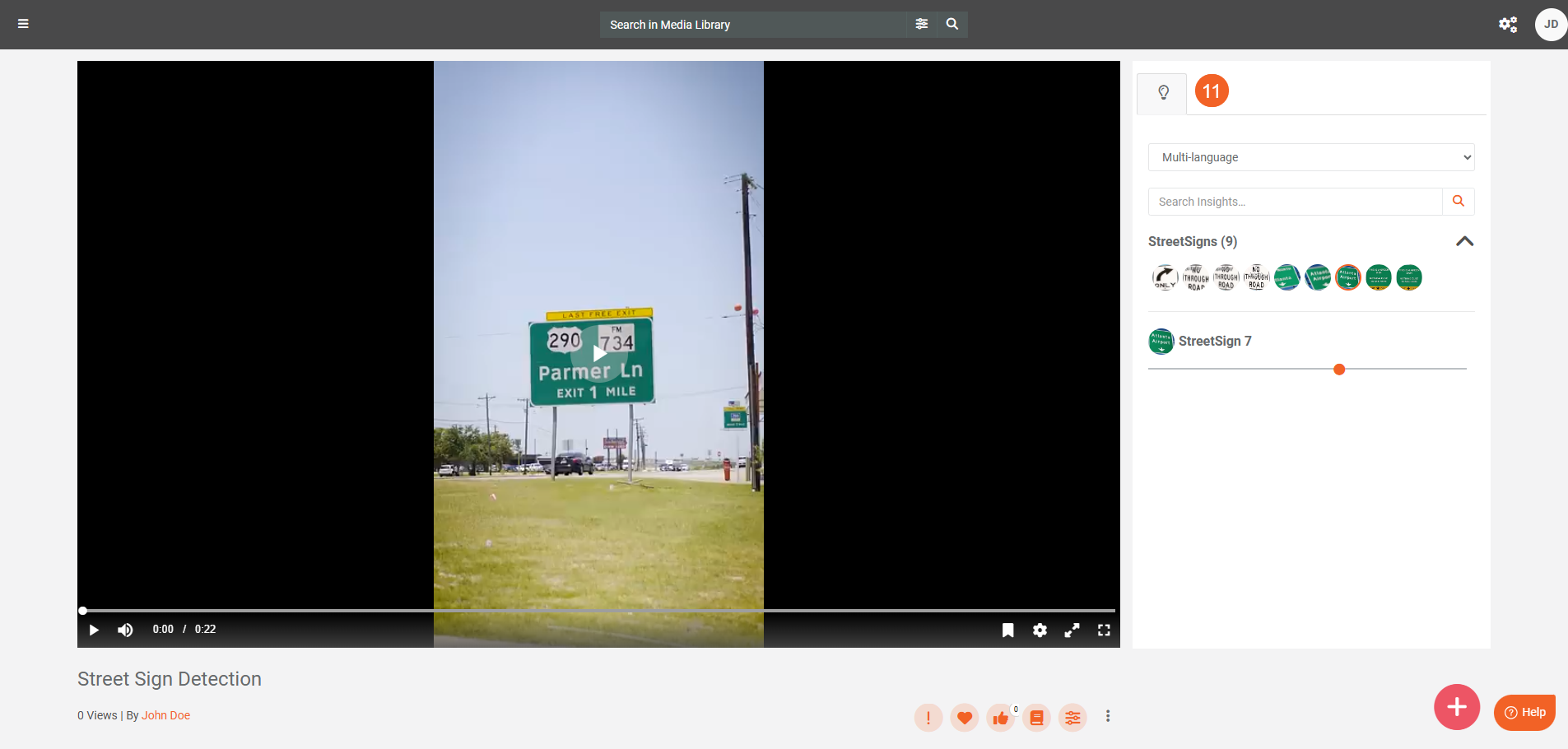
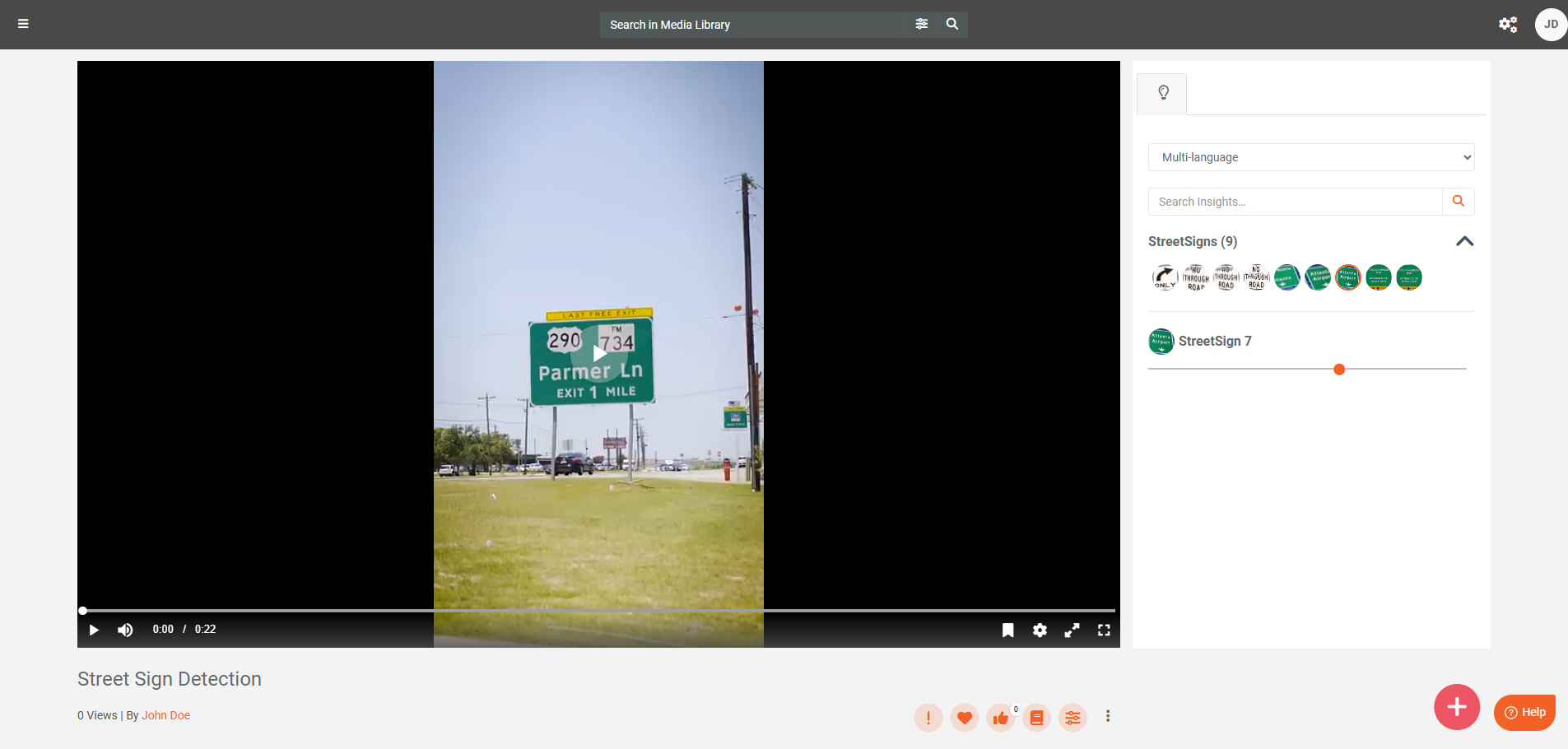
- Open the Insights tab to view detected Street Signs. In videos, select a detection to jump to its timestamp.If automatic redaction is configured in the app, the redaction will also be applied simultaneously according to the settings defined in the Vision Indexer.
Note: You can find content with street signs on your Portal by searching for the keywords street sign in your Portal search. See Understanding Search in VIDIZMO.
Street Sign Detection via On-Demand Processing
Use on-demand processing when you want to choose which items to analyze and when to run detection.
On-Demand Processing via Custom Upload
-
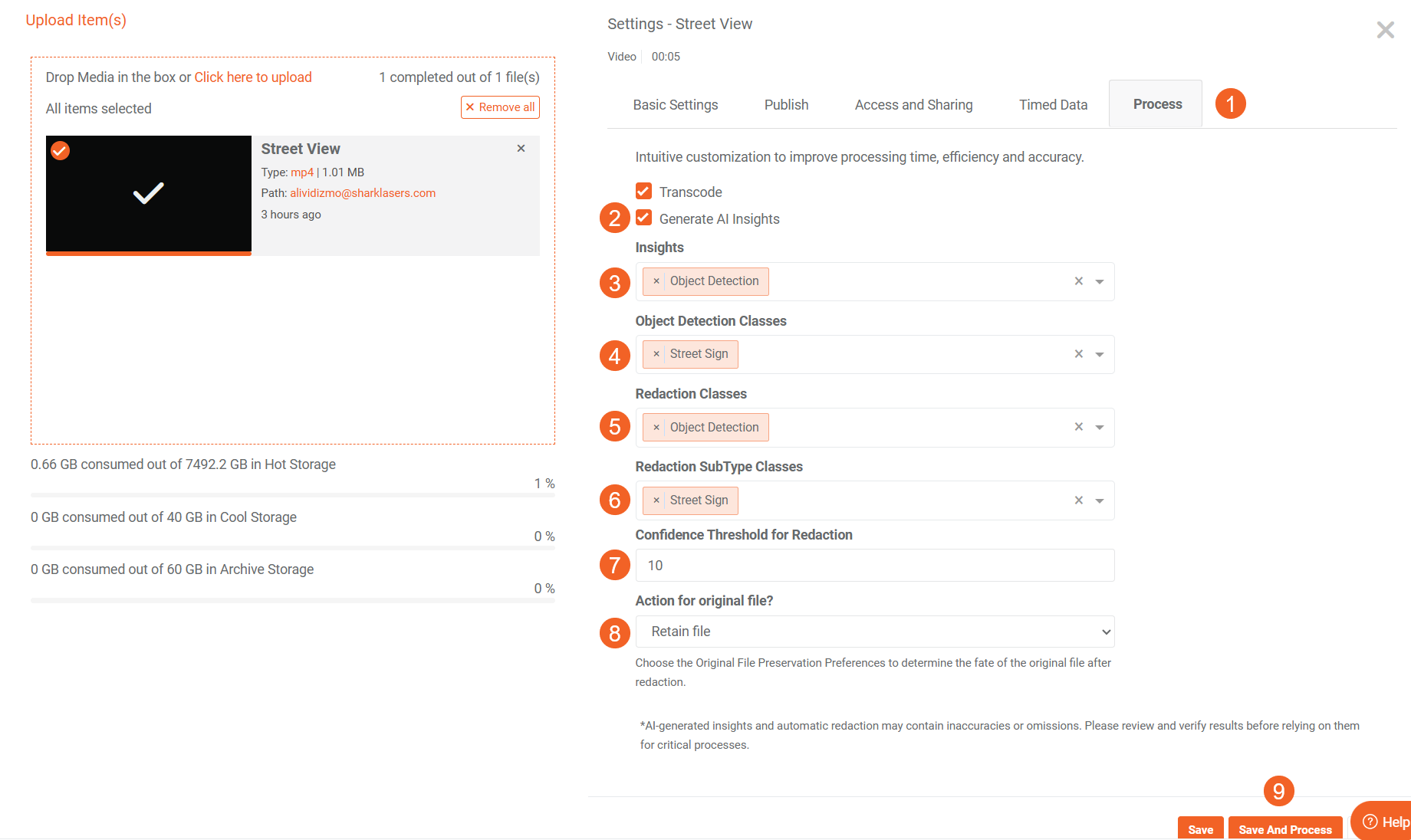
With custom upload enabled, upload your content:
- EnterpriseTube: Switch to the Process tab during upload.
- DEMS/Redaction: Use Advanced Upload.
-
Select Generate AI Insights.
-
In the Insights field, select Object Detection.
-
In Object Detection Classes, select Street Sign.
-
To redact street signs, in Redaction Classes, select Object Detection.
-
In Redaction SubType Classes, select Street Sign.
-
Set the Confidence Threshold for Redaction to specify the minimum confidence level required for redaction.
-
Select Action for Original File to determine how the original file is handled.
-
Click Save and Process or Save to start processing.
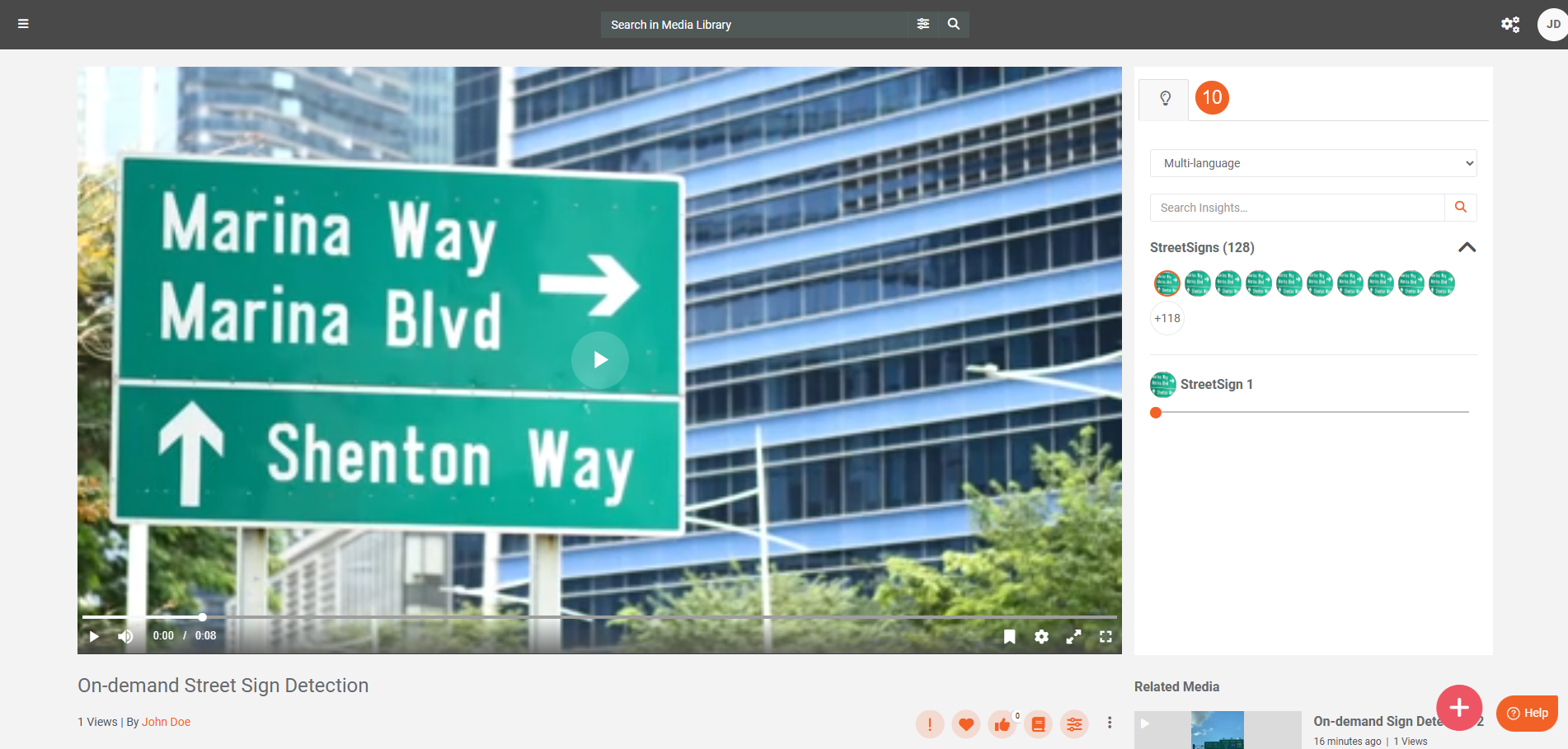
- After processing, open the playback page and review the Street Sign detections in Insights.The system generates a redacted version of the file based on the action specified for the original file.
On-Demand Processing via Process Modal
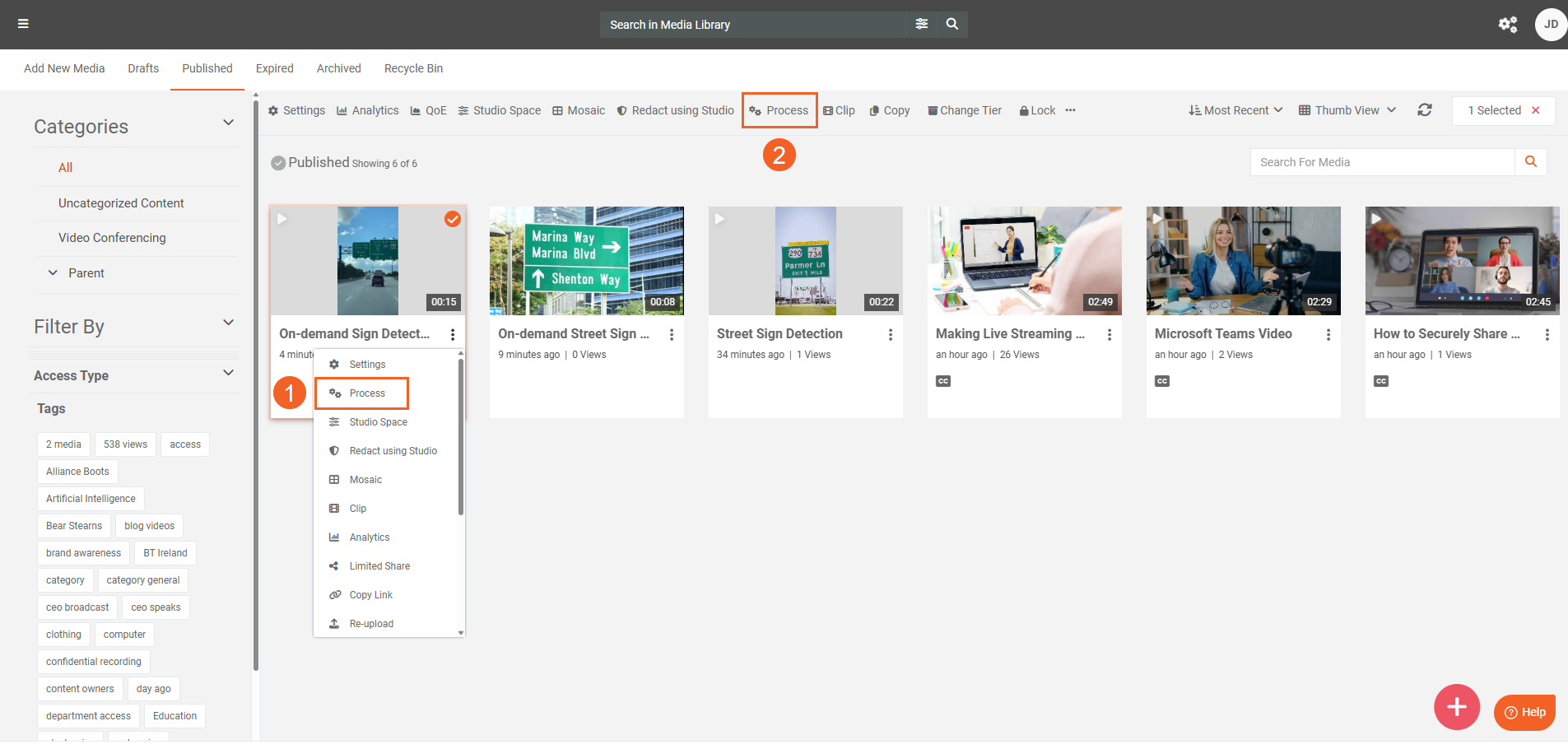
- For an existing item, select Process from its overflow menu.
- To process multiple items, select them and choose Process from the bulk action menu.
-
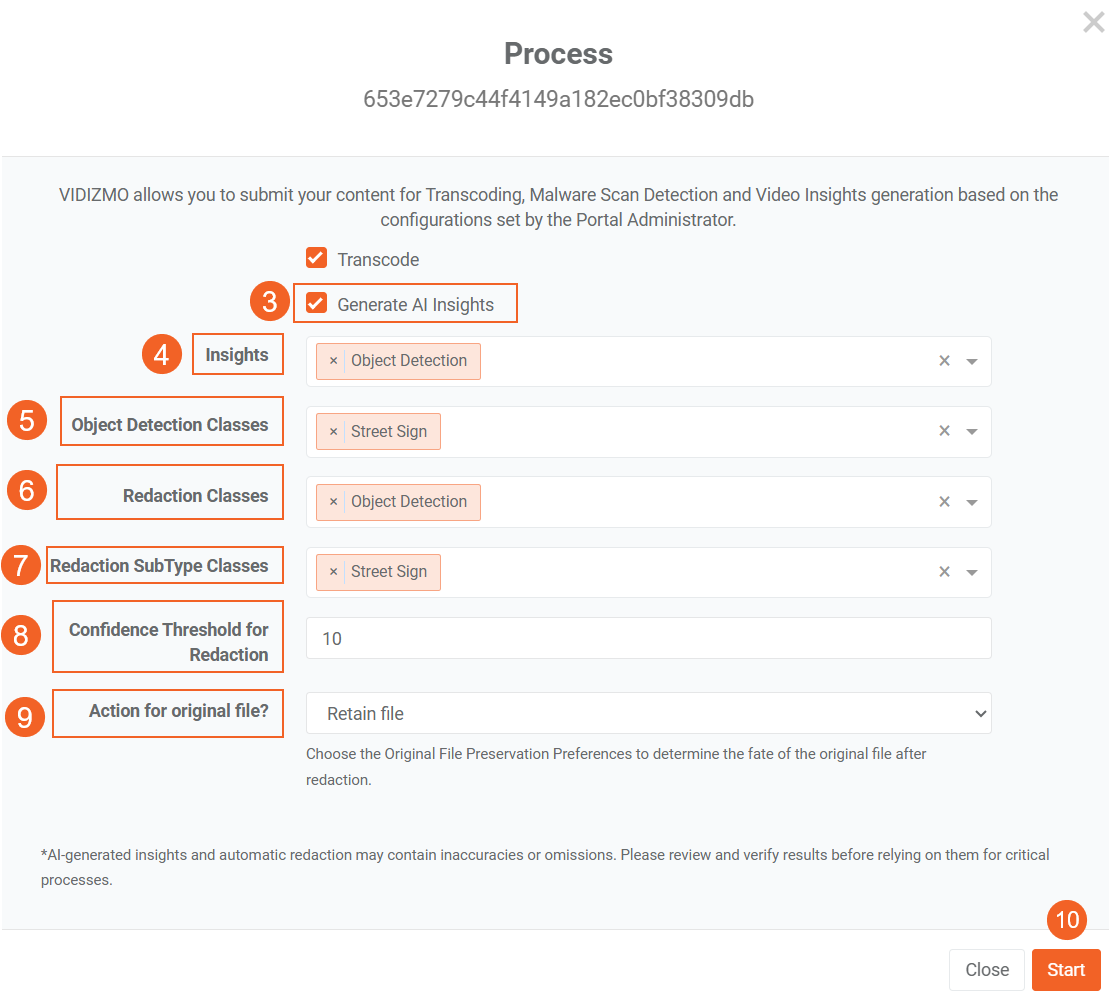
In the Process modal, select Generate AI Insights.
-
In the Insights field, select Object Detection.
-
In Object Detection Classes, select Street Sign.
-
To redact street signs, in Redaction Classes, select Object Detection.
-
In Redaction SubType Classes, select Street Sign.
-
Set the Confidence Threshold for Redaction to specify the minimum confidence level required for redaction.
-
Select Action for Original File to determine how the original file is handled.
-
Click Start to begin processing.
- When processing completes, open your content to see the Street Sign detections in Insights.The system generates a redacted version of the file based on the action specified for the original file.
Redaction in Studio Space
In Studio Space, you can automatic detect and redact street signs.
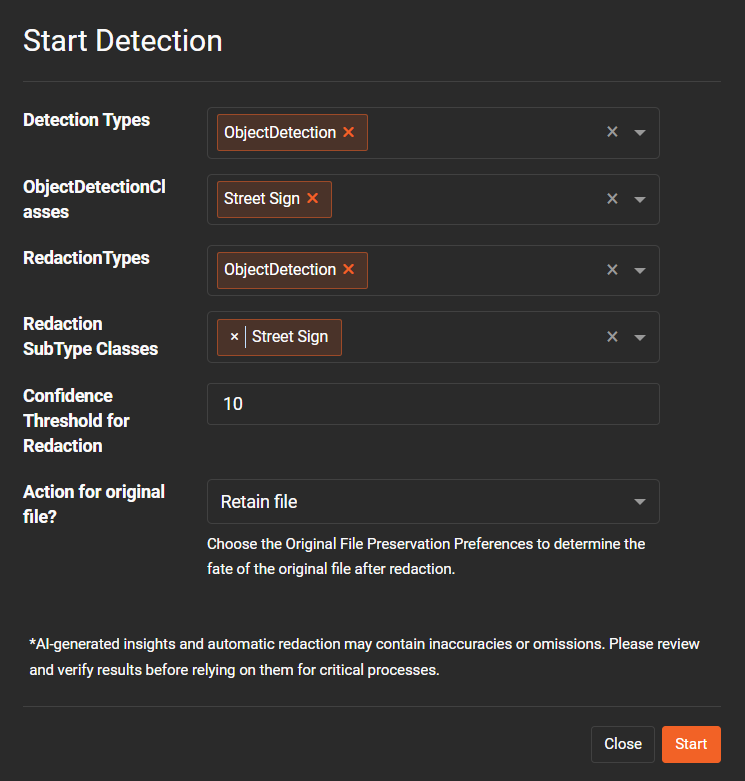
- In Studio Space, select Auto Detect from the header.
- Configure the following fields:
- Detection Types: Select Object Detection.
- Object Detection Classes: Select Street Sign.
- Redaction Types: Select Object Detection.
- Redaction SubType Classes: Select Street Sign.
- Confidence Threshold for Redaction: Set the minimum confidence level (e.g., 10).
- Action for Original File: Select how the original file is handled.
-
Click Start to begin the automatic detection process.
-
Select Publish to save and finalize the redacted file.
Read Next
- How to Perform Object Redaction using VIDIZMO Vision Indexer
- Configuring VIDIZMO Vision Indexer for Object Detection