How to Generate Face Attribute Insights in VIDIZMO
In VIDIZMO, leveraging the capability of a person's face attribute detection empowers users to detect and categorize individuals into predefined groups proficiently. When processing media files or evidence for AI-driven insights, the embedded model seamlessly generates predictions related to age, gender, and race based on the detected faces.
This article will guide you through the essential steps to effectively harness a person's face attribute detection feature, enhancing your ability to glean meaningful insights from your media content.
For a detailed understanding of the concept, refer to Person's Attribute Detection: An In-Depth Explanation.
Prerequisites
- Ensure you belong to a group with Person, Face & Facial Attribute Detection and App Management feature enabled, or have a CAL that grants permissions to utilize it. By default, this feature is a Portal-level add-on in security groups that must be enabled.
Face Attribute Insights with Automatic Processing
VIDIZMO allows you to generate AI Insights on your content as uploaded to your Portal. This is done by turning on Automatic Processing in your Portal's App Settings. You can use automatic processing to generate face attribute insights for images and videos uploaded to your Portal automatically.
-
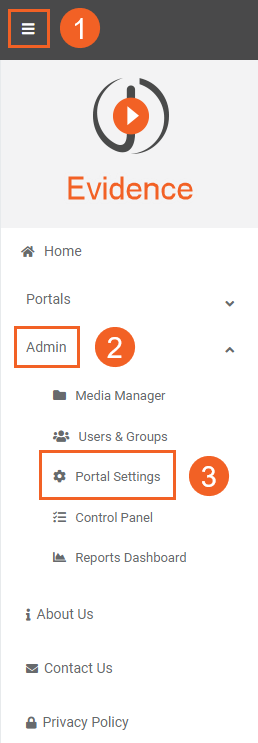
Use the Action Menu at the top left to go into Portal Settings.
-
Click the 'Admin' dropdown.
-
Click Portal Settings.
-
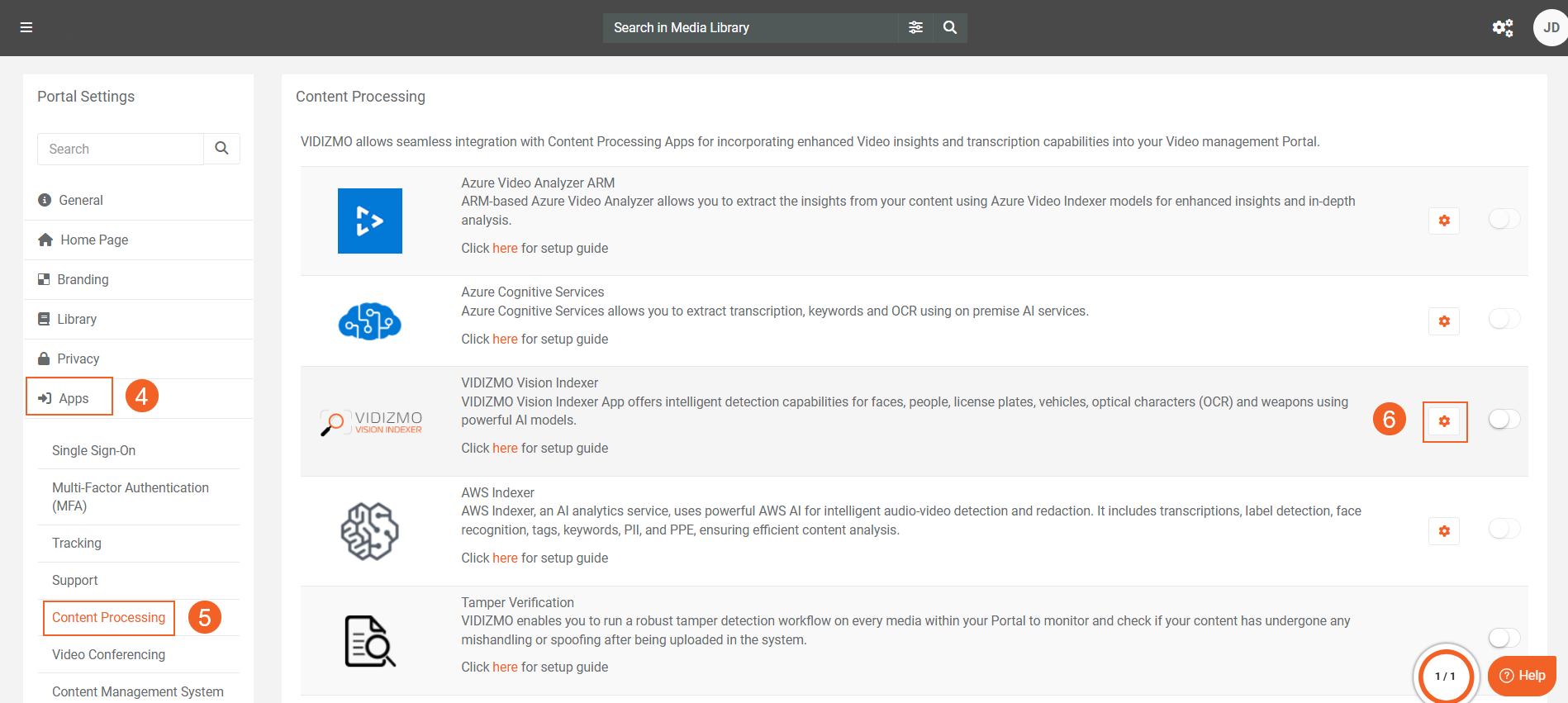
While in Portal Settings, click Apps.
-
Select Content Processing to view the available indexing applications.
-
Use the Gear Icon to enter the VIDIZMO Indexer App's settings.
-
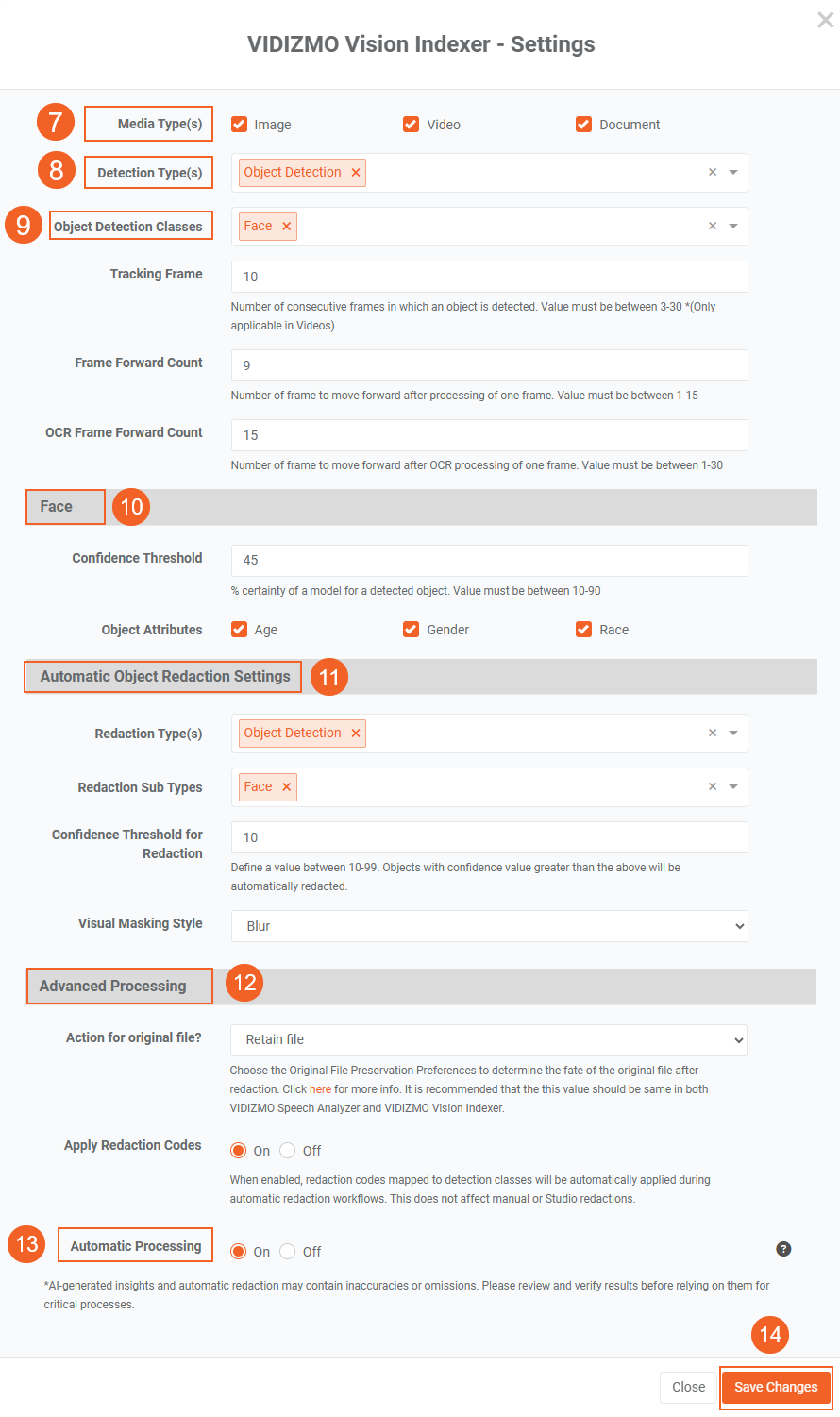
Select the Media Type. Face detection can be performed on all media types, including images, videos, and documents.
-
Add Object Detection under Detection Type(s).
-
Select Object Detection Classes Face, and configure the settings as needed.
You can adjust the following parameters:
- Tracking Frame: Defines the number of consecutive frames in which a face is detected. The value must be between 3 and 30. (Applicable to videos only.)
- Frame Forward Count: Specifies the number of frames to skip after processing a single frame. The value must be between 1 and 15.
- OCR Frame Forward Count: Specifies the number of frames to skip after OCR processing of a single frame. The value must be between 1 and 30.
- Select the Facial Attributes that VIDIZMO predicts when the content undergoes automatic processing.
- Confidence: The percentage of certainty the model has for a detected face. The value must be between 10 and 90.
- Object Attributes: The attributes that will be predicted for each detected face, such as age, gender, and race.
- Select Object Detection under Redaction Type(s). Add Face Detection under Redaction Sub Type(s) to enable face redaction.
-
Confidence Threshold for Redaction:: Specifies a value between 10 and 99. Objects with a confidence score higher than this threshold will be automatically redacted.
-
Visual Masking Style: Selects how the redacted area is displayed. Options include Solid, Blur, and Pixelate.
-
Select your preferred file preservation option to define what happens to the original file after redaction.
-
Enable Automatic Processing, toggle this setting from Off to On to automatically apply the configured settings to files uploaded to the portal.
When this option is Off, automatic processing is not initiated. You can start processing manually later, as described in a later section of this article.
- Click "Save Changes" to save configurations.
Please refer to the following documentation for additional details: Configuring VIDIZMO Indexer for Object Detection.
- Enable the VIDIZMO Indexer app.
Results:
When a file is uploaded to the portal, it is automatically processed if Automatic Processing is enabled in the VIDIZMO Indexer app.
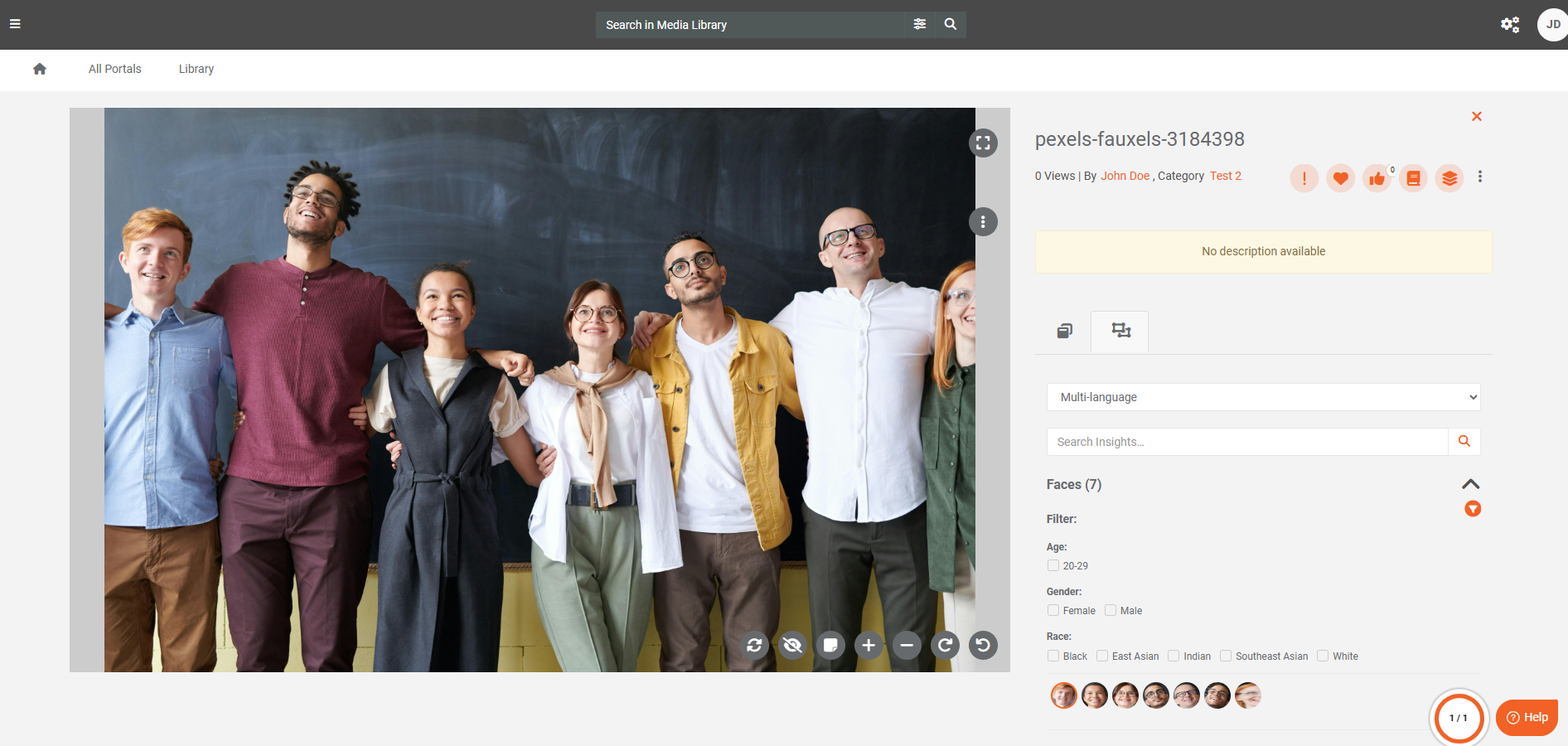
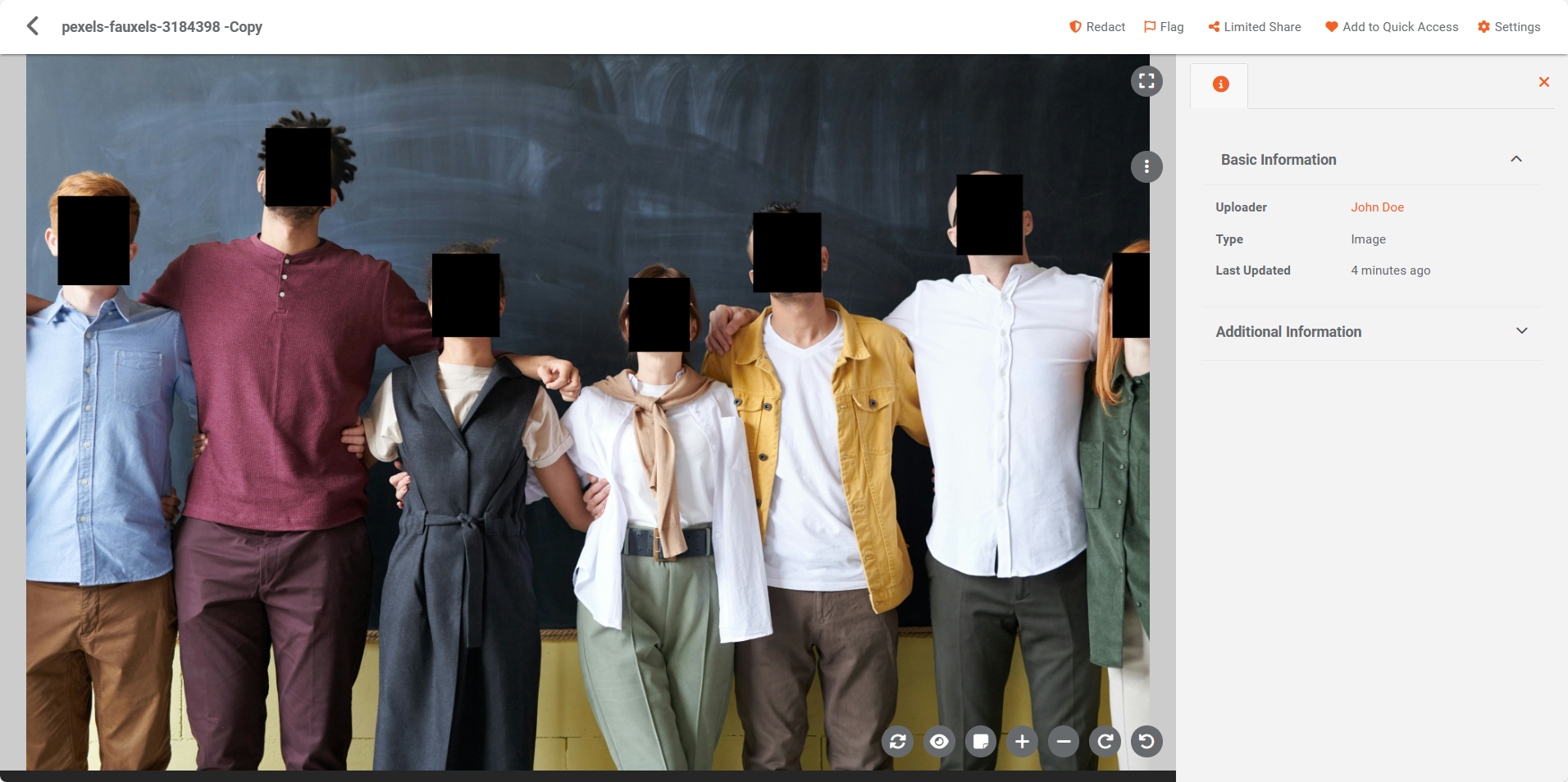
After processing, open the file on the Playback page. Under the Insights tab, you can view all detected faces. You can filter the detected faces by age, gender, or race.
If redaction was applied during automatic processing, a redacted version of the file will appear in the Library, depending on your original file handling settings.
Face Attribute Insights using On-Demand Processing
In addition to automated processing, face attribute insights can be derived from videos and images through on-demand AI processing. This functionality allows the generation of new AI insights for files that have already undergone specific detection activities.
Two methods are available for on-demand processing, the first involving utilizing the on-demand process model and the second generating on-demand AI insights via Custom Settings Upload.
On-demand processing using Process Modal
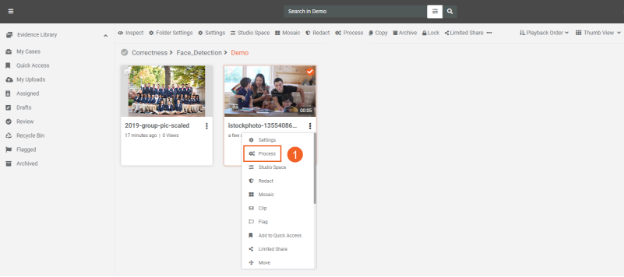
- Access the Process Modal for any image or video within your Portal's library by clicking on the Process option in its overflow menu. Alternatively, you can choose the file and select Process from the header menu.
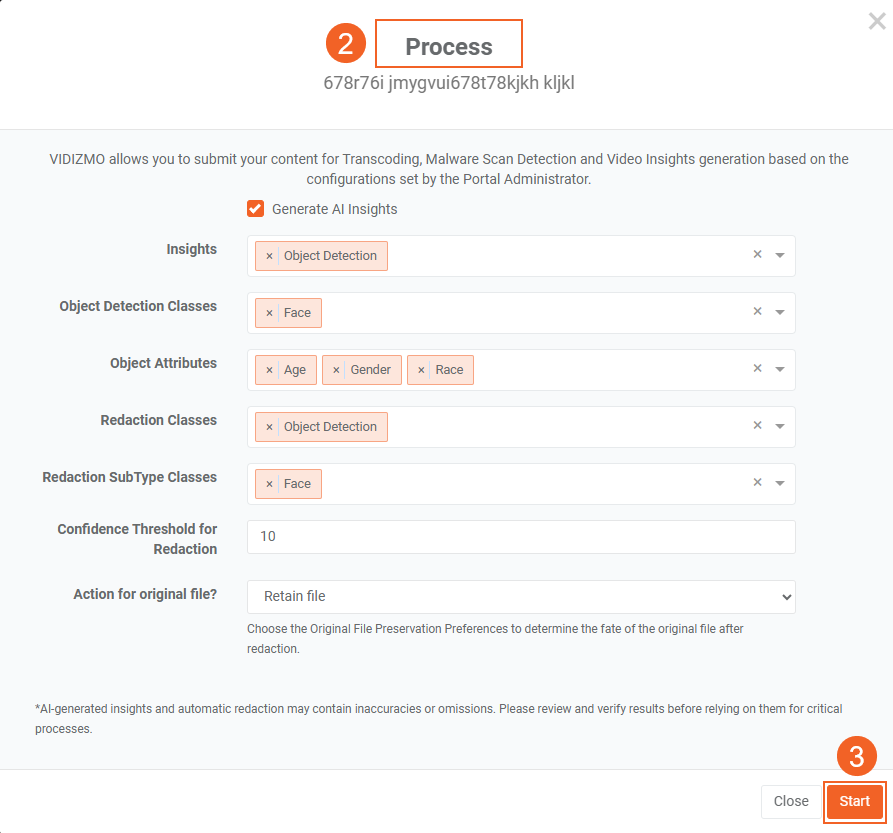
- Set up the Process Modal
- Choose Generate AI Insights
- Add "Object Detection" to the Insights field.
- Add "Face" to the Object Detection Classes.
- Add the attributes you want to detect in the "Object Attributes" field.
- In the Redaction Classes field, select the Object Detection Class to redact the identified objects from the content.
- In the Redaction Sub Type Classes field, select the Face Class to redact the identified faces from the content.
- Define the Confidence Threshold for Redaction to determine the minimum detection confidence level required before redaction is applied.
- Under Original File Preservation Preferences, select how you want the original file to be handled after redaction is complete.
- Click the "Start button" to begin the detection process.
On-demand processing using Custom Upload
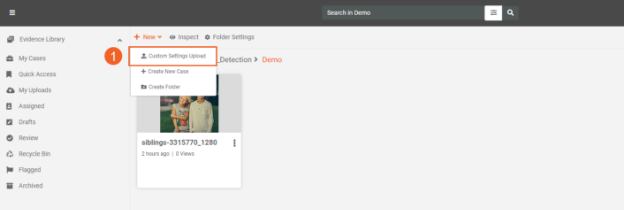
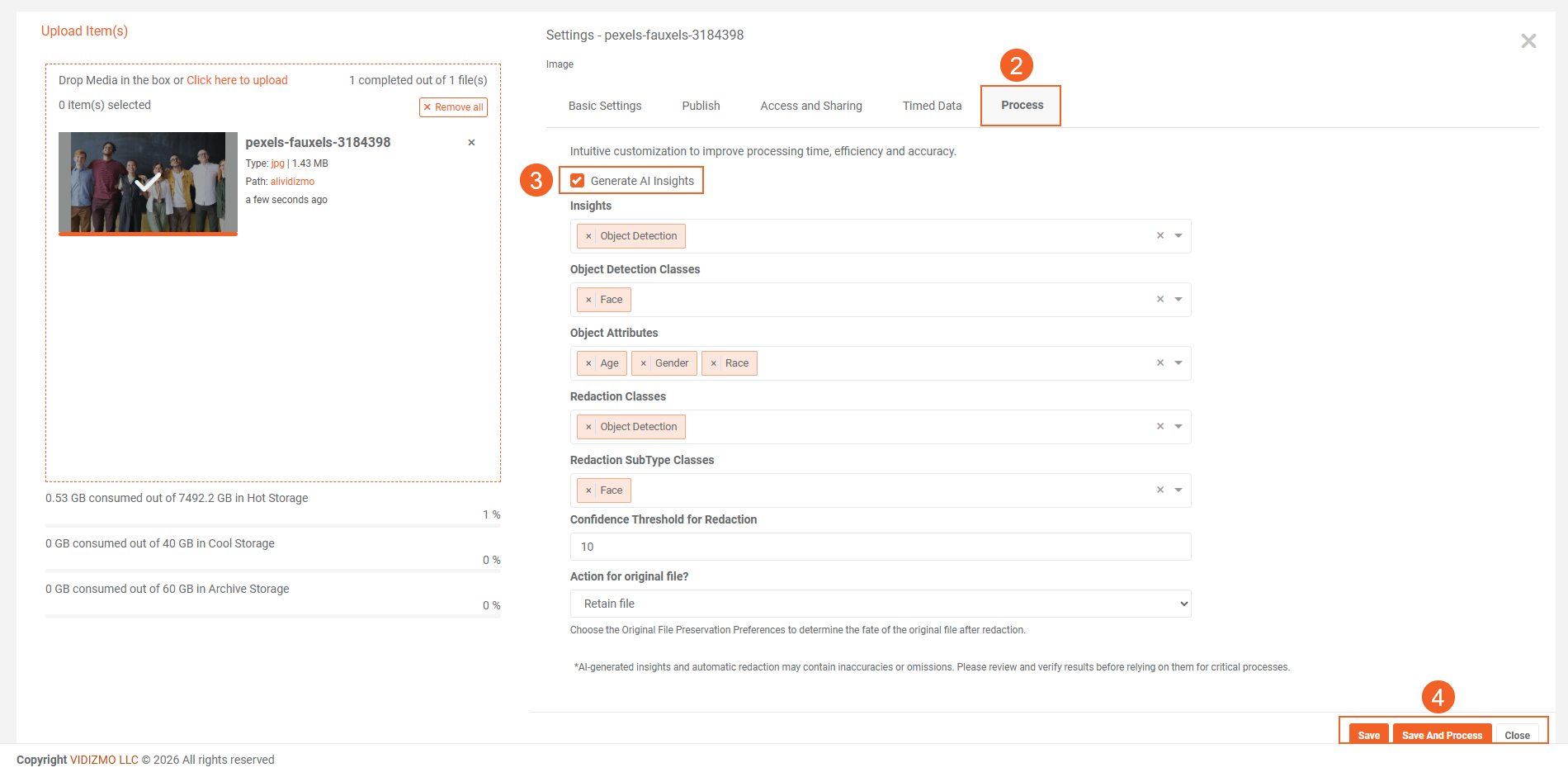
An alternative approach to generating on-demand AI insights is through Custom Settings during uploading. As a Manager+ user, you can activate this option in Upload Settings, accessible under Library in Portal Settings. This enables the Process tab to be active during the media file upload. For a step-by-step guide, visit to How to Custom Upload Media.
- Upload the file on the portal.
Note:
- For DEMS users, the Custom Settings Upload feature replaces the Upload Evidence option. This feature allows you to upload images or videos and generate on-demand AI insights.
- For EVCM users, the Process tab and Media Settings become available when Custom Settings Upload is enabled on the portal.
-
Once you have chosen a file for upload, navigate to the Process Tab and opt for "Generate AI Insights with Face Detection.
-
Subsequently, specify the attributes you intend to predict following the selection of Face Detection.
-
Save your settings and initiate the processing by clicking Save and Process. The detected person attributes can be viewed on the video player page as described earlier in this document section.
Up Next
To generate Face Attribute Insights through Studio Space, allowing you to perform various actions, including redaction and more. Refer to our documentation article titled "Utilizing Face Attributes to Apply Redaction in Studio Space" for comprehensive guidance on leveraging these features.