How to Enable and View Video Insights
VIDIZMO offers AI-powered visual and audio insights for enhanced analysis and search optimization. Video Insights extract metadata such as faces, labels, keywords, topics, brands, sentiments, and speakers from your media content.
The insights available depend on which indexer application is configured in your portal. VIDIZMO supports multiple indexer applications including Azure Video Indexer ARM, VIDIZMO Indexer, Azure Cognitive Services, and AWS Video Indexer. Each indexer provides different insight capabilities.
Prerequisites
- An indexer application must be configured in your portal.
- You must belong to a group with permission to upload and publish media.
Enable Video Insights for Media
To display insights on the Playback Page, enable the Display All Insights option when uploading or editing media.
When Uploading Media
- Upload your media file.
- In Media Settings, select the Publish tab.
- Select the Display All Insights checkbox.
- Select Save or Save and Close.
For Existing Media
- In Media Manager, locate the media file.
- Select the overflow menu (⋮) and select Settings.
- Select the Publish tab.
- Select the Display All Insights checkbox.
- Select Save or Save and Close.
NOTE: The media must be processed by the configured indexer before insights are available. Processing time varies based on media length and indexer configuration.
View Video Insights
After insights are enabled and the media is processed, you can view them on the Playback Page.
- Navigate to the media using Search or the Media Library.
- Select the media to open the Playback Page.
- In the right panel, select the In this Video tab.
The Insights section displays category pills showing the available insight types and their counts.
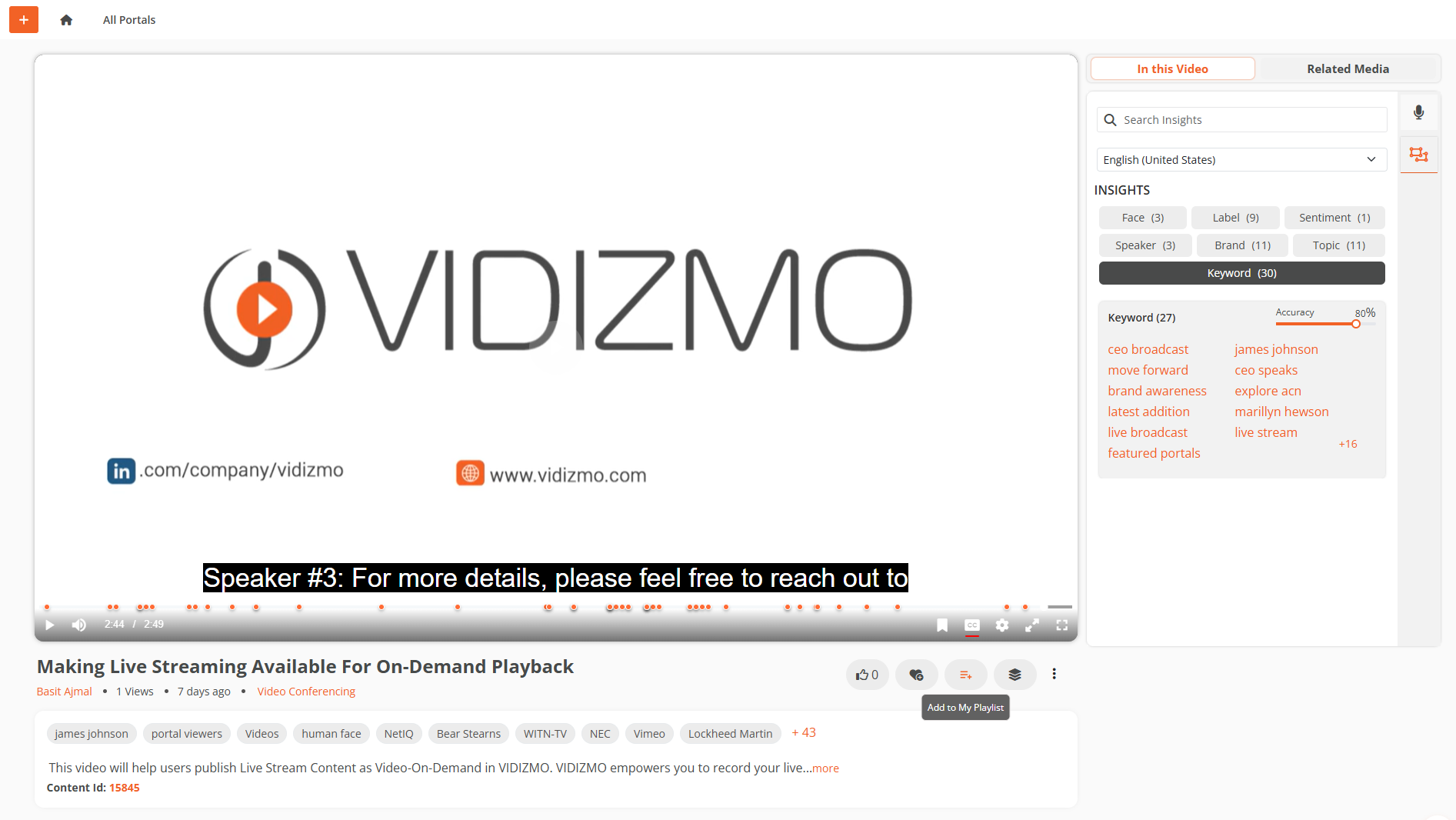
Insights Panel Features
The Insights panel provides the following features:
- Search Insights: Enter a search term to find specific insights within the media. Selecting a result navigates to that point in the video.
- Language: Select the language for displaying insights from the dropdown menu.
- Insight Categories: Select a category pill to view insights of that type. The number on each pill indicates how many insights were detected.
- Accuracy Slider: Adjust the accuracy threshold to filter insights by confidence level.
Available Insight Types
The following insight types may be available depending on your configured indexer:
- Face: Detected faces in the video. Select a face to view appearance ratio and navigate to occurrences on the timeline.
- Label: Objects and scenes identified in the video content.
- Sentiment: Emotional analysis of the content categorized as Positive, Neutral, or Negative.
- Speaker: Identified speakers in audio content.
- Brand: Known brands detected via visual text or speech processing.
- Topic: Subjects inferred from the context and conversation flow.
- Keyword: Key terms extracted from audio and video analysis.
- OCR: Text detected in video frames.
- Person Detection: People detected in video content (distinct from face recognition).
NOTE: Not all insight types are available with every indexer. The available insights depend on your portal's indexer configuration and the capabilities enabled by your Portal Manager.
Navigate Using Insights
When you select an insight item:
- The timeline below the video highlights where that insight appears.
- Select a point on the timeline to navigate to that moment in the video.
- The video seeks to the selected timestamp automatically.
Related Articles
- Understanding Video Insights
- How to Configure Video Insights in Your Portal
- Understanding Playback Page