Restrict Features from a User Profile
In VIDIZMO, you can restrict specific features for users by editing their profile details within the portal. This allows a user to remain part of a group with limited access to certain features. Customizing feature access enables you to tailor each user's experience within the portal.
Prerequisites
- You must be a member of the User Manager group or have User Management permissions enabled.
Restrict Features
-
Select the hamburger menu (☰), then go to Admin > Users & Groups.
-
Locate the user whose features you want to restrict.
-
Select the overflow menu (three dots) next to the user, then select Edit User.
-
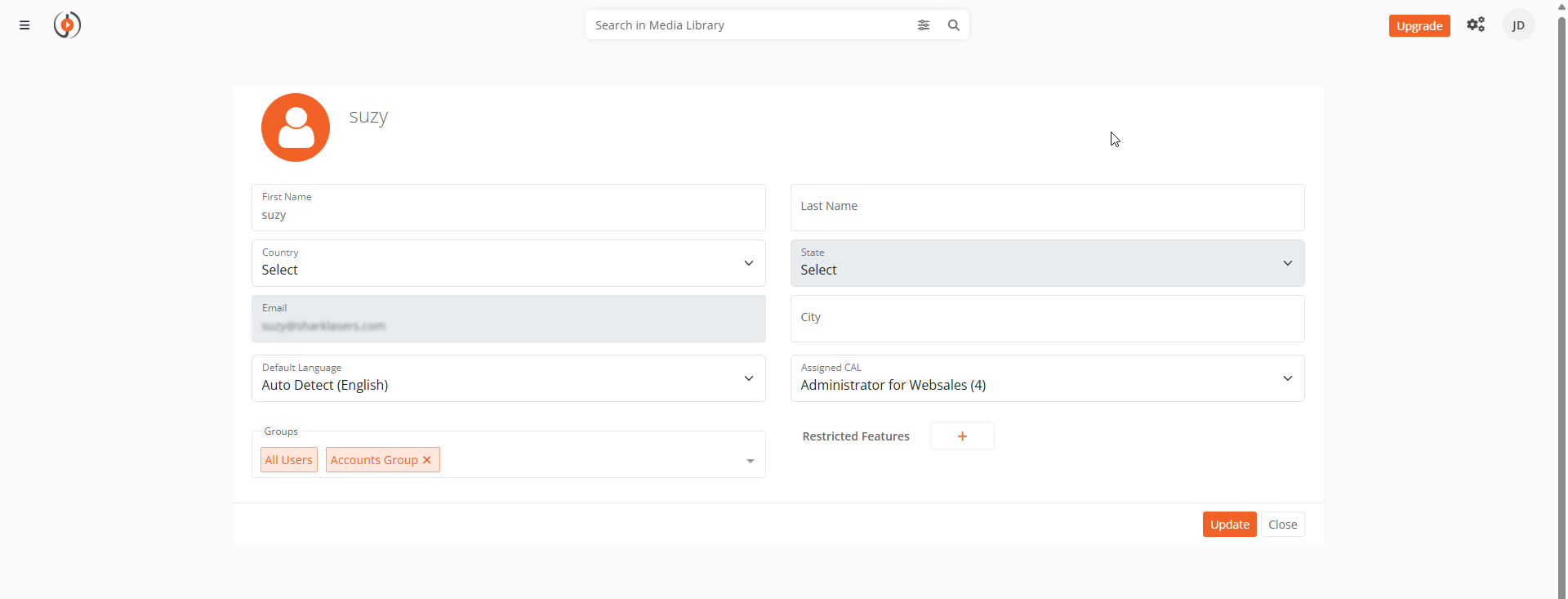
On the user's profile page, select Add next to Restrict Feature.
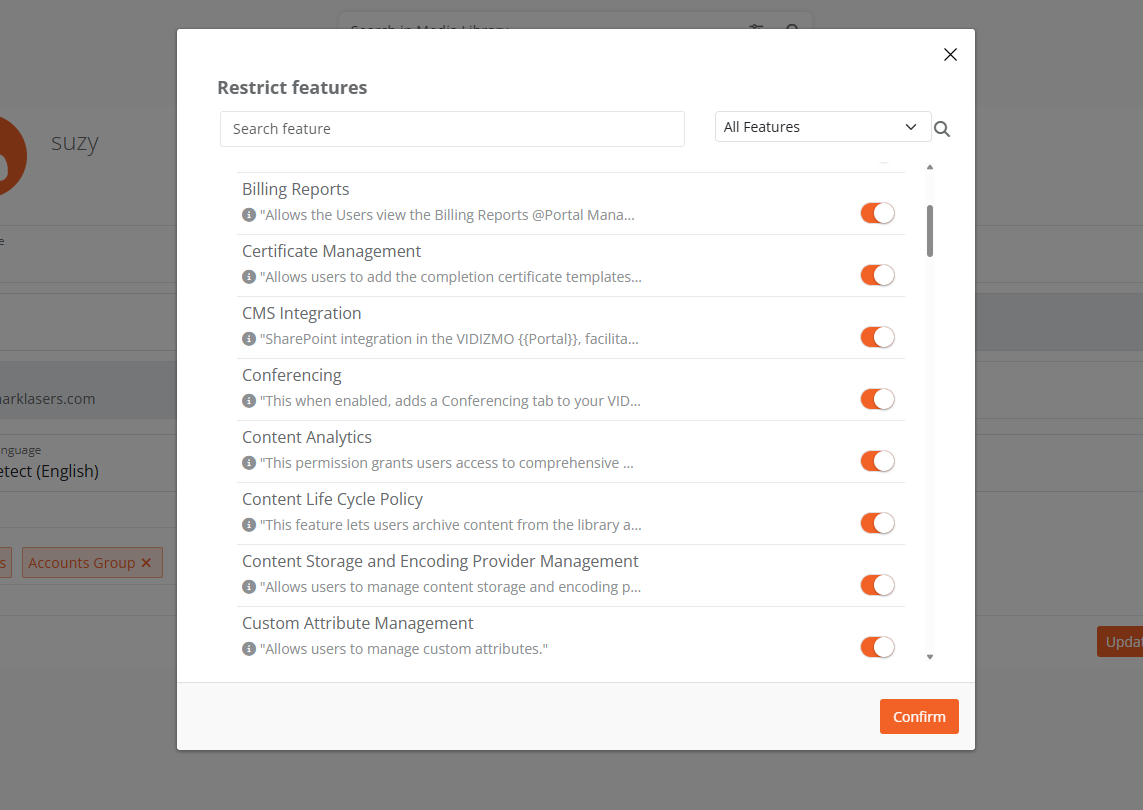
The Restrict Feature screen displays the features assigned from the CAL.
- Use the toggle buttons to enable or disable feature access for the user.
- Select Update to save the feature restrictions.
The restricted features appear next to the Restrict Feature field.
- Select Update on the profile screen to save your changes.
The user's feature access is now restricted.
Remove Restrictions
To remove restrictions, follow the same process and re-enable the toggle button for each feature you want to restore.