Manage Profile
In VIDIZMO, a user profile contains basic information such as Name, Profile Picture, State, Email address, and other details associated with the user. It also includes information about the groups the user is part of.
When you log into your VIDIZMO portal, your profile is easy to access and update, displaying your personal information. Only logged-in users can view their profiles, including their information, activity logs, and login history. It is important to note that any changes a user makes through the Manage Profile section apply only to that user. These changes will be reflected in the user portal.
Users who are part of a user manager group can manage other users' profiles. They can configure the information displayed, determine which fields are editable, assign CALs, manage Add-Ons, and restrict features for other users. You can also edit the User Profile of all users from the Users & Groups tab.
Refer to article How to Edit User Details for managing other users.
Prerequisites
- All users can view their user profile but only edit profile fields associated with their basic information.
- Only users with access rights to user management feature can manage profile of other users in the portal and edit details such as Assigned CAL and Groups.
View Profile
- From the Portal's Homepage, select the User icon in the top right corner.
- In the panel that opens, select the Manage Profile icon (gear/settings icon).
The Manage Profile page displays your profile information.
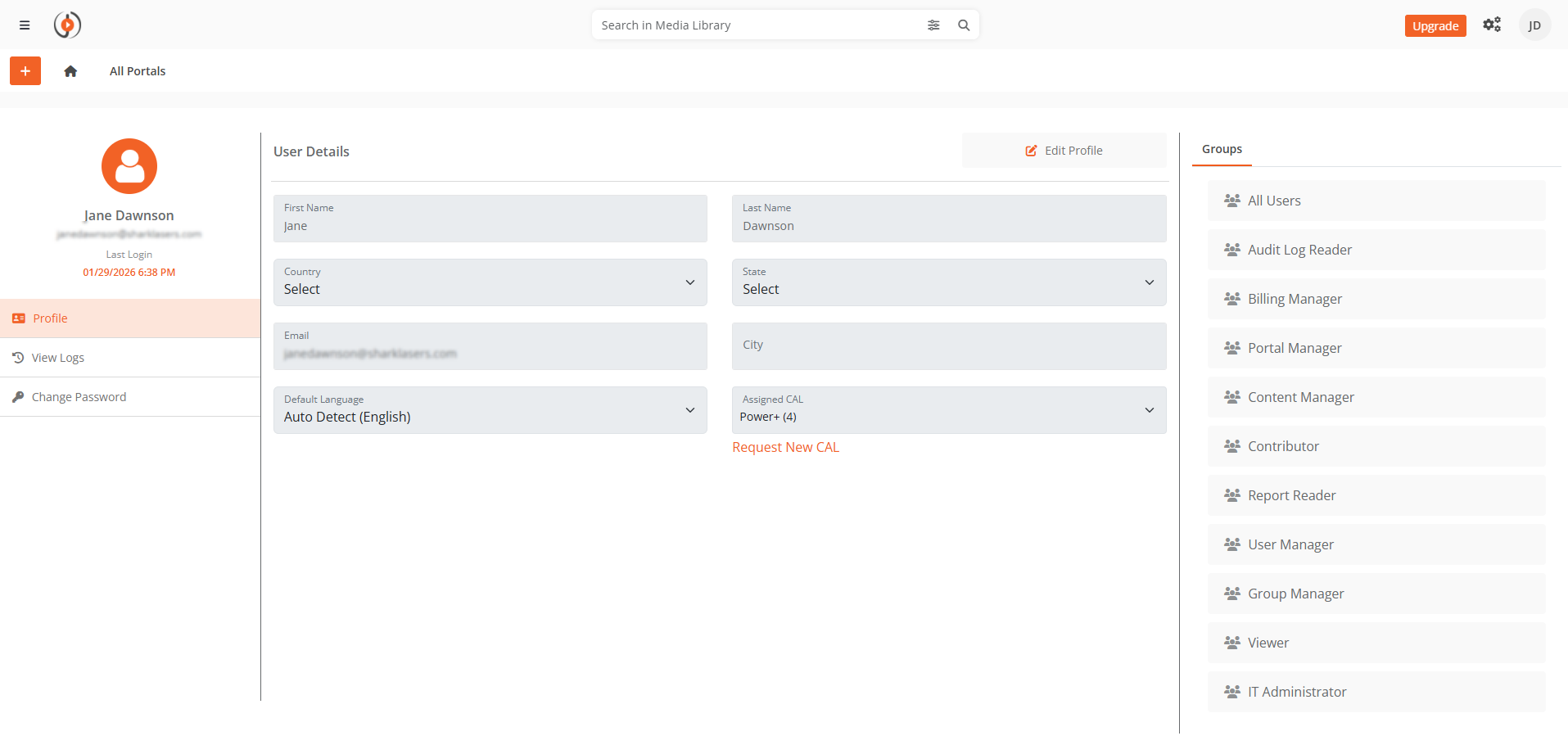
Edit Profile
- From the Portal's Homepage, select the User icon in the top right corner.
- In the panel that opens, select the Manage Profile icon (gear/settings icon).
- On the Manage Profile page, select Edit Profile.
The following fields are available for editing:
- First Name
- Last Name
- Country
- State
- City
- Default Language
Additional Fields for User Managers
If you are part of a security group with user management access, additional fields are available for editing:
- Groups: Add or remove groups
- Assigned CAL: Change assigned CAL
- Restrict Feature: Limits access to specific features for the user (visible only if you are not the account holder or a member of all default groups)
These additional fields are only accessible if you have the necessary permissions.
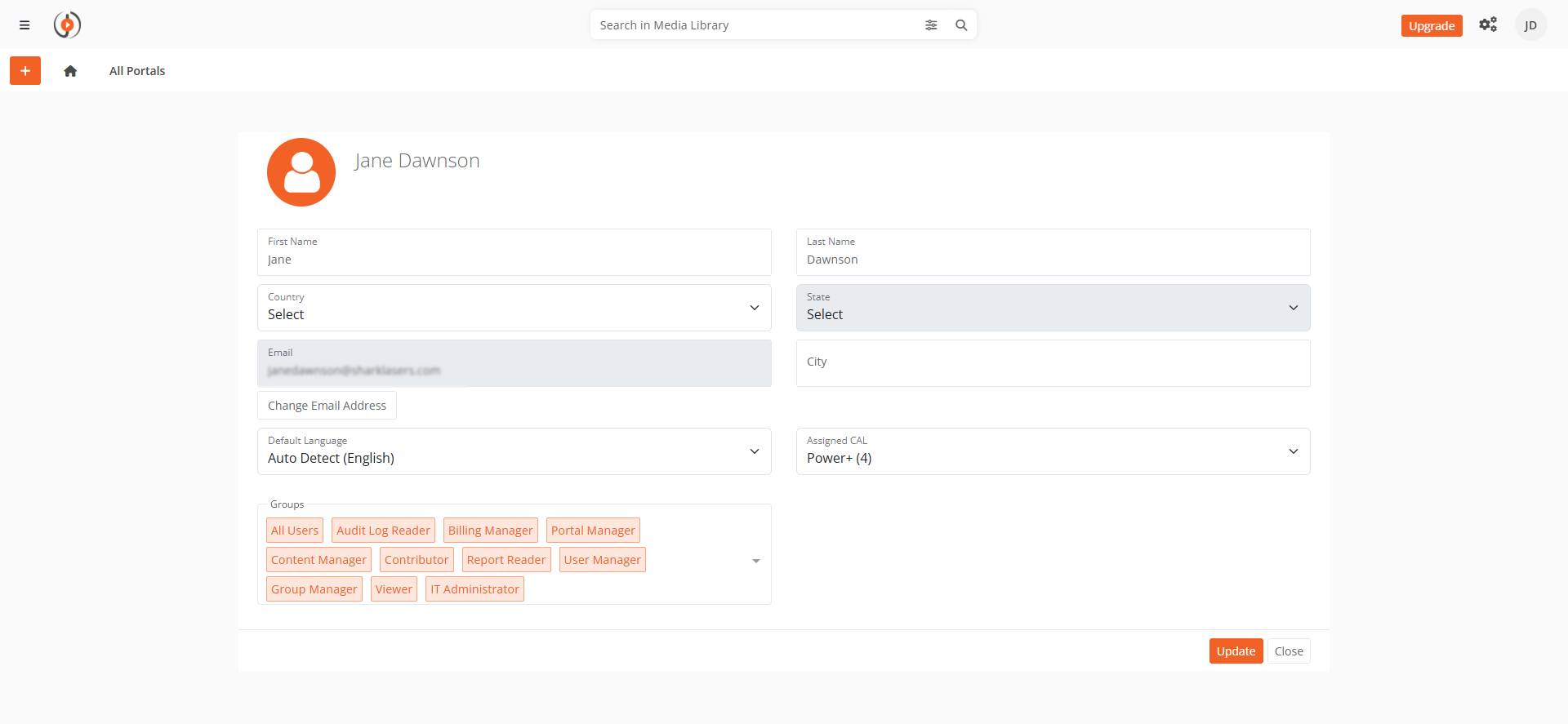
- Select Update Profile to save your changes.
Your profile information is updated successfully.