Add a User Profile Picture
Add a profile picture to personalize your account and enhance your visibility across the portal. Your profile picture appears on comments, user listings, and other areas where your identity is displayed.
Add or Change Your Profile Picture
- From the Portal's Homepage, select the User icon in the top right corner.
- In the panel that opens, select the Manage Profile icon (gear/settings icon).
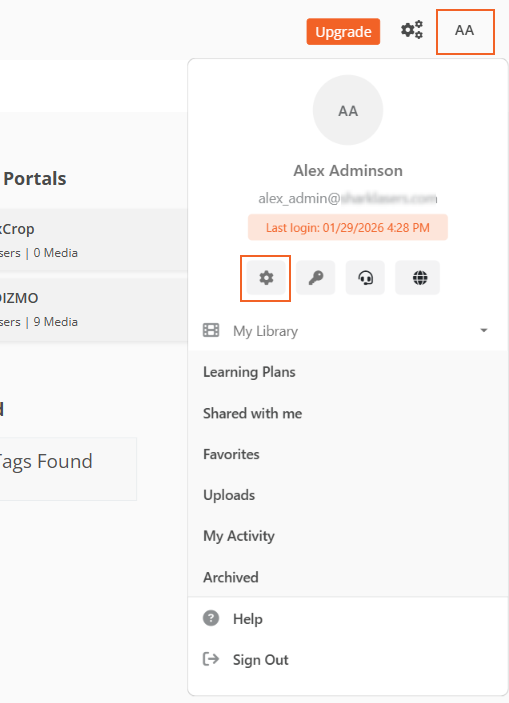
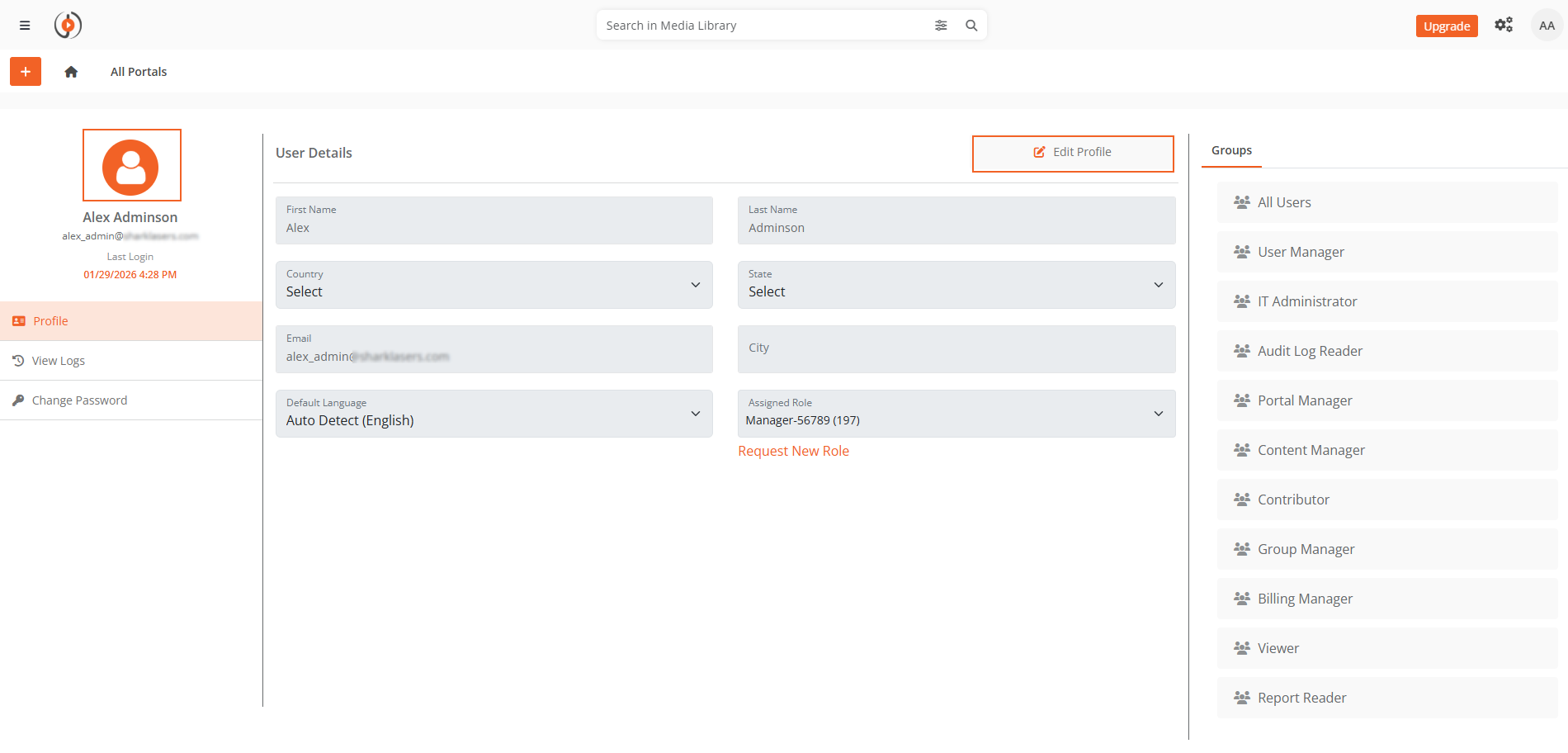
- On the Manage Profile page, select Edit Profile.
- Select the Profile icon (your current picture or placeholder).
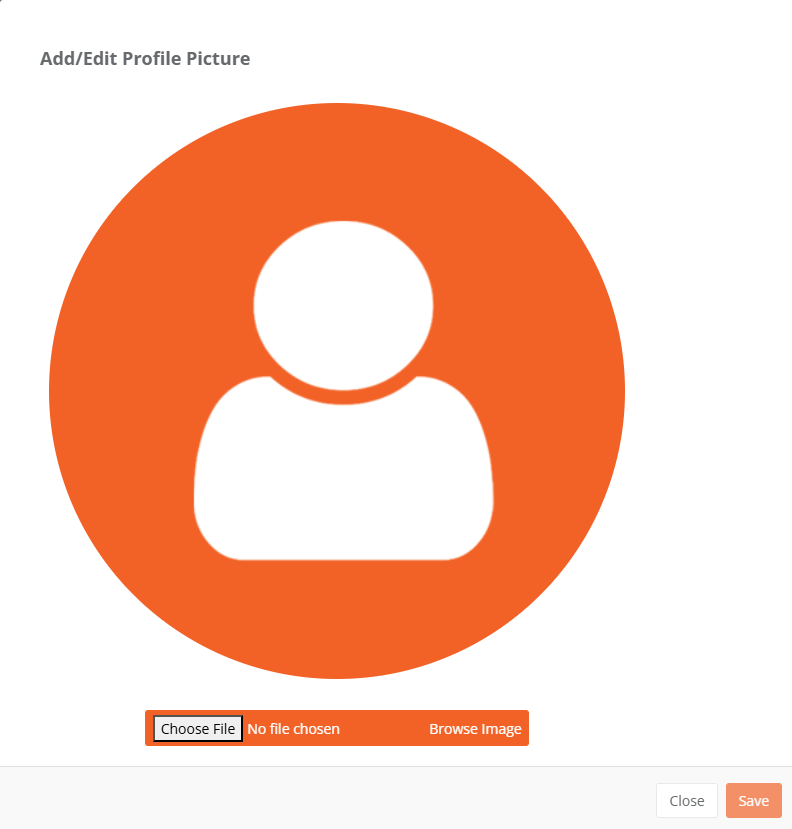
- In the Add/Edit Profile Picture dialog:
- Select Browse Image or drag and drop a file to upload.
- Adjust the picture as needed.
- Select Save to upload the picture.
- Select Update to save your profile changes.
Your profile picture is now updated.
NOTE: Supported image formats are PNG and JPEG.
Where Your Profile Picture Appears
Once updated, your profile picture displays in:
- The u ser icon in the top right corner of the portal
- Comments you post on media
- User listings and search results