How to Add Users and Groups to a Portal from Account
VIDIZMO offers multi-tenancy capabilities, providing separate portals with complete administrative control, including user management. Portal managers can add users and groups from the main account to their portals, enabling efficient user management across the organization.
For example, all users can be added to the company's main account and then moved to department portals (Human Resources, Finance, etc.) selectively.
By default, users and groups do not automatically move into new portals. You must add them using the following steps.
Prerequisites
- Available to users assigned to the Portal Manager or User Manager group, or with User Management permissions enabled.
Add Users and Groups from the Account
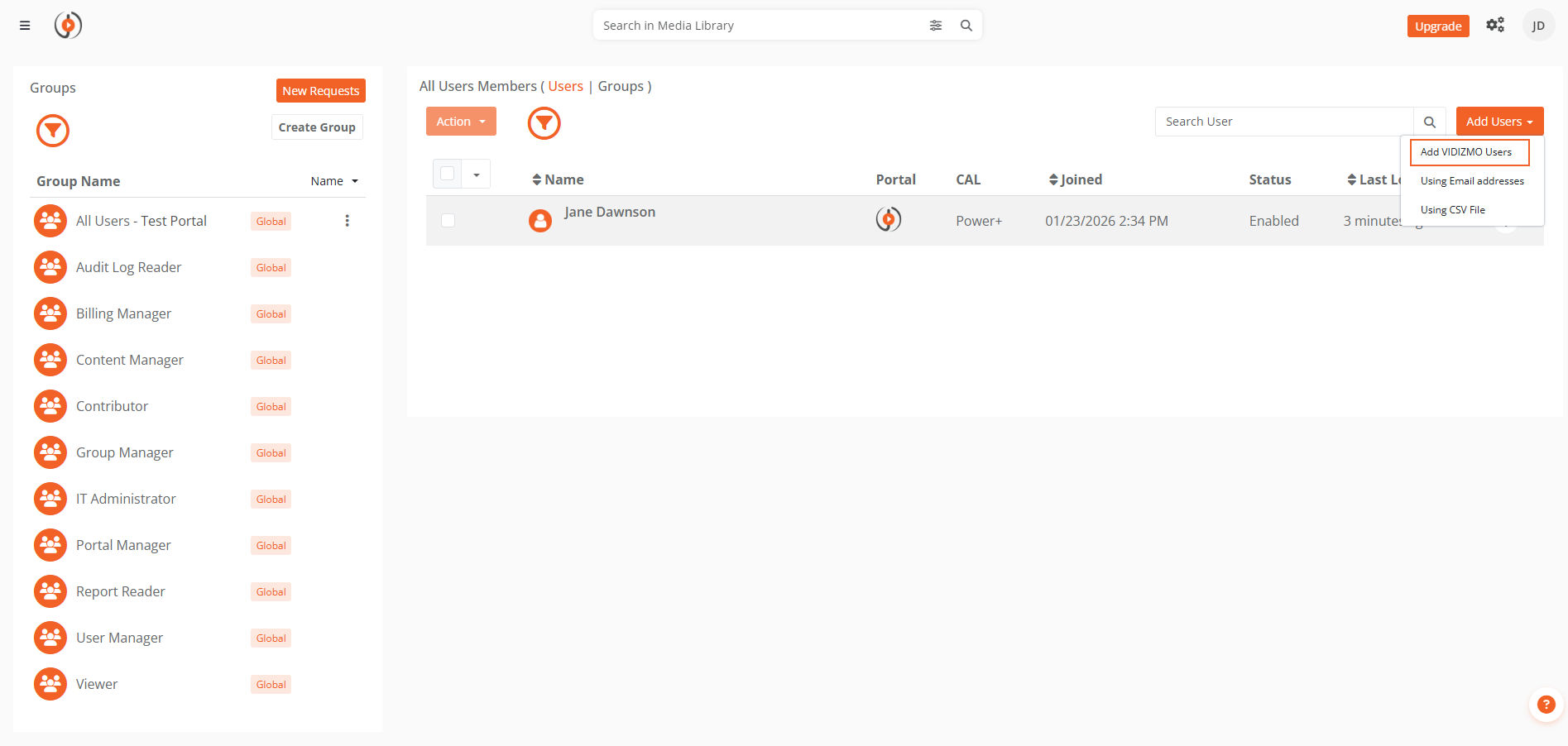
- Select the hamburger menu (☰), then go to Admin > Users & Groups.
- Select the Add Users dropdown, then select your main account name.
- On the Users tab, select the checkboxes for the users you want to add to your portal.
- Select the Groups tab, then select the checkboxes for the groups you want to add.
- Select Next.
- Optionally, select Send notification to selected Users/Groups to notify users.
- Select the default CAL (Client Access License) for the users being added.
- Select Save Changes.
NOTE: When copying a nested group from the account to a portal, VIDIZMO performs a deep copy that includes all members of the group and its nested members. If a user or group already exists in the portal, their existing details and roles are preserved.