Interactive Cards in videos
Interactive cards allow you to embed clickable links directly within video playback. These cards appear as overlay bubbles at specific timestamps and positions, enabling viewers to navigate to external content without interrupting the video experience.
Overview
You can add cards to videos that display custom text to clearly communicate where the link leads. When viewers click a card during playback, the destination opens in a new browser tab.
Cards are configured in VIDIZMO Studio Space, where you define:
- When and where the card appears
- The display text shown on the card
- The destination URL
Prerequisites
To configure interactive cards, you must:
-
Belong to a group or have a CAL with Studio Space access enabled.
-
Have the Annotations and Cards feature permission, which allows creation of both cards and annotations for playback.
Note: Viewing existing cards or annotations does not require any feature permission.
Access the Studio Space
- From the content’s overflow menu, select Studio Space to open the content in Studio Space.
Note: You can also open Studio Space by selecting the Studio Space button available in the header or on the playback page.
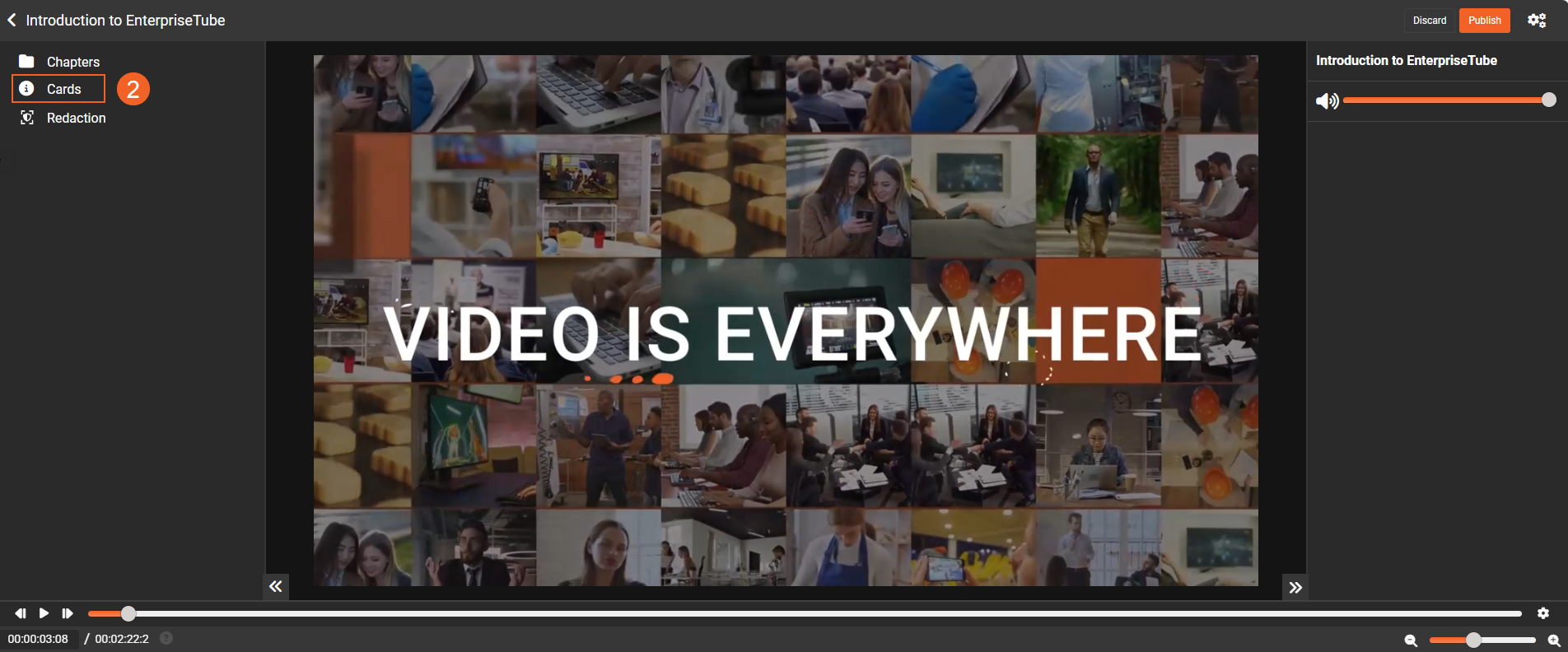
- In Studio Space, select Cards from the left pane to open the card configuration panel.
Configure a card
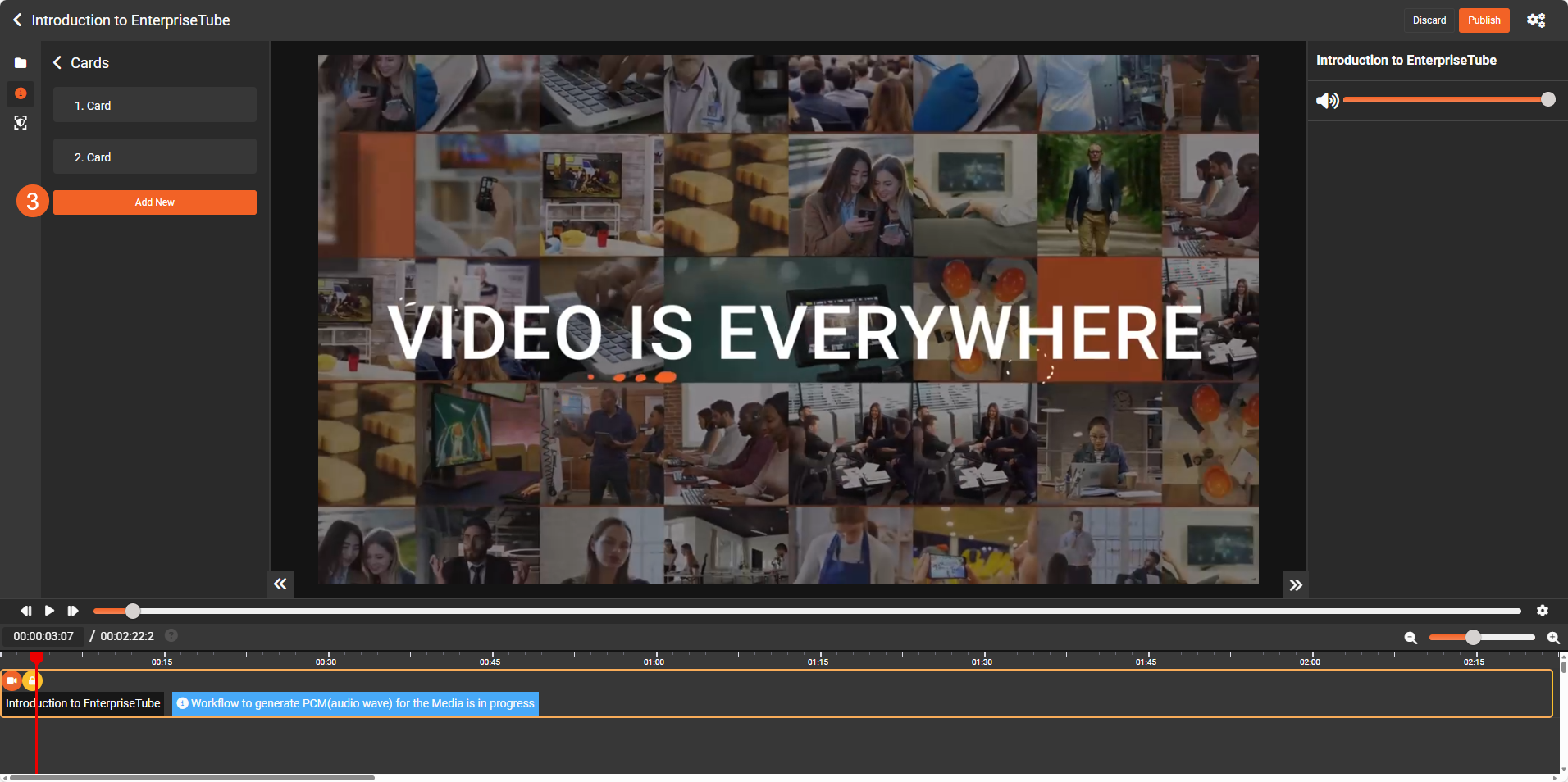
- Select Add New to create a new card overlay.
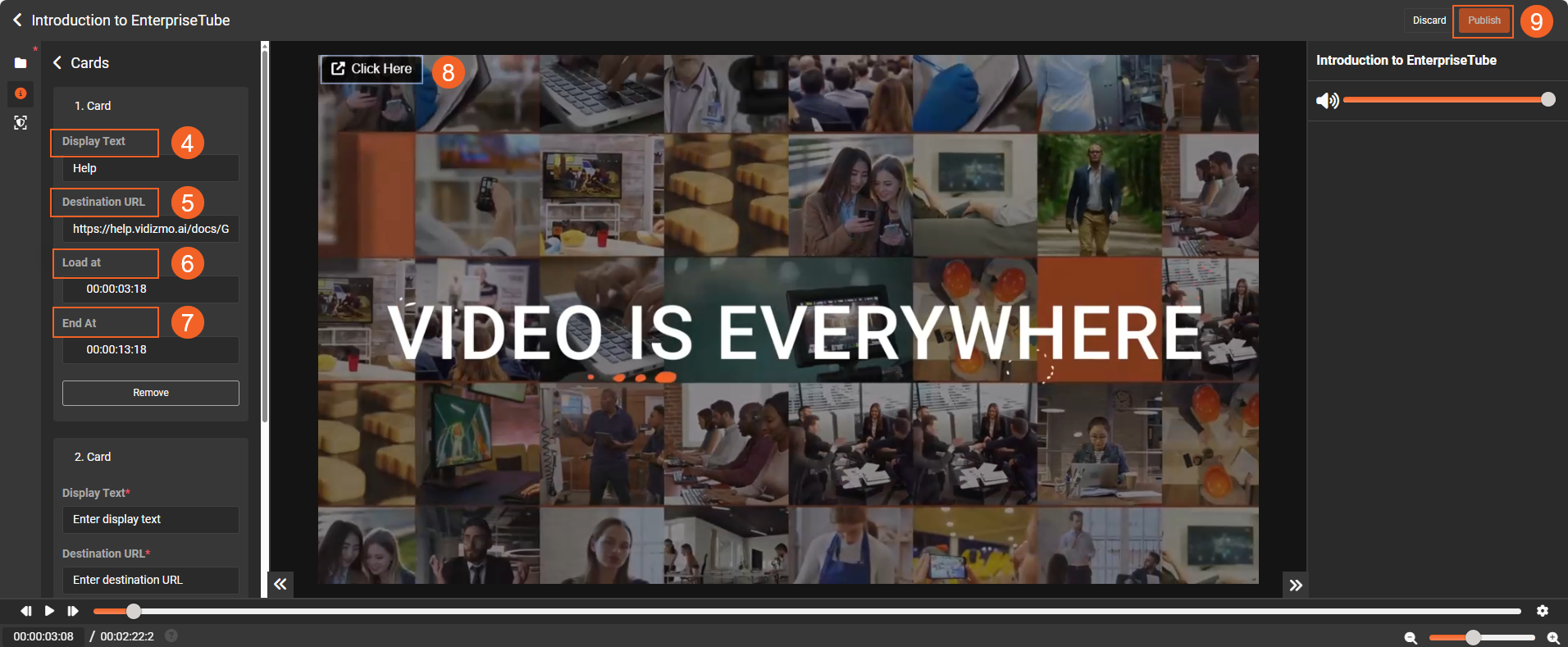
- Enter the Display Text that appears on the card. This text helps viewers understand where the link leads.
- Enter the Destination URL where the card navigates when clicked.
- Set the Load at to define when the card appears during playback.
- Set the End Time to define when the card disappears.
- Adjust the Position to place the card at the desired location on the video player.
- Select Publish to apply the card to your video.
Behavior during playback
When viewers watch the video:
- The card appears at the configured start time
- The display text is visible on the card
- Clicking the card opens the destination URL in a new browser tab
- The video continues playing while the new tab opens
- The card disappears at the configured end time
In Studio Space, the display text field is blank when you create a card, and the card shows "Click Here" on the player's canvas. If no display text is provided, the URL is displayed by default on the canvas and during playback.
Display text guidelines
Follow these guidelines when defining display text for a card:
-
Use clear, descriptive text that helps users understand where the link leads (for example, View product details or Read the full article).
-
Keep the text short so it displays clearly on the card.
-
Display text supports Unicode. Emojis and special characters are also acceptable.
Limitations
Be aware of the following limitations when using cards:
-
Maximum length: Display text supports up to 253 characters.
-
Single URL per card: Each card can point to only one destination.
-
Navigation behavior: Cards always open in a new browser tab. Opening links within the video player is not supported.