How to Brand Visitor Verification Policy
VIDIZMO allows users to brand their visitor verification modal to establish a distinguishable identity. Through branding, you can set font-family, font-size, font-color, modal alignment, text-alignment, and more for the visitor verification policy to match your organization's brand identity. To learn more about VIDIZMO branding, see Understanding Branding Settings.
Prerequisites
- Users must belong to a group with the Portal Management permission enabled.
- Only users familiar with HTML and CSS/SASS can style UI elements using custom CSS.
Branding Using SASS Template
VIDIZMO has defined a basic template for branding CSS using the SASS framework, making it easier for users to modify values and customize the design of the application. When the SASS code is processed, it takes the variables defined and outputs normal CSS with the variable values placed in the CSS.
For more information about SASS, see sass-lang.com.
View the basic SASS template at SassMeister.
Understanding SASS Variables
The following VIDIZMO-defined SASS variables are used in the template for branding visitor verification:
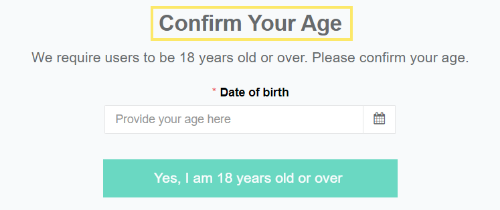
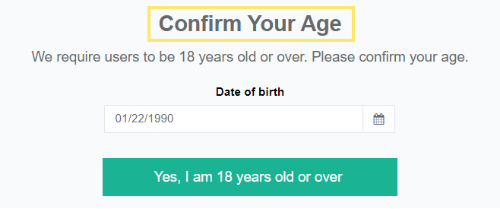
- $modal-title-alignment - Defines title alignment. Values: left, right, center, etc. Default: center.
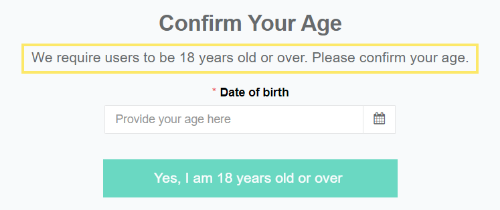
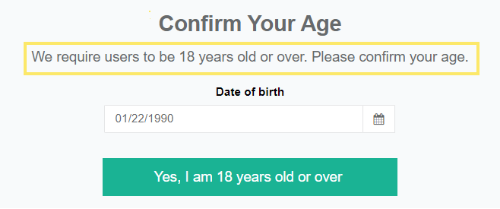
- $modal-description-alignment - Defines description alignment. Values: left, right, center, etc. Default: center.
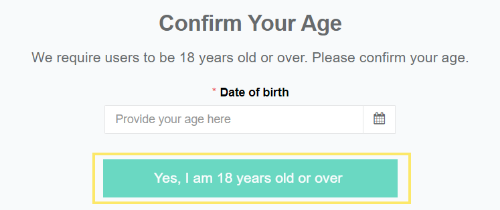
- $modal-button-alignment - Defines button alignment. Values: left, right, center, etc. Default: center.
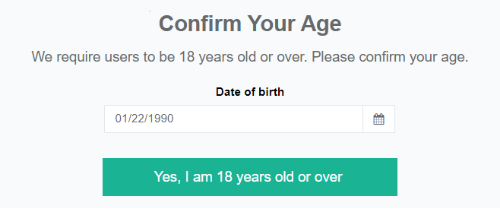
- $modal-text-color - Defines modal text color. Default: #000000.
- $title-font-size - Defines title font size. Default: 38px.
- $description-font-size - Defines description font size. Default: 24px.
- $modal-font-family - Defines the modal font family. Default: 'open sans'.
Apply Custom CSS
- Open the SASS template and modify the variables as needed.
- Copy the compiled CSS code from the right panel.
- In VIDIZMO, select the Navigation Menu.
- Go to Admin > Portal Settings.
- Expand the Branding section.
- Select Custom CSS.
- Paste the compiled CSS code into the text box.
- Select Update.
The branding is applied to the visitor verification modal across the portal.
Read Next
- Understanding Branding Settings
- Understanding Customized Branding in VIDIZMO
- Understanding Customized Branding for Player