How to Create Zoom Server-to-Server OAuth App in Zoom Marketplace
Using a Server-to-Server OAuth app, you can securely connect with Zoom APIs and acquire an access token for the account owner without requiring user interaction. This is distinct from the regular OAuth app, which necessitates user authentication.
Prerequisites
- A Zoom Developer Account. If you don't already have one, create a developer account on the Zoom Developer Portal.
Sign In to Zoom Marketplace
- Go to the Zoom App Marketplace.
- Select Sign In.
- Enter your email and password, then select Sign In.
Create the Server-to-Server OAuth App
- After signing in, select the Develop dropdown in the top-right corner.
- Select Build App.
- On the "Choose your app type" page, locate Server-to-Server OAuth.
- Select Create under the Server-to-Server OAuth option.
- Enter a name for the app (e.g.,
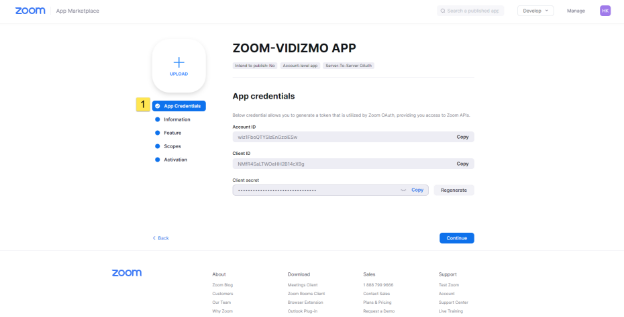
ZOOM-VIDIZMO APP) and select Create.
Configure App Credentials
- On the App Credentials tab, view your Account ID, Client ID, and Client Secret. Copy these values — they are required to configure Zoom Server-to-Server OAuth in VIDIZMO.
- Select Continue.
Add App Information
- On the Information tab, enter the required fields:
- App Name and Short Description.
- Company Name.
- Developer Name and Email Address (required for activation).
- Select Continue.
Add Required Scopes
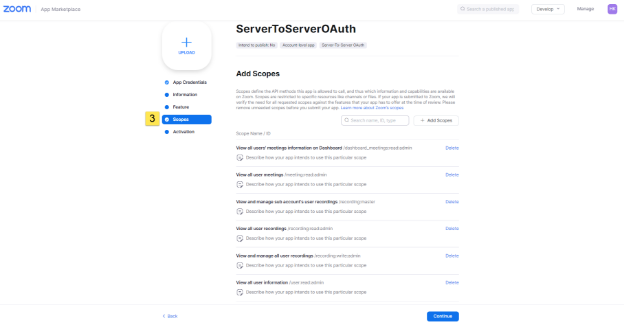
- On the Scopes tab, select Add Scopes and add the following minimum scopes required for VIDIZMO content ingestion:
- Dashboard
dashboard_meetings:read:admin— View all users' meetings information on Dashboard. - Meeting
meeting:read:admin— View all user meetings. - Recording
recording:master— View and manage sub-account's user recordings. - Recording
recording:read:admin— View all user recordings. - Recording
recording:write:admin— View and manage all user recordings. - User
user:read:admin— View all user information.
- Dashboard
- Select Continue.
You can learn more about scopes and their details here.
Activate the App
- On the Activation tab, verify that the app is activated on the account.
Your app is now ready. You can configure Zoom Server-to-Server OAuth App in VIDIZMO to ingest your Zoom content.
Read Next
- How to Configure Zoom Server-to-Server OAuth App in VIDIZMO
- Understanding Zoom Server-to-Server OAuth App Integration in VIDIZMO