How to Configure Freshdesk Support App in Portal
A ticketing support system allows IT, support teams, to be organized, focused, efficient, and effective. This directly impacts costs and revenues, customer retention, and public brand image. Ultimately, ticketing support systems are a means to support and help you deal with any issues/incidents in your organization, managing the incidents from the moment they're captured through to their resolution.
Freshdesk: Freshdesk is a cloud-based customer support and helpdesk solution. It offers a comprehensive set of features and tools to help businesses support all their customers' needs. If you are using VIDIZMO and want to configure Freshdesk Ticketing Support with your portal, then you can follow these simple steps.
Prerequisites
- Ensure that you belong to a group where the app permission is enabled to access this feature.
- You need to have a Freshdesk account.
If you want to know more about other applications configuration with VIDIZMO then see Understanding VIDIZMO Integrated Apps.
Freshdesk Configurations
For integrating VIDIZMO to the Freshdesk Support app, you will need the below-mentioned information.
- API Key
- Submit ticket widget URL
- Shared Secret Key
- Support URL
The steps for getting each piece of information are given below:
-
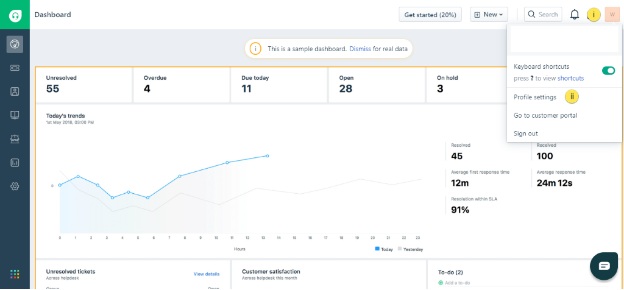
Login to your Freshdesk account to get the API Key. This API key will help you in VIDIZMO and Freshdesk integration.
- Select your account profile to expand the account options section.
- Select Profile Settings to go to the Profile Settings page.
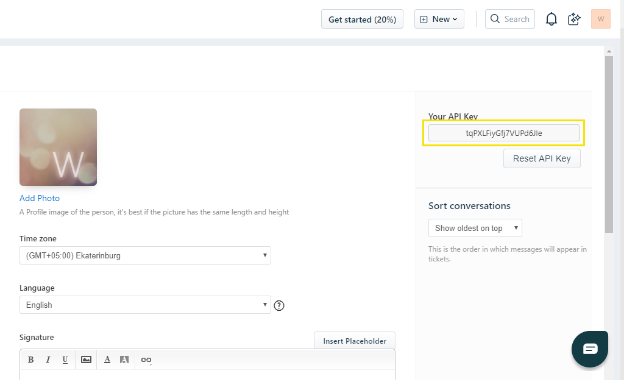
- Copy the API Key. Keep this key with you somewhere, we will be using it in the VIDIZMO setup part of the article.
-
To get the Submit ticket widget URL:
(This URL will help you get your Freshdesk's Feedback Form in VIDIZMO, so your customers can launch any support related ticket directly from your Portal).
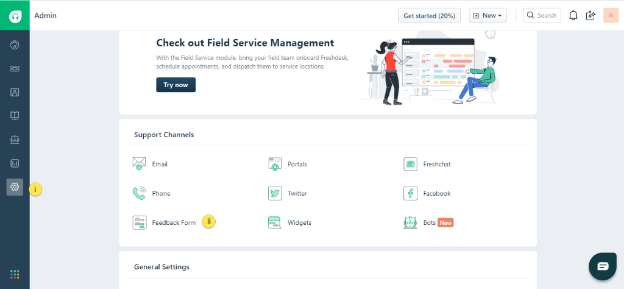
- Navigate to Admin.
- Select Feedback Form available in Support Channels and open it.
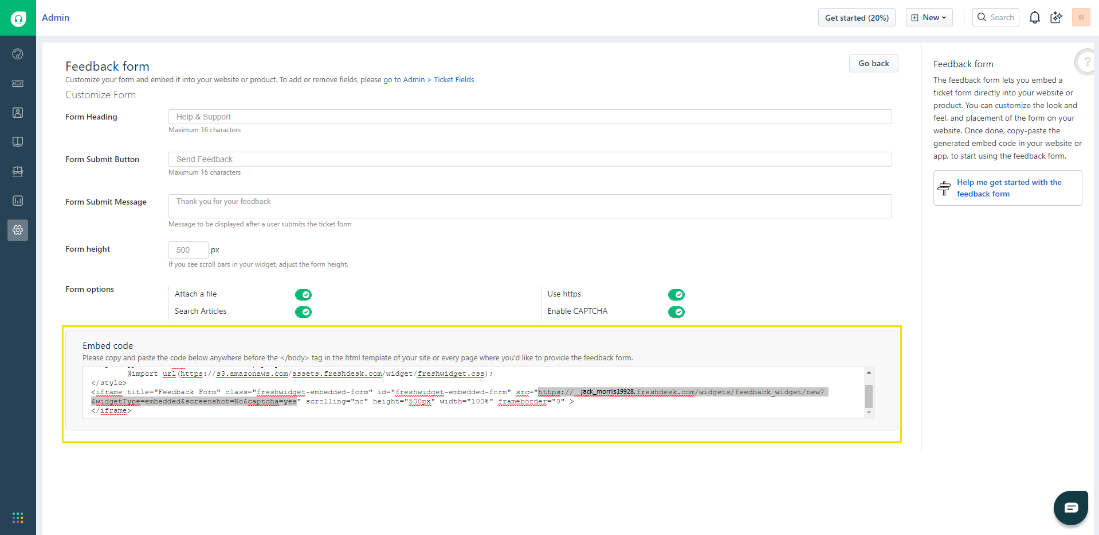
- Copy the highlighted URL (using Ctrl+Shift+arrow key) from the Embedded Code section.
NOTE: To know more about Freshdesk Feedback Forms, see Help me get started with the feedback form.
-
Get the Shared Secret key.
- Navigate to Admin.
- Select Security in General Settings and open it.
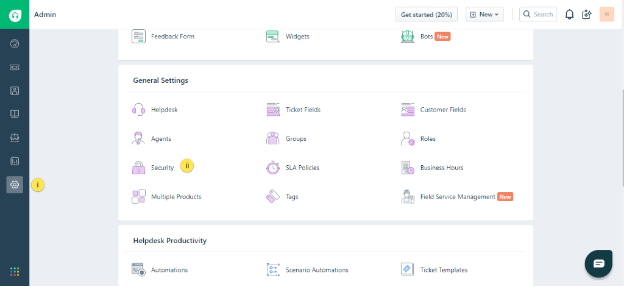
- Copy the Key available in the Single Sign on for widget section of Widget Settings.
(This Key will help you enable Single Sign-On in VIDIZMO and Freshdesk. Single Sign-On is the mechanism using which your customers can access Freshworks portals using the same credentials they are using to log in to your VIDIZMO Portal).
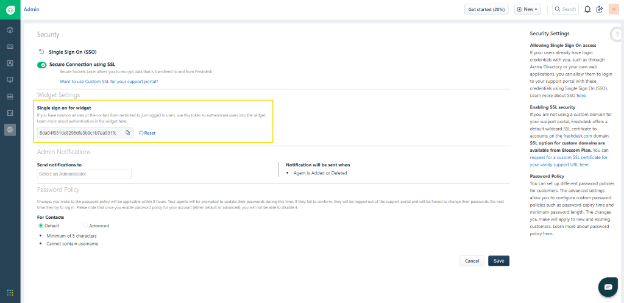
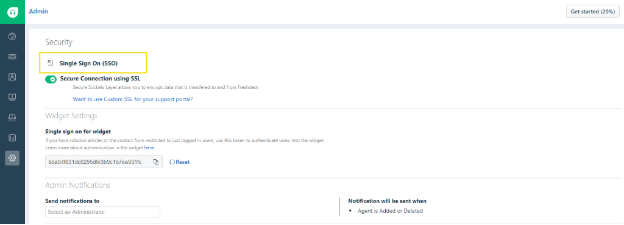
- Get the Support URL, available in Security.
- Select Single Sign-On, which will redirect you to a new page.
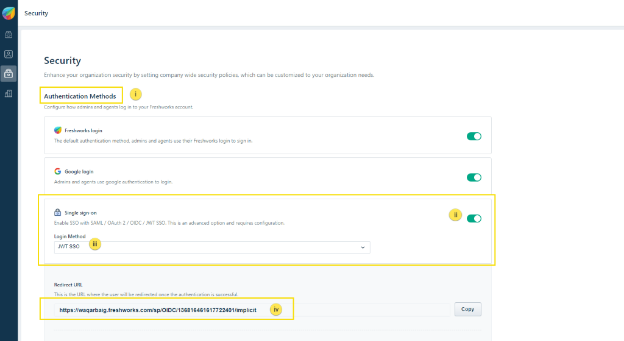
- Go to Single Sign-on in Authentication Methods.
- Enable Single Sign-on using the toggle button.
- Select JWT SSO from the drop-down menu.
- Copy the Redirect URL.
VIDIZMO Configurations
-
Open the navigation menu via the button on the top left.
-
Select the Admin dropdown.
-
Select Portal Settings.
-
Select Apps.
-
Select Support.
-
Select the settings icon on the Freshdesk Support app.
-
In the Freshdesk Support - Settings dialog, enter the following:
-
Widget URL Widget URL.
-
Support URL URL to connect to the support Portal.
-
Shared Secret Key Shared Secret Key.
-
API Key API Key.
-
-
Select Save Changes.
-
Turn on the toggle to enable the Freshdesk Support app.