How to Configure Freshdesk Live Chat App in Portal
Live chat allows you to instantly communicate with your website visitors via instant messaging. Live support applications are commonly used to provide immediate customer support and information to clients and customers. If you have any Live Chat App integrated on your website, then people coming to your website will be able to select your live chat widget and start a conversation with you or one of your customer service agents.
Freshdesk: Freshdesk is cloud-based customer support and Live Chat solution. It offers a comprehensive set of features and tools to help businesses support all their customers' needs. If you are using VIDIZMO and want to configure Freshdesk Live Chat with your portal, then you can follow these simple steps.
Prerequisites
- Ensure that you belong to a group where the app permission is enabled to access this feature.
- You need to have Freshdesk and Freshchat accounts.
Freshchat Configuration
-
Log in to your Freshdesk account.
- Navigate to Admin option to get the Freshchat app setup widget.
- Select Freshchat app to open it.
-
Enable Link Freshchat with your Freshdesk Account.
NOTE: Steps 1 and 2 are only useful if you want to link your Freshdesk Support portal with Freshchat so your customers can easily chat with you when they land on your support portal.
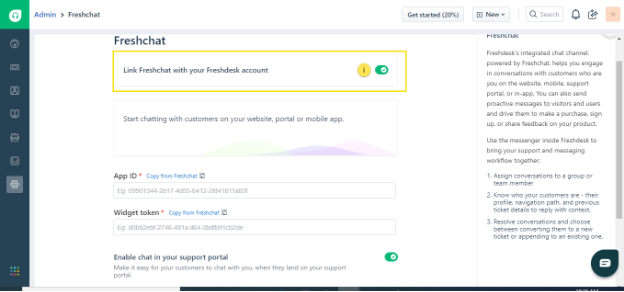
NOTE: To know more about Freshchat integration with Freshdesk Support, see Integrate Freshdesk with Freshchat.
-
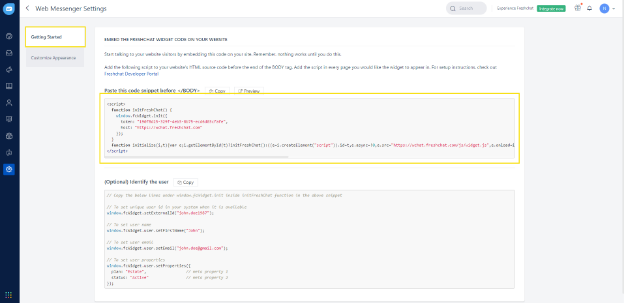
Login to your Freshchat account to get the Host and Token. To start talking to your website visitors by embedding Host and Token on your portal. Remember, nothing works until you do this.
- Navigate to the Admin option.
- Select Web Messenger widget under Setup to open it.
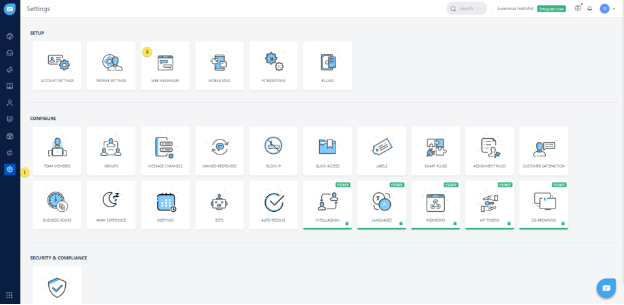
- Copy Token and Host keys, available in the Getting Started side menu.
VIDIZMO Configuration
-
Open the navigation menu via the button on the top left.
-
Select the Admin dropdown.
-
Select Portal Settings.
-
Select Apps.
-
Select Support.
-
Select the settings icon on the Freshdesk Live Chat app.
-
In the Freshdesk Live Chat - Settings dialog:
-
Live Chat URL Enter the Host copied from Freshchat.
-
Live Chat Token Enter the Token copied from Freshchat.
-
-
Select Save Changes.
-
Turn on the toggle to enable the Freshchat app.
NOTE: Once the integration has completed, you will see the Freshdesk Live Chat option on the home page of your portal.