How to Configure Azure Cognitive Services for VIDIZMO
With the surge of video content generation and consumption on the internet, the digital content industry is gearing towards making sure that their content can be infused with the power of artificial intelligence to be able to extract useful insights, and use them as an enhanced tool for content moderation, advanced redaction, search optimization, content discovery, user engagement and much more.
VIDIZMO offers you AI-powered visual and audio insights for smarter analysis and search optimization using Azure Cognitive Services. To learn more about its offerings, see Understanding Video Insights.
Here is how you may configure video insights in your VIDIZMO portal:
Prerequisites
- An Azure Administrator must create the containers of required cognitive services to generate insights.
- Ensure that you belong to a group where the App Management permission is enabled to access this feature.
Azure Cognitive Services Configuration
- Log in to portal.azure.com.
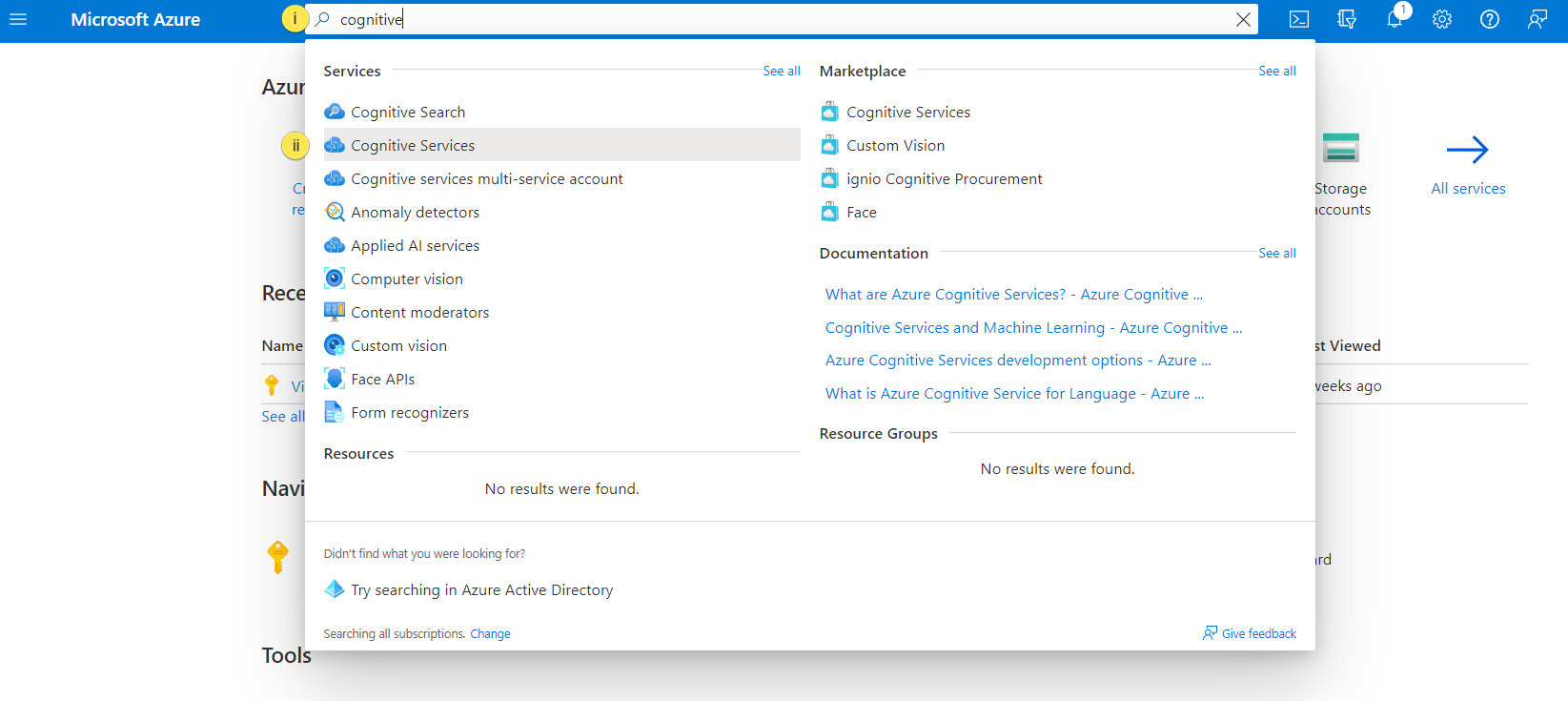
- Search for Cognitive Services in the search bar.
- Select Cognitive Services.
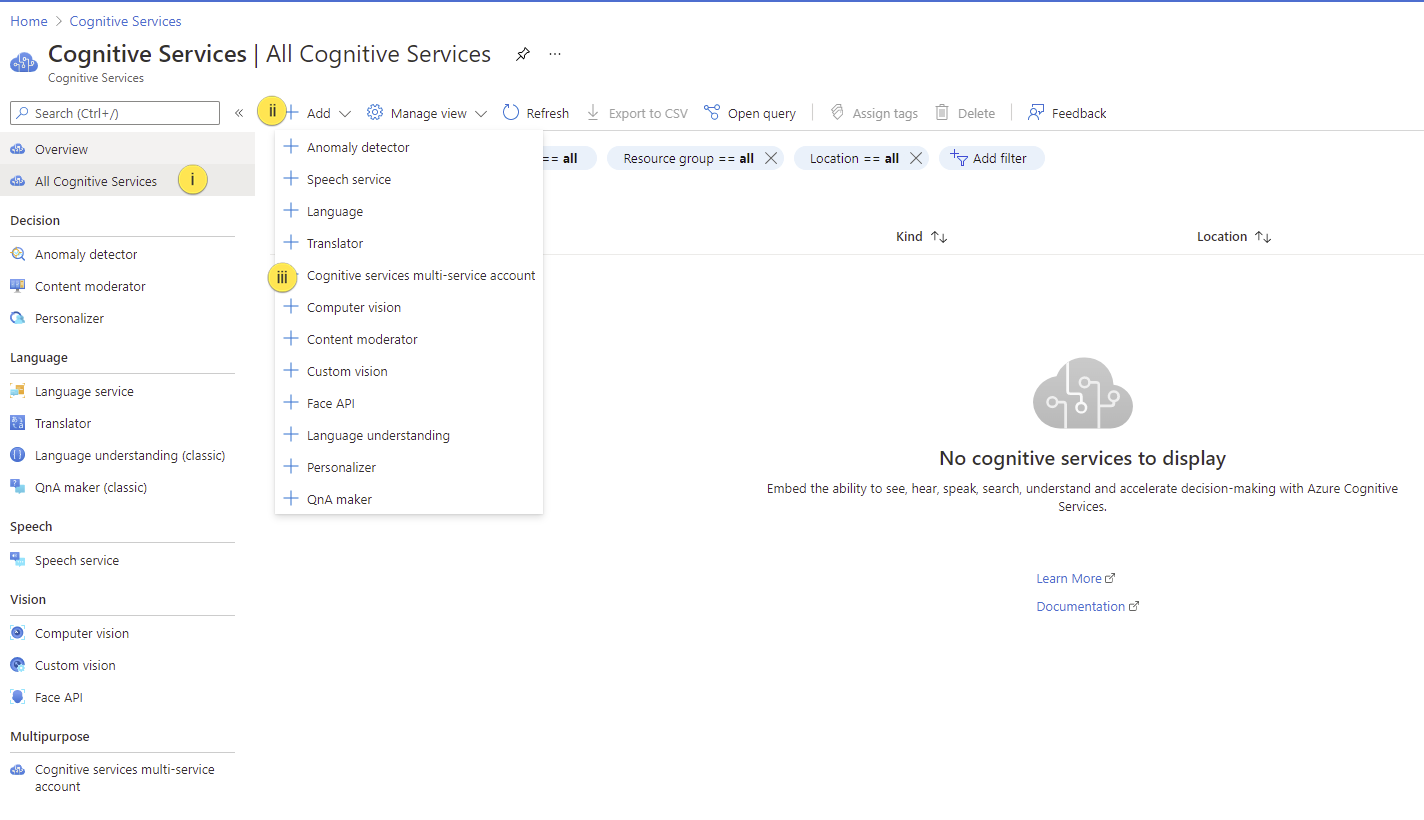
- On the Cognitive Services dashboard:
- Select All Cognitive Services.
- Select Add.
- Select the Cognitive service you want to use in your portal. For all services in a single container, use "Cognitive services multi-service account" as shown in this tutorial.
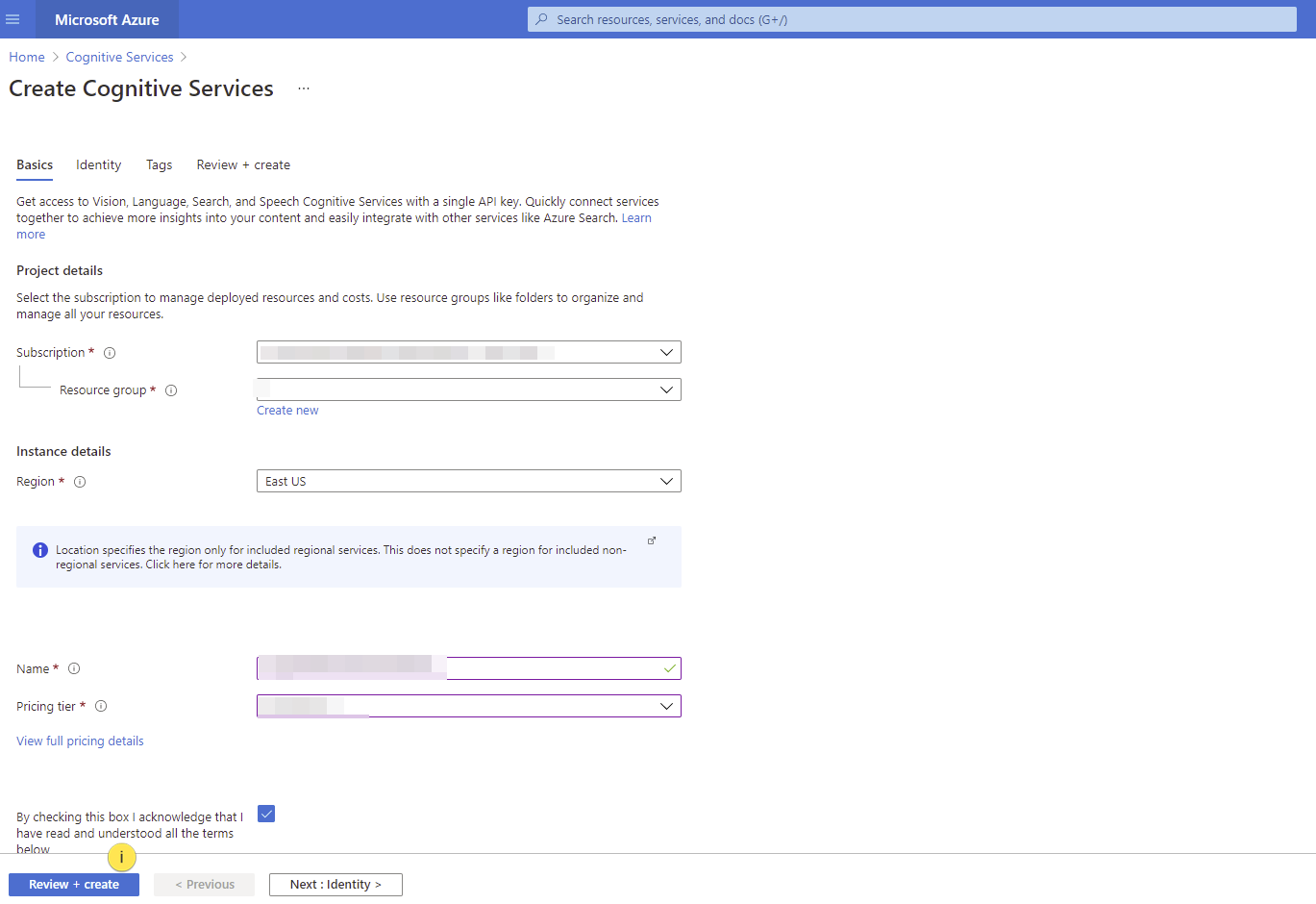
- On the Create Cognitive Services page, provide the details and select Review + create.
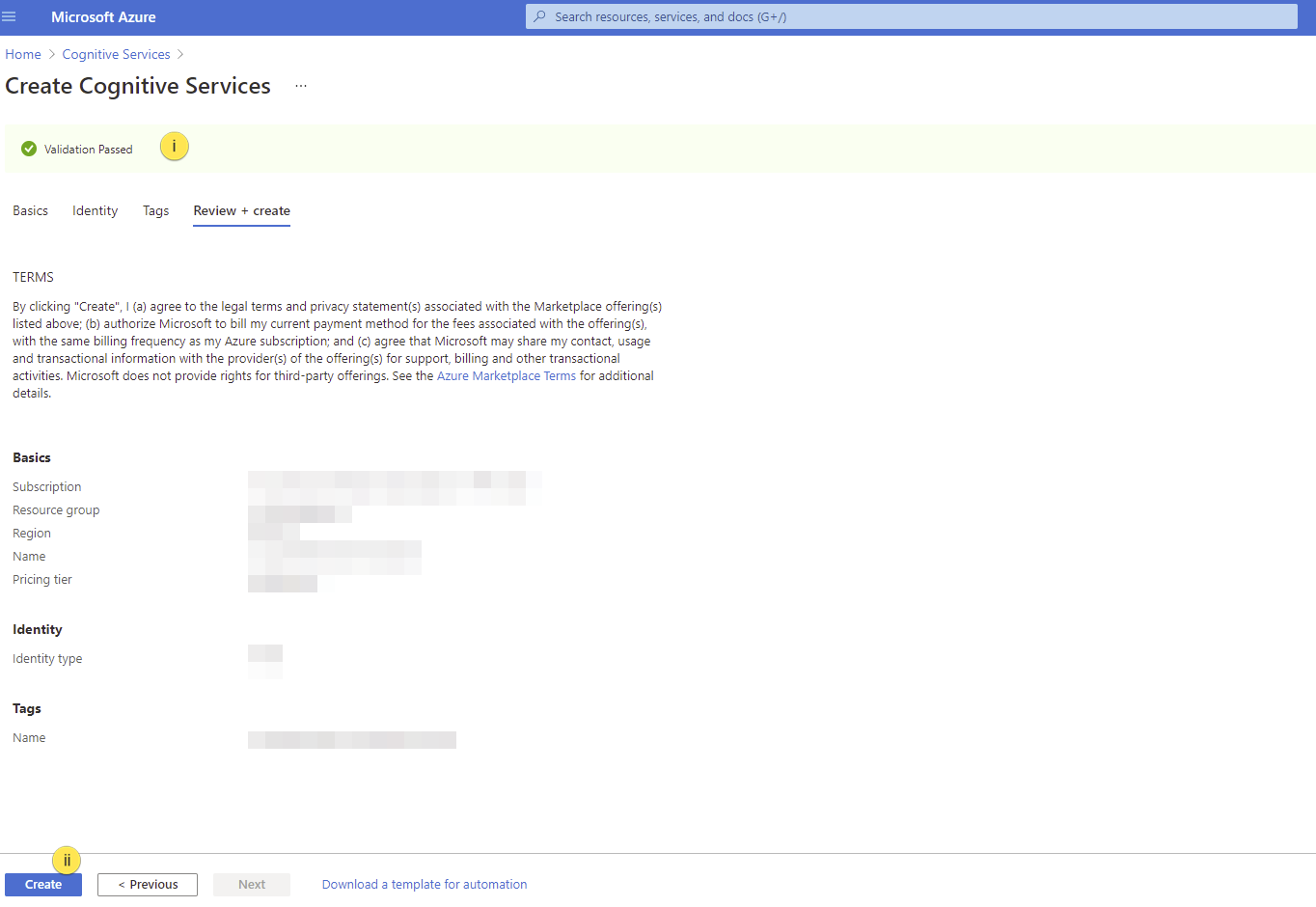
- Validation passed. Select Create.
- Go to your resource.
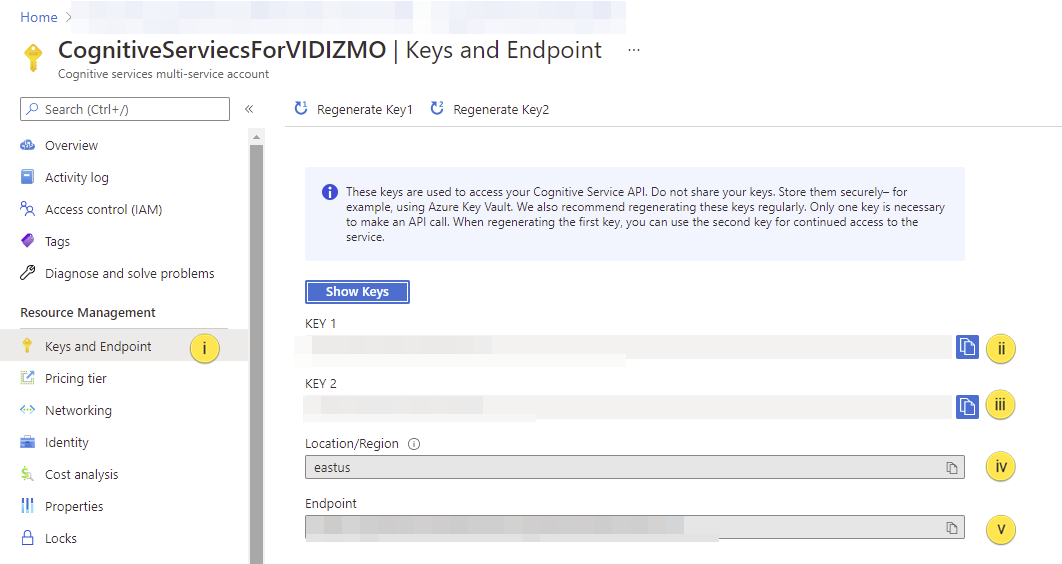
- From the overview screen, select Keys and Endpoint.
- Copy and save the keys.
- Copy and save the Location/Region.
- Copy and save the Endpoint.
NOTE: SaaS customers can run cognitive services (speech recognition, OCR, keyword extraction, speech to text) on the cloud.
NOTE: For on-premise deployment, deploy Docker container for cognitive services on your on-premise server and make sure that the container is accessible for the machines that are using the cognitive services.
VIDIZMO Portal Configuration
-
Open the navigation menu via the button on the top left.
-
Select the Admin dropdown.
-
Select Portal Settings.
-
Select Apps.
-
Select Content Processing.
-
Select the settings icon on the Azure Cognitive Services app.
-
In the Azure Cognitive Services - Settings dialog, configure the following:
-
Environment Select On Premise or On Cloud depending on your deployment.
-
Azure Region Select the Azure region of your Cognitive Services resource.
-
Insights Select the insights you want to extract: Closed Caption, Keywords, and/or Optical Character Recognition.
-
Closed Caption Container Details Select Add Container Details to add a container. Provide the Endpoint and select the Container Language for the Closed Caption service.
-
Language Select the language for the Closed Caption transcription.
-
Keywords Endpoint Provide the endpoint of your keyword container.
-
OCR Endpoint Provide the endpoint of your OCR container.
-
OCR Language Select the OCR language.
-
Enable On-Demand Processing Enable this if you do not want your media to go through automatic AI processing.
-
-
Select Save Changes to save your settings.
-
Enable the toggle on the Azure Cognitive Services app to activate video insights in your portal.
A notification will appear briefly stating Portal Settings Updated Successfully.