Uploading to VIDIZMO Portal Library using Drag-and-Drop
VIDIZMO offers a convenient way for users to upload their content directly to the Portal. Dragging and dropping files simplifies adding content to the portal library, making it quicker than the traditional upload button method. The drag-and-drop feature works seamlessly across all VIDIZMO products - including Enterprisetube, Digital Evidence Management, and Redaction.
With the drag-and-drop feature, users no longer need to go through multiple pages or upload files individually to organize them into different folders or cases. Instead, they can drop their selected files directly into their preferred folder, making organizing and managing files quicker. This feature also supports bulk uploads, allowing users to drag and drop several files at once. Additionally, files uploaded via drag-and-drop follow any automatic processing or upload settings already configured on your Portal.
Prerequisites
Users must have the permissions to upload content to either their Media Manager/Evidence Library or their Private Library to utilize the drag-and-drop functionality. Here are the permissions:
-
Upload and Manage My Content: Allows users to upload and manage their content within their private library (My Library). Users with this access can use the drag-and-drop feature within their private library.
-
Upload and Manage All Content: Allows users to upload and manage content on Portal's Media Manager/Evidence Library and their own private library. Users with this permission can use the drag-and-drop on those pages.
Upload Files using Drag-and-Drop
- Navigate to your portal's Evidence Library, Media Manager, or My Library page, depending on your permissions and product.
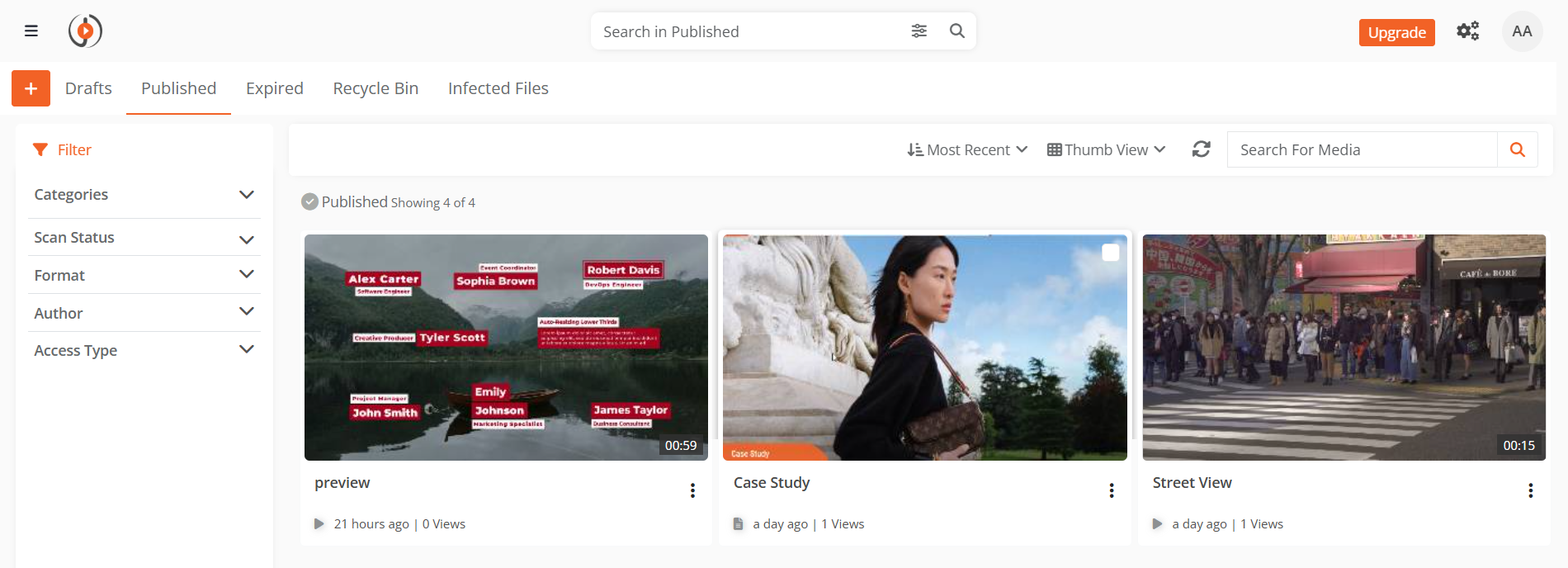
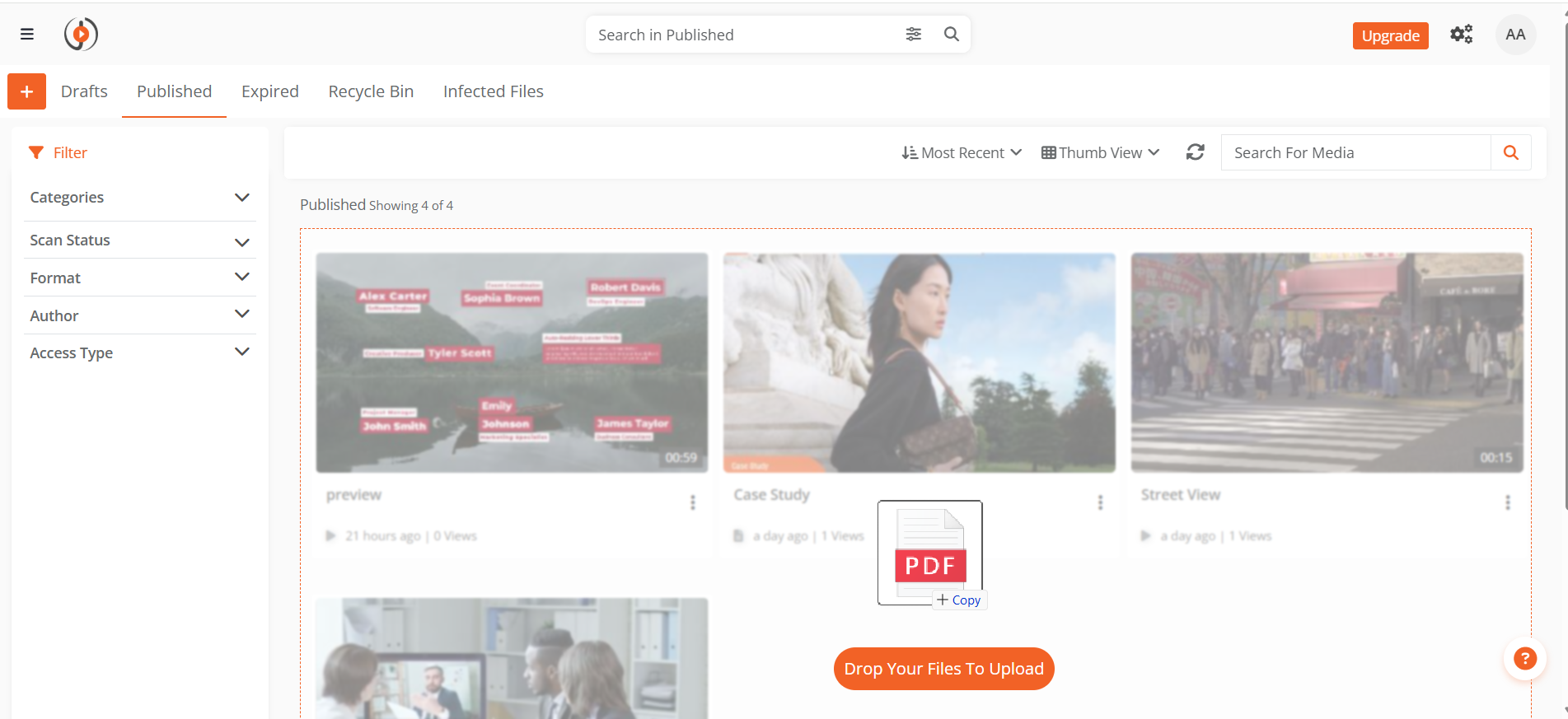
- Drag and drop the file from your computer onto the portal page.
- After the file is uploaded, the settings page opens. Edit the file settings as needed, and select Save and Close.
Note
You can achieve the same result by selecting multiple files at once. Bulk uploads follow the same process as individual file uploads.
Upload Files Directly to Cases or Folders
Users can drag and drop files directly into a Case or Folder, including sub folders when using Digital Evidence Management product. Navigate to the desired location, then drag the file(s) from your computer onto the highlighted area. The files are uploaded to that specific case or folder and automatically published and processed according to your configured settings.
Drag-and-Drop Behaviour
The drag-and-drop functionality is designed to work seamlessly with features that affect upload behaviour, including content moderation and custom uploads. This ensures that files uploaded using this method are subject to the same rules and settings as those uploaded to the Portal by any other means.
Impact of Content Moderation and Custom Upload
When you use drag-and-drop to upload files, the upload process may be affected by content moderation or custom upload settings:
-
Content Moderation: If enabled, uploaded files are sent to the Review tab for approval before appearing in the library, case, or folder. Users with content moderation permissions can approve or reject files, after which approved files are published to their original location. See How to Configure Portal's Content Moderation Policy for details.
-
Custom Upload (Advanced Upload): If enabled, dropping files redirects you to the upload settings page, where you can configure processing options on the Process tab. After adjusting settings, select Save or Save and Close. Once complete, files appear in the library, case, or folder where they were uploaded. See How-to Custom Upload Media for more information.