Understanding Geo Map View
When your organization manages geo-tagged evidence (surveillance cameras spread across a city, body-worn footage from different precincts, or drone recordings captured at specific coordinates), finding the right evidence by scrolling through a list is not practical. Geo Map View plots every geo-tagged piece of evidence on an interactive map, so you can locate it by where it was captured.
Note: Only evidence with a geolocation set in its basic info appears on the map. Evidence without geolocation data does not display a marker.
What Is Geo Map View
Geo Map View is an alternative layout in the evidence library that displays geo-tagged evidence on an interactive map instead of a grid or list. Each piece of evidence that has a geolocation set appears as a marker on the map at its recorded coordinates. You can pan, zoom, search by location, and open evidence details directly from the map.
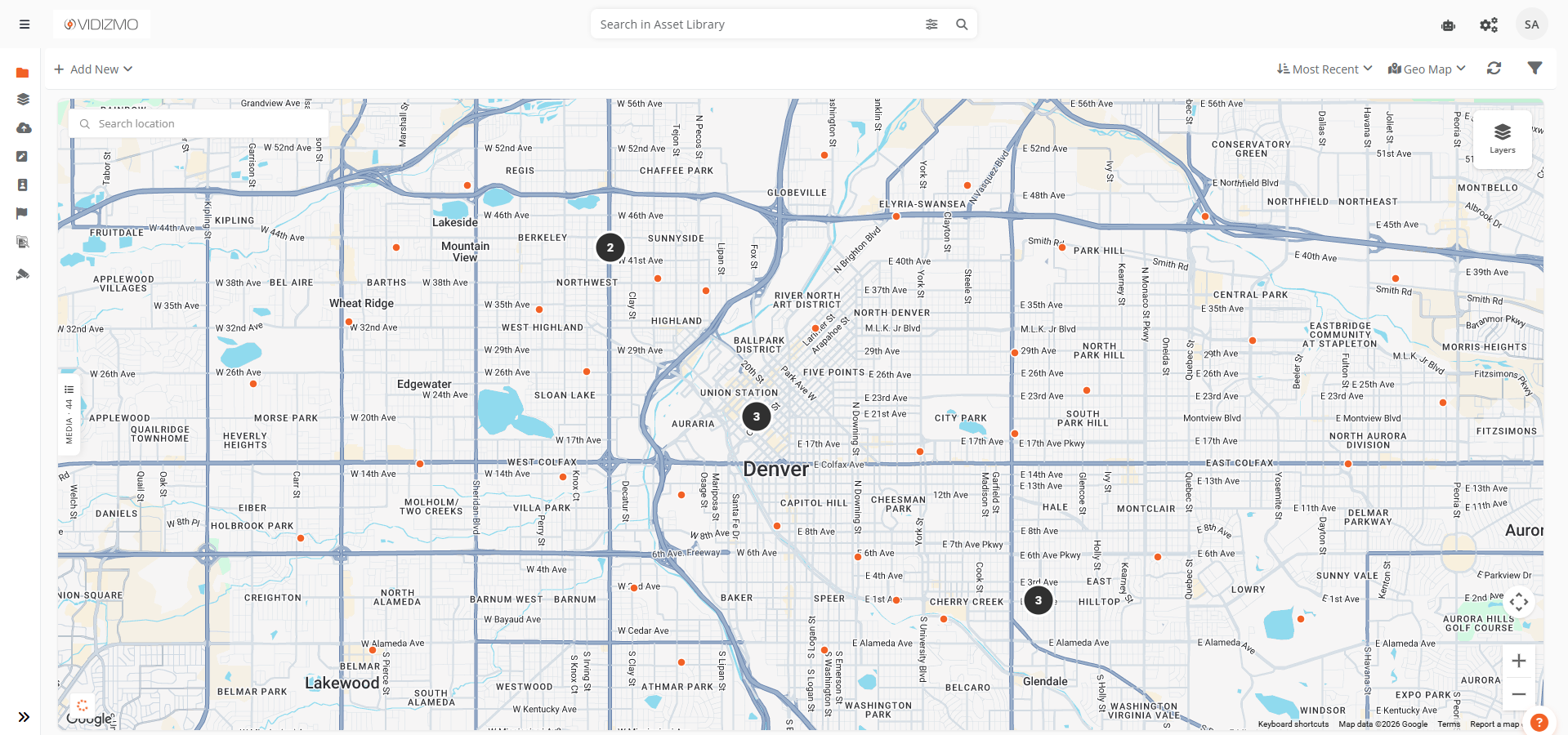
Geo Map View is available alongside the other library views (Thumbnail View, List View, Content View, and Detail View) and can be selected from the view switcher in the action bar. For step-by-step instructions, see How to Use Geo Map View.
Viewing Modes
Geo Map View offers two viewing modes, controlled by the Layers button in the top-right corner of the map.
Clusters and Media
This is the default mode. At wider zoom levels, nearby evidence is grouped into clusters, which are dark circles showing the count of evidence in that area. As you zoom in, clusters break apart into smaller groups until individual markers appear at higher zoom levels.
- Clusters display as dark circles with a count number. Select a cluster to zoom into its area.
- Individual evidence that is not grouped into a cluster displays as small colored dots. Select a dot to open its overlay card.
Media Only
This mode hides clusters entirely and shows an individual marker for every piece of evidence in the viewport, regardless of zoom level. Use this when you want to see the exact spread of all evidence without grouping.
Interacting with Markers
Opening Overlay Cards
Select any individual marker to open a floating overlay card anchored to that marker. Each card shows:
- Evidence thumbnail with duration badge
- Evidence title (select to open full playback)
- Action menu for quick access to settings, sharing, and other actions
- Time since last update
You can open multiple cards at the same time. Each card connects to its marker with a tether line.
Dragging Cards
Overlay cards can be repositioned by dragging them to a new spot on the map. The tether line updates in real time during the drag. This is helpful when cards overlap or block a part of the map you need to see.
Closing Cards
- Select the X button on any card to close it.
- When two or more cards are open, a Close All button appears at the bottom-right corner of the map.
Overlay Persistence
Overlay cards stay open when you pan or zoom the map. A card only closes automatically when its marker moves outside the visible map area.
Places Search
A search bar in the top-left corner lets you find locations by name. Type a place name, address, or landmark, and select from the suggestions dropdown. The map pans and zooms to that location automatically.
List Panel
A collapsible panel on the left side of the map shows all geo-tagged evidence in the current viewport as a scrollable list.
- Select any item in the list to zoom to its location and open its overlay card.
- The panel supports infinite scroll. More results load automatically as you scroll down.
- Search keywords and filters from the top bar apply to the list panel results as well.
Select the panel header or the close button to collapse it. A slim vertical tab remains on the left edge. Select it to reopen the panel.
Surveillance Features
When Geo Map View is accessed from the Surveillance Library, additional features are available for monitoring camera status in real time.
Camera Status Markers
In the surveillance context, individual markers are color-coded based on the camera's current status:
- Green — Camera is actively streaming
- Amber — Camera is connecting or reconnecting
- Gray — Camera is offline, disabled, or in an unknown state
Status Legend
A legend at the bottom-left of the map displays the meaning of each marker color (Live, Connecting, and Offline) so you can quickly interpret the map without memorizing the color scheme.
Live Player in Overlay Cards
In the surveillance context, overlay cards embed a live player instead of a static thumbnail. When you select a streaming camera's marker, its overlay card shows the live video feed directly on the map. The card is wider to accommodate the player.
Real-Time Updates
Camera status changes propagate to the map in real time. When a camera goes online or offline, its marker color updates automatically without a page refresh.
Key Considerations
- Map state persistence — Your last map position, zoom level, and selected layer are saved and restored the next time you open Geo Map View.
- Viewport-based loading — The map only loads evidence within the visible area. As you pan or zoom, new data is fetched automatically.