Configure Limited Sharing Across the Portal
VIDIZMO lets you manage how media is shared outside your portal through Limited Sharing. This feature gives portal managers greater control by allowing them to define how long a shared media link stays active.
With Limited Sharing, you can share media files securely with external users by generating a Sharable Link that automatically expires after a set time. Portal managers can configure a portal-wide policy that enforces link expiry and prevents users from setting their own durations. This helps protect your content from unauthorized access if a link is shared or compromised.
Portal managers can also:
- Restrict users to creating only limited (time-bound) URLs.
- Set global viewing and editing limits for shared content.
To learn more about how Limited Sharing works, see Limited Sharing with Viewing & Editing Rights.
Prerequisite
- Ensure that you are a member of a user group with the Portal Management feature enabled.
Sharing Control
Follow these steps to configure Limited Sharing settings across your portal.
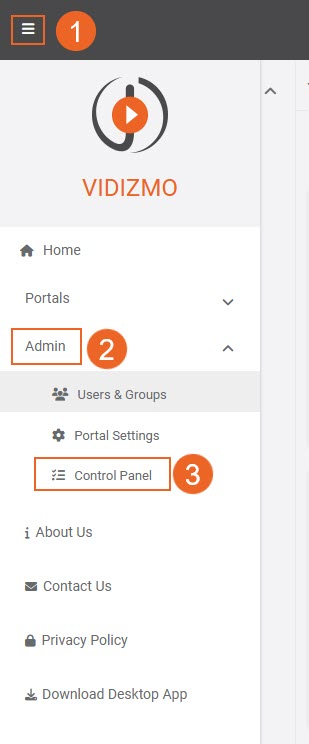
- Open the side navigation pane via the button on the top left.
- Click the Admin dropdown.
- Select Control Panel.
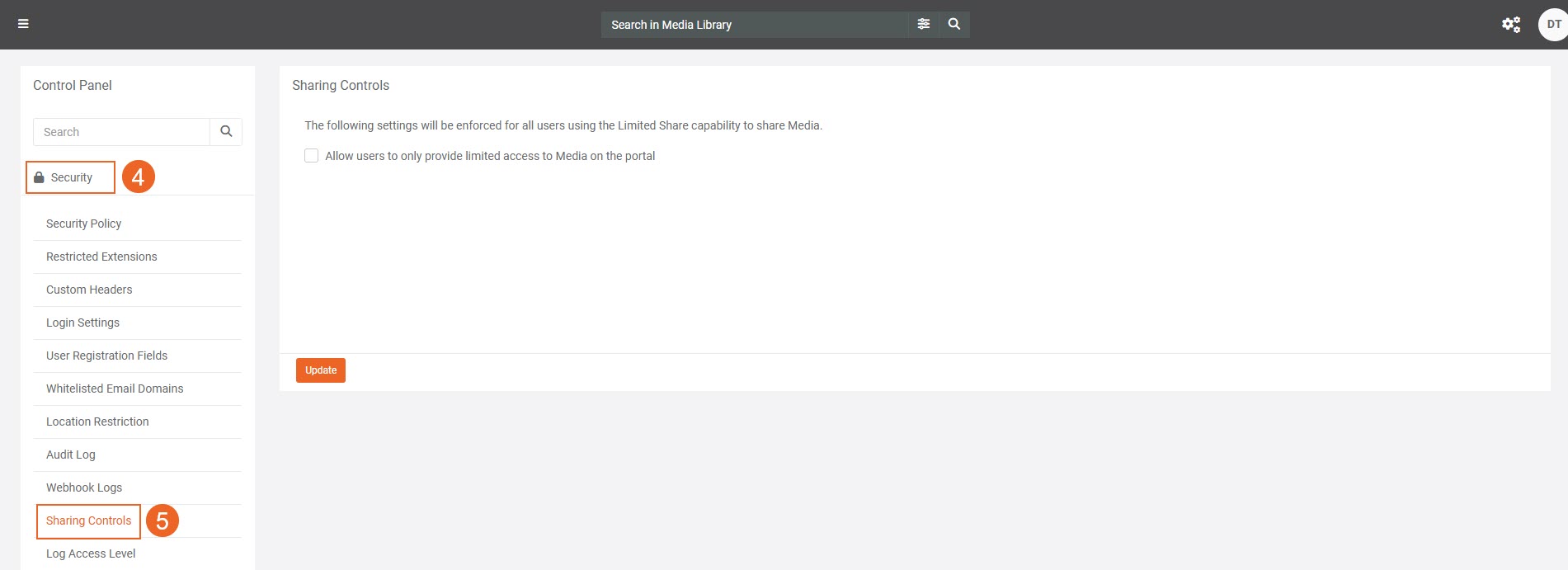
- In the left navigation panel, expand Security.
- Select Sharing Controls.
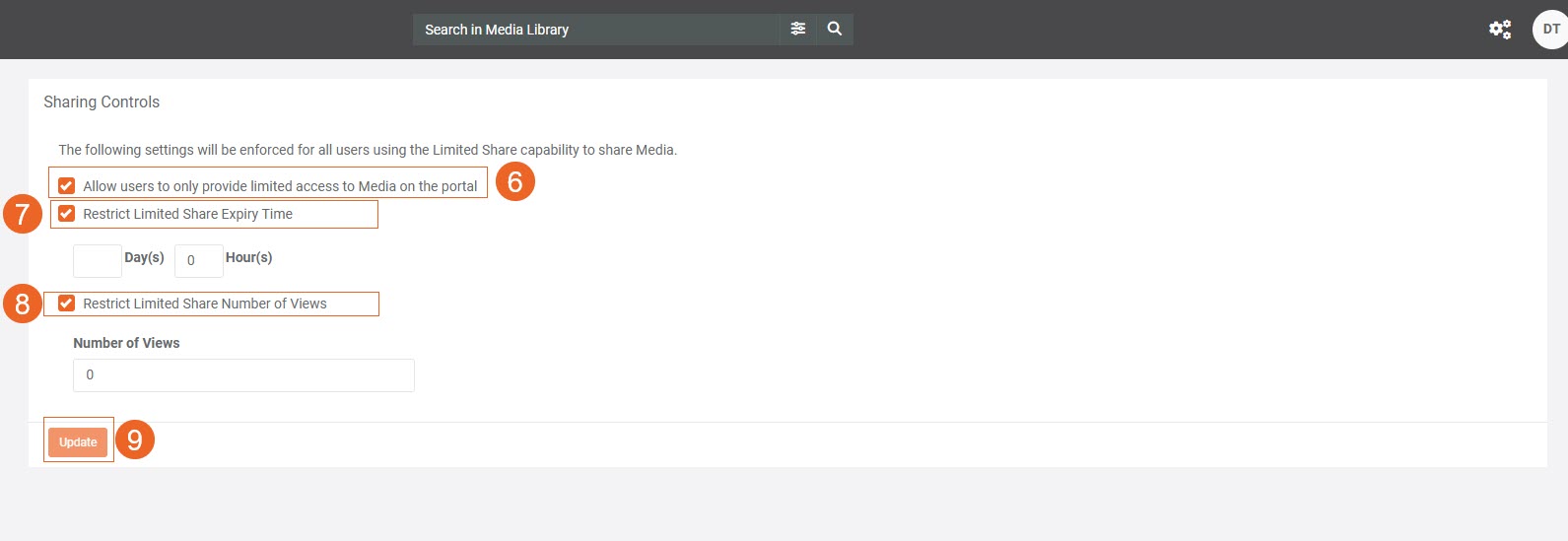
- On the Sharing Control page, configure how Limited Sharing is applied across the portal.
i. Select Allow users to only provide limited access to media on the portal.
- Enabling this option applies the Limited Sharing policy at the portal level.
- When this option is selected, users can assign only Limited Viewer and Limited Editor rights.
ii. After enabling this option, two additional settings appear:
- Restrict Limited Share Expiry Time
- Restrict Limited Share Number of Views
- To restrict link expiry time:
- Select Restrict Limited Share Expiry Time.
- Enter the number of days and hours to define how long the shared link remains active.
- To restrict how many times a link can be viewed:
- Select Restrict Limited Share Number of Views.
- In Number of Views, enter the maximum number of times the shared media can be accessed.
- Select Update to save your changes.
- A confirmation modal appears with the following options:
- Update License Time for existing Limited and Unlimited Shares
- Update License Views for existing Limited and Unlimited Shares
Choose the appropriate option based on what you want to update.
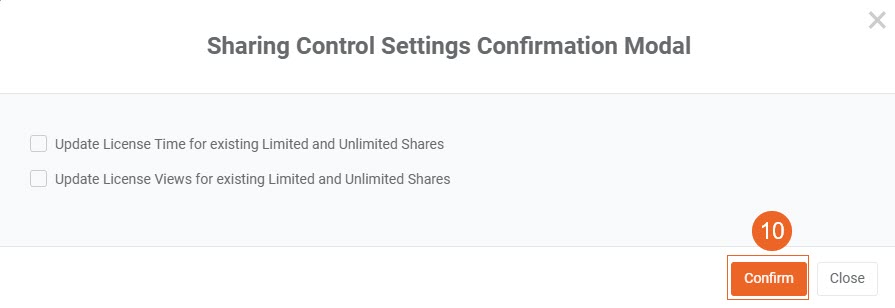
Selecting Update License Time for existing Limited and Unlimited Shares applies the new settings to all existing licenses in the portal.
Results
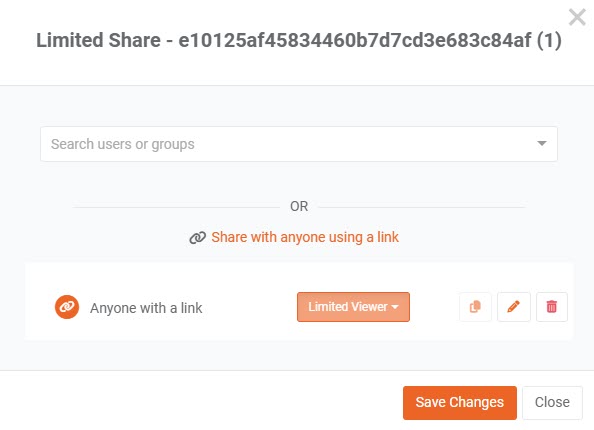
After you configure Limited Sharing Across the Portal, the media file’s limited share dialog displays only the available limited sharing options.
Refer to the screenshot below to see how the sharing interface appears when the limited sharing policy is active.