Translating Documents and Images using VIDIZMO Indexer
VIDIZMO lets you translate the text present in your documents or on the images. When Document Translation or Image Translation is enabled in the VIDIZMO Indexer’s Insights, supported documents and images are automatically translated using standard processing modes:
-
Automatic processing: Translations occur automatically when new files are added.
-
On-demand processing: Translations can be triggered manually by uploading a file and selecting Process in the modal.
NOTE: Translation activities consume AI processing resources. Each translation counts toward your organization’s total AI processing usage and may affect your available quota or billing.
How Document and Image Translation Works
Document and image translation operates differently from audio translation. The VIDIZMO Indexer uses Optical Character Recognition (OCR) to extract any visible text from the file. OCR is required for this process.
After extracting the text, the Indexer automatically detects the source language and translates the extracted content into the target language.Unlike audio translation, this workflow does not require an audio track or an existing transcript.
Supported languages for document and image translation
VIDIZMO Indexer supports multilingual translation for both documents and images. This allows users to automatically translate text and visual content into multiple global languages, enhancing accessibility and understanding across regions.
The platform supports a wide range of languages from different language families, including standard and regional variations (for example, multiple Arabic dialects or different writing systems such as Latin, Cyrillic, and Devanagari).
VIDIZMO Indexer currently supports 80 languages in total, including regional dialects and script variations.
| Language Family | Languages Supported |
|---|---|
| Indo-European (40) | English, French, German, Hindi, Italian, Portuguese, Spanish, Dutch, Russian, Greek, Polish, Swedish, Danish, Norwegian, Slovak, Croatian, Urdu, Bengali, Gujarati, Marathi, Romanian, Afrikaans, Icelandic, Slovenian, Lithuanian, Macedonian, Sinhala, Assamese, and others |
| Sino-Tibetan (3) | Chinese (Simplified and Traditional), Burmese |
| Afro-Asiatic (8) | Arabic (multiple dialects), Hebrew, Maltese |
| Austronesian (7) | Indonesian, Filipino (Tagalog), Cebuano, Javanese, Sundanese, Ilocano, Waray |
| Dravidian (4) | Tamil, Telugu, Malayalam, Kannada |
| Turkic (4) | Turkish, Azerbaijani, Kazakh, Uzbek |
| Tai-Kadai (2) | Thai, Lao |
| Uralic (3) | Finnish, Hungarian, Estonian |
| Austroasiatic (2) | Vietnamese, Khmer |
| Other (7) | Japanese, Korean, Swahili, Haitian Creole, Basque, Cape Verdean Creole, Georgian |
Prerequisites
Before you use document or image translation, make sure the following requirements are met:
- You belong to a user group that has the appropriate permissions:
- Document Translation permission for translating documents
- Image Translation permission for translating images
- Translation permission for the application setting
- The VIDIZMO Indexer app is enabled in your portal.
For detailed setup instructions, see Configuring VIDIZMO Indexer for Translations.
Configure automatic processing
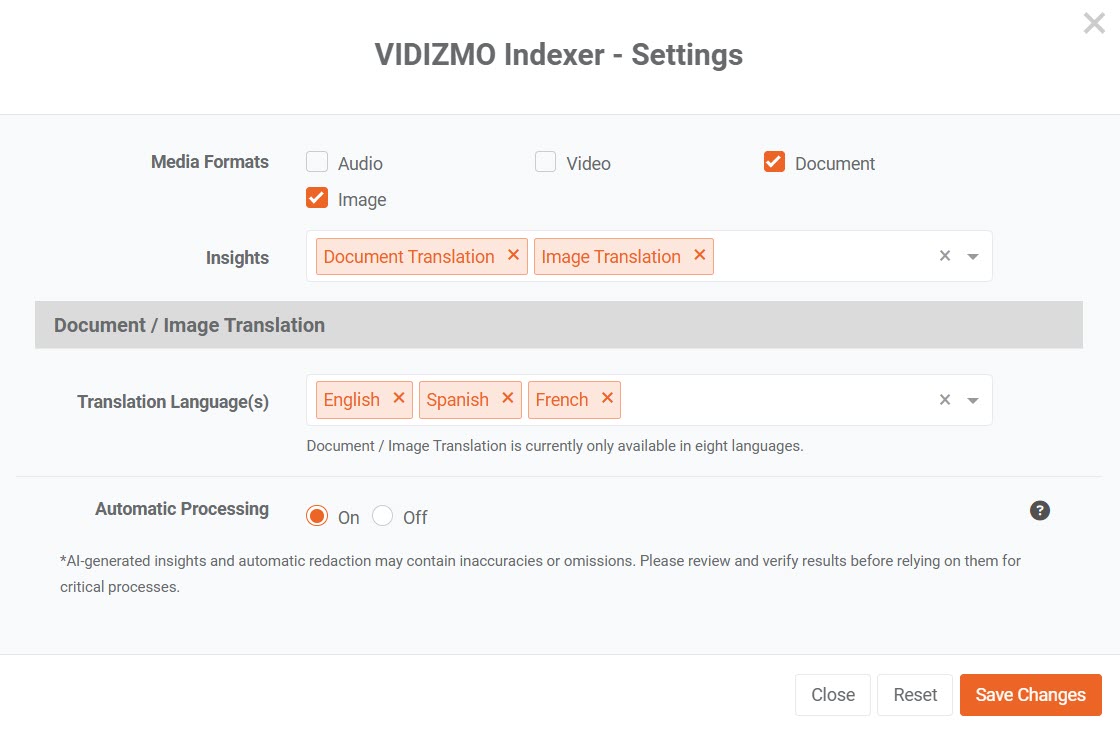
Use this setting to automatically start the translation process when a file is uploaded.
When you set up the app, turn on Automatic processing. The translation workflow starts automatically each time you upload a file to the portal.
To view the typical settings for document translation, see the screenshot below.
Generate translation during custom upload
If the Custom upload option is enabled in the portal, you can generate a translation while uploading a file instead of processing it later.
- Upload the file in the portal.
- On the Settings page, open the Process tab.
- Select Generate AI Insights.
- The system automatically detects the file type:
- If it’s an image, the Image Translation option appears.
- If it’s a document, the Document Translation option appears.
- Select Save.
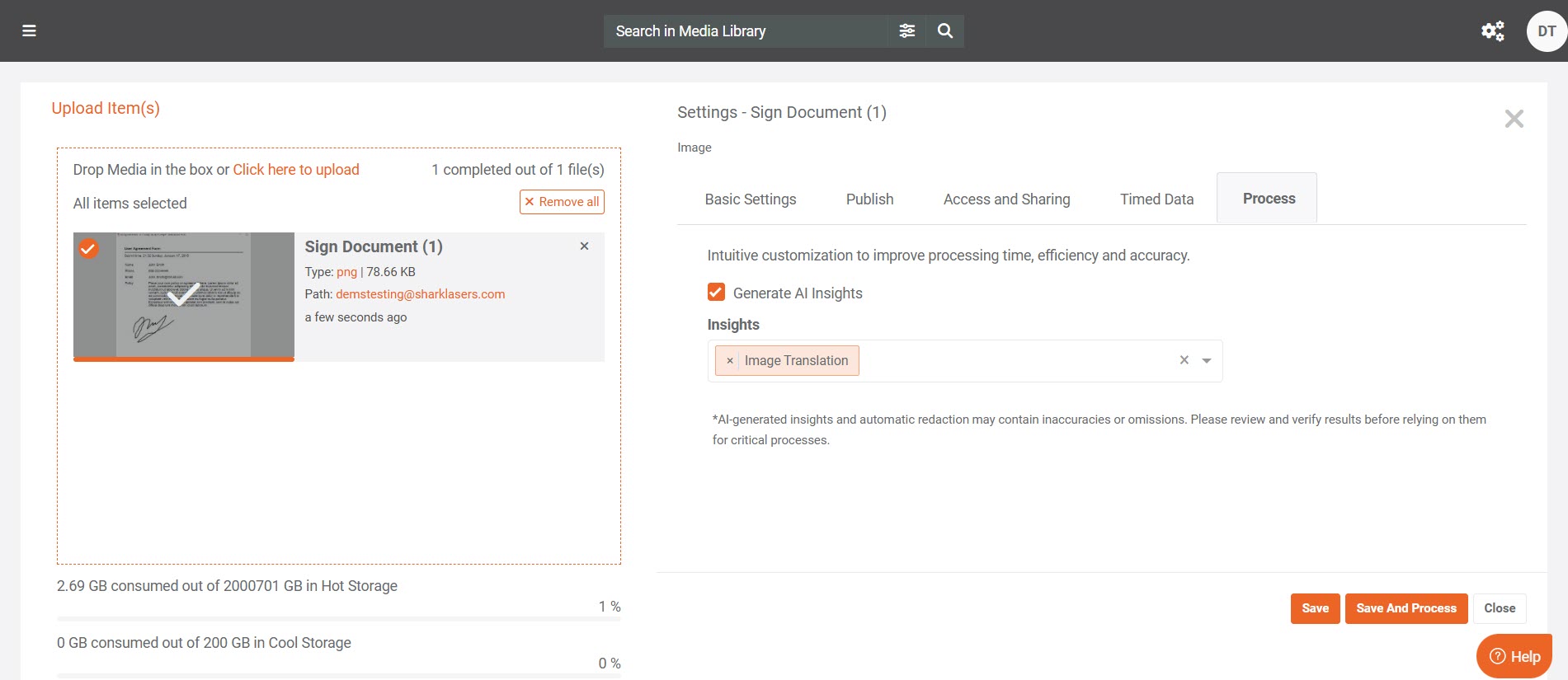
Note: The translation workflow in this advance upload process works the same way as on-demand processing. You can view the results in the View translation results section.
Configure on-demand processing
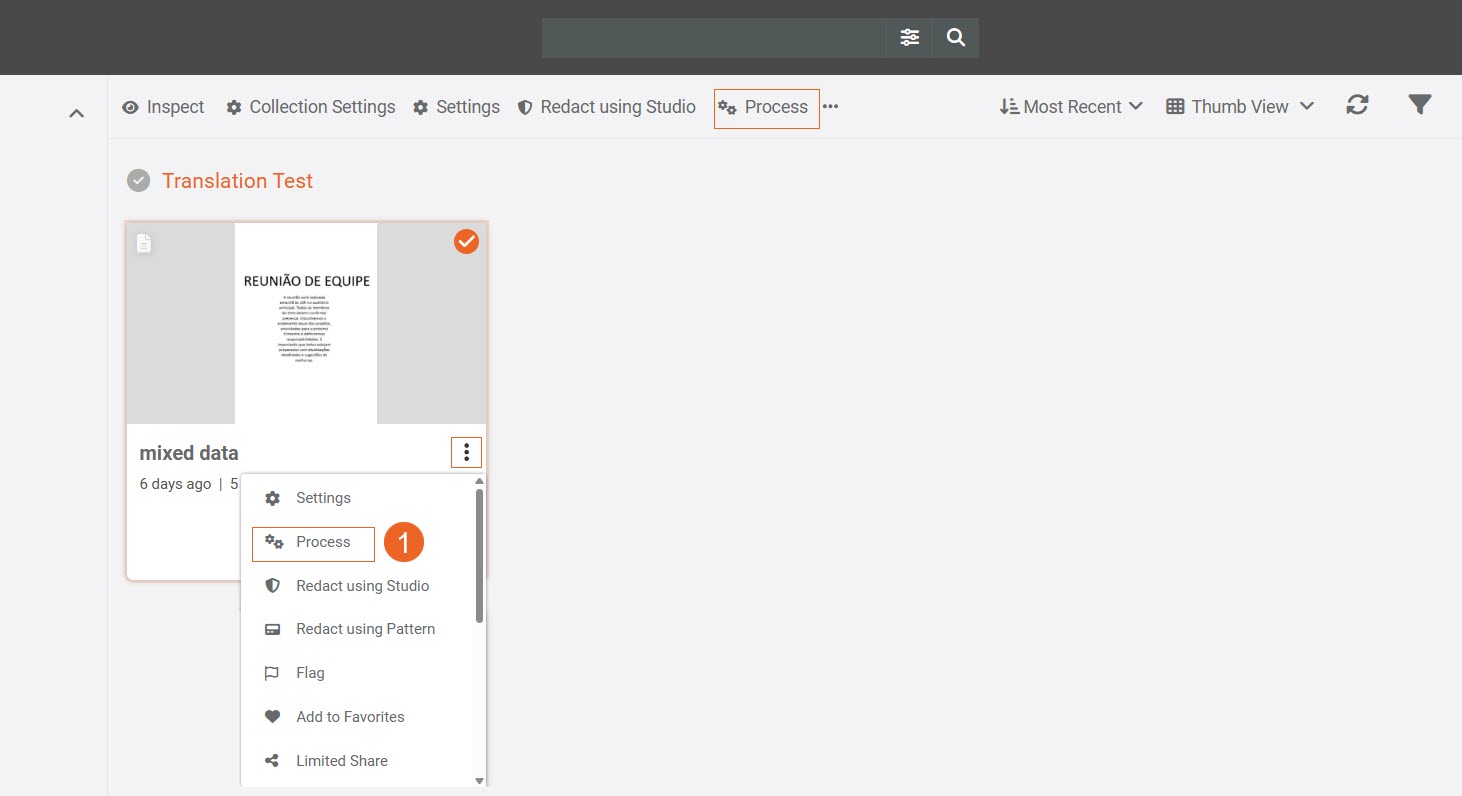
Use this option when you want to manually start the translation workflow for specific files.Follow these steps to start the translation process.
- Go to the file or files you want to translate. From the overflow menu (or the header menu if you’re selecting multiple files), choose Process.
-
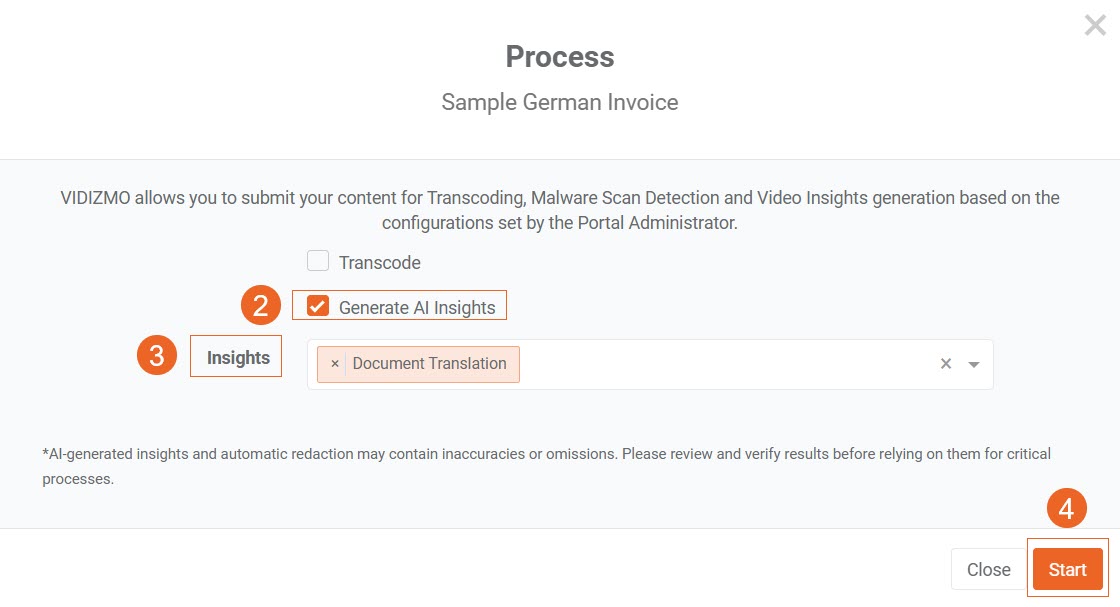
Select Generate AI Insights.
-
The system automatically detects the file type:
-
If the MIME type is an image, you’ll see the Image Translation option.
-
If the MIME type is a document, you’ll see the Document Translation option.
-
Choose the option that matches your file type.
- Select Start to begin the translation process.
View translation results
After processing is complete, open the processed document.
On the playback page, select the Translation option to view available renditions. Only the translation options you enabled when configuring the app appear here.
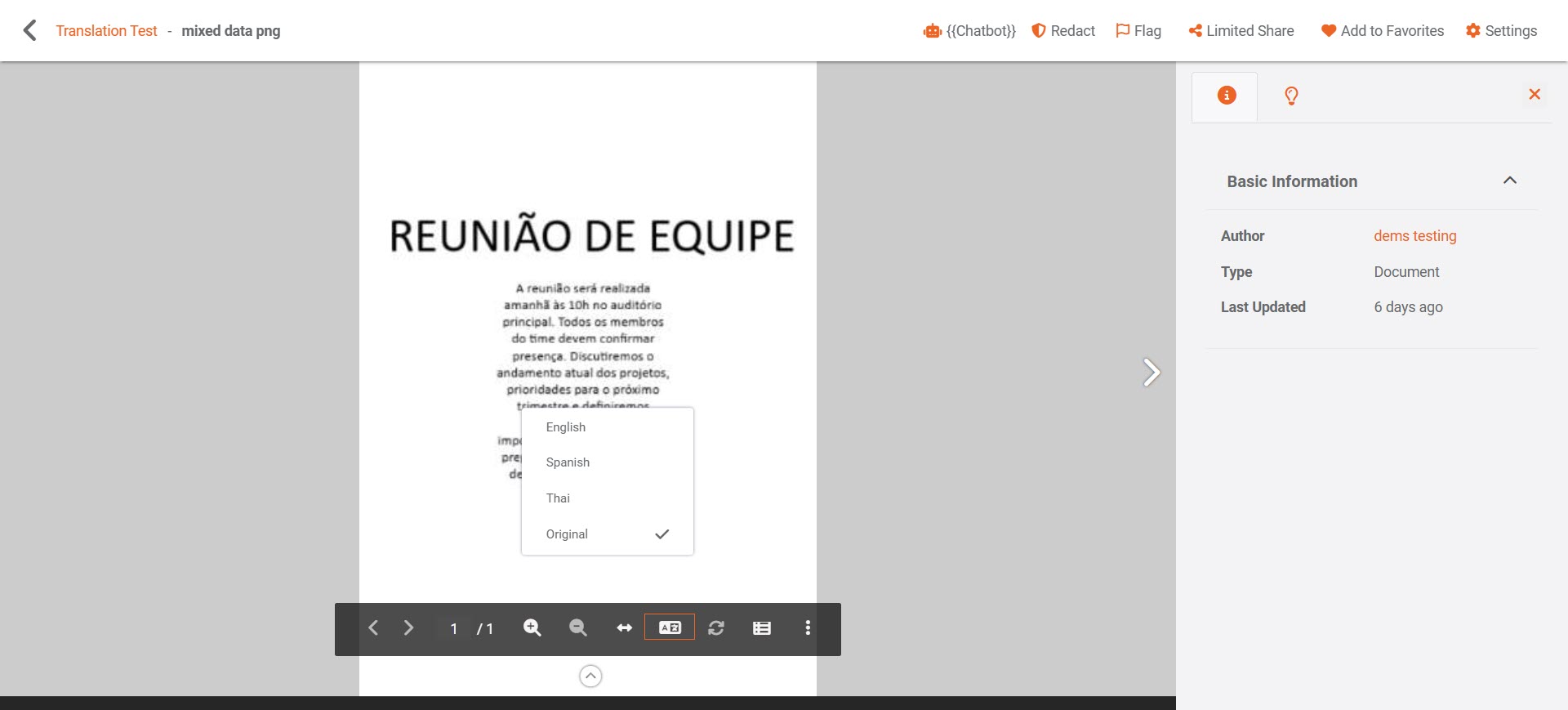
Use the option to switch between available languages and view the translated versions of your document.
To return to the original text, select Original.
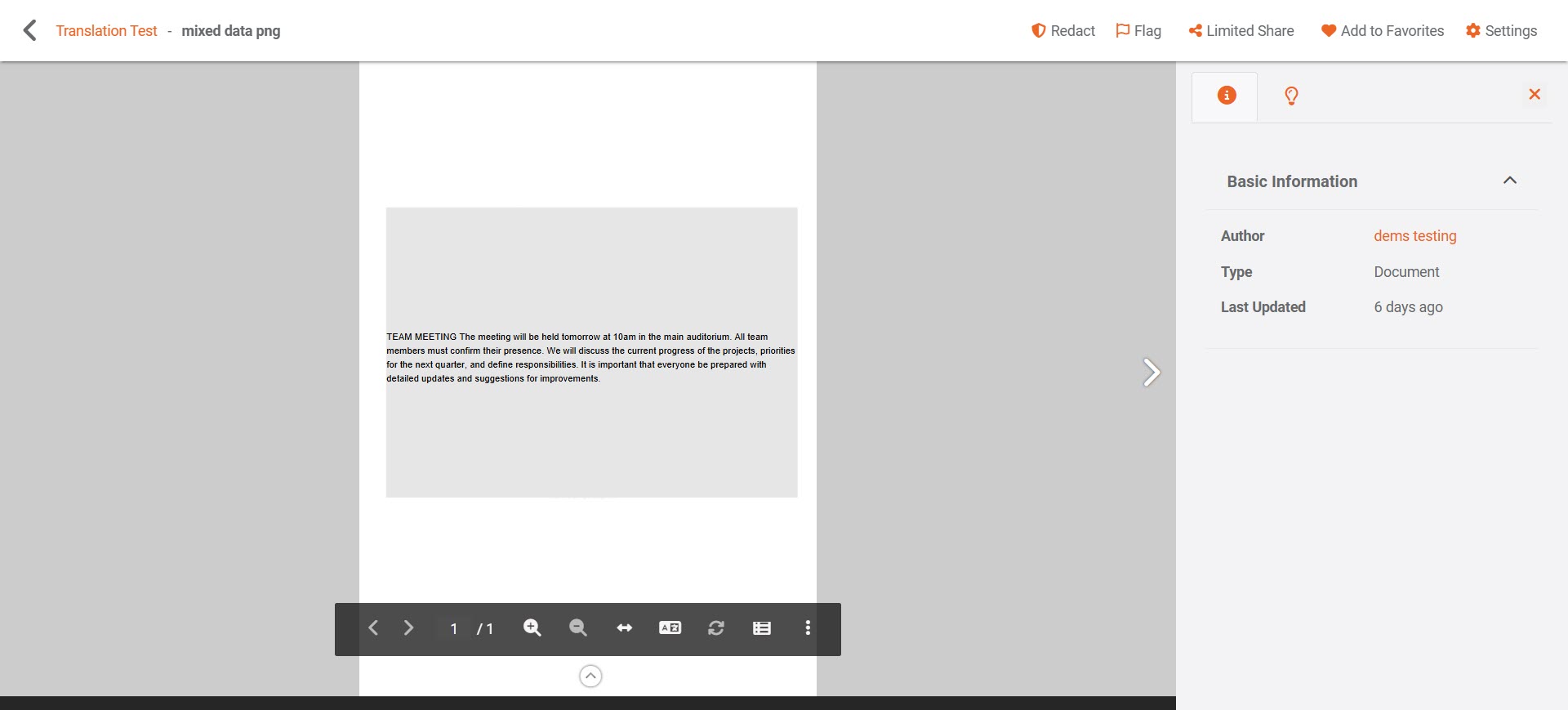
The following screenshot shows an example of the translation view in the playback page.
Download translated files
If downloading is enabled for the media file, you can download either the original or translated version directly from the document or image viewer.
When viewing the translated file:
-
Make sure the Allow Downloading option is enabled for the media file in its settings.
-
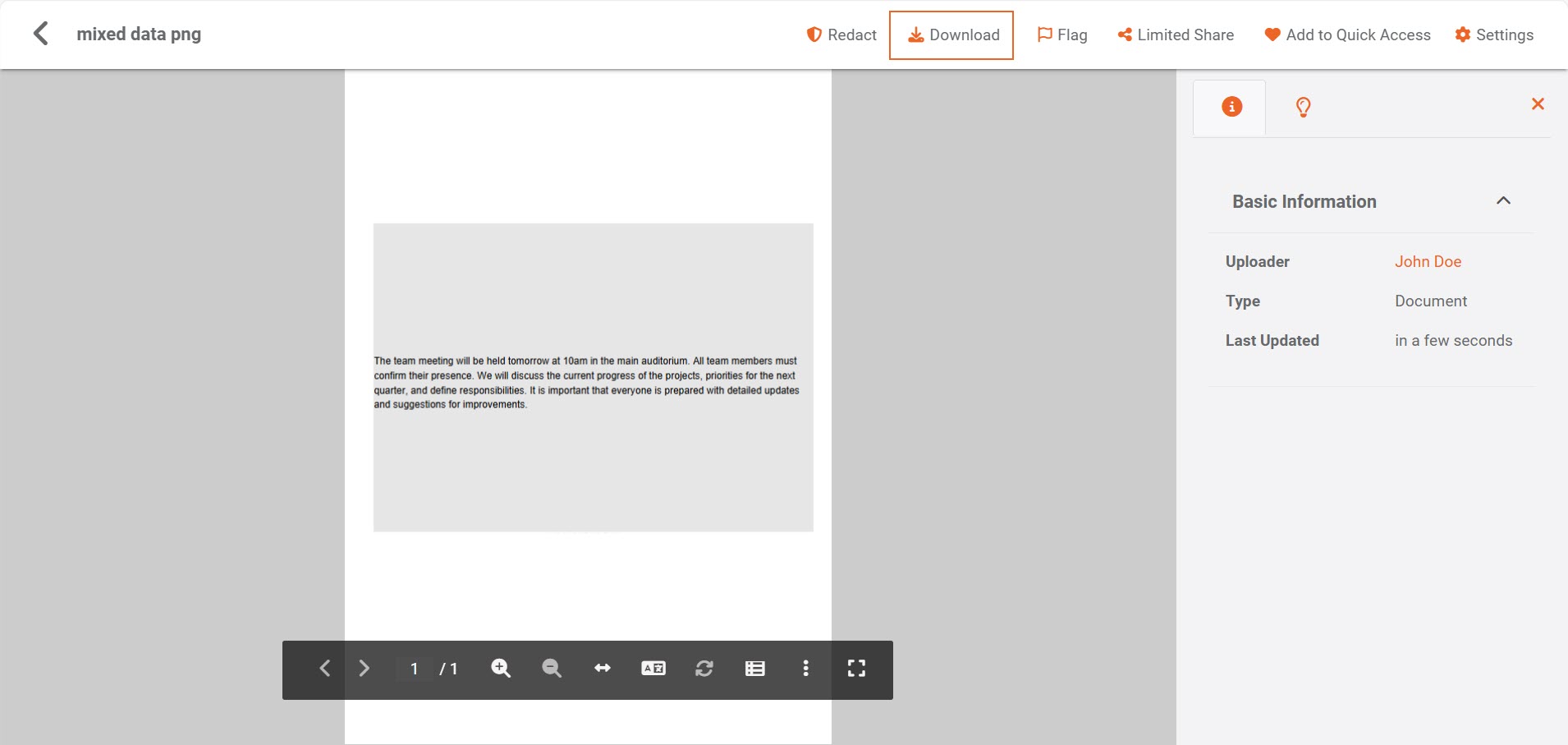
In the document or image viewer, select the Download icon.
-
A modal window appears, displaying both Original and Translation options.
-
Choose your preferred version to download.
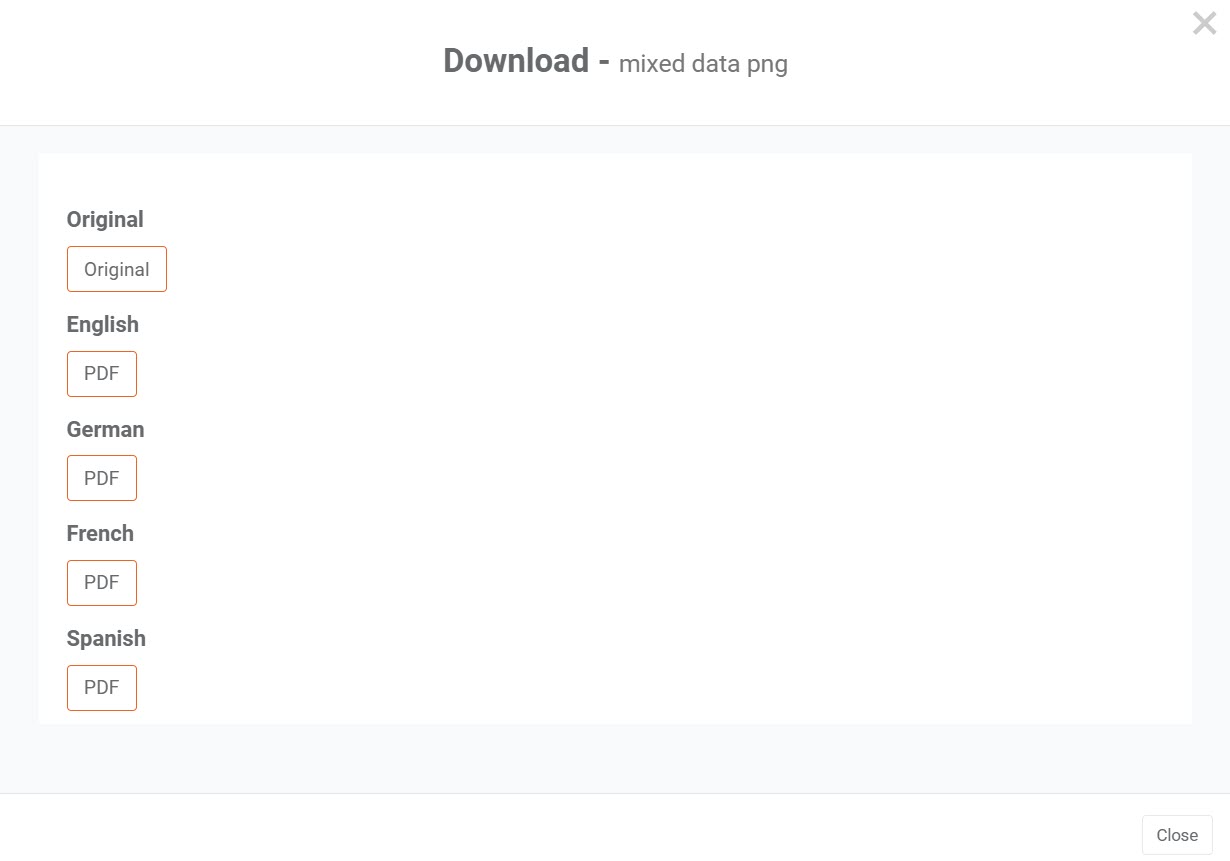
The selected file will then be downloaded to your device.