Audio and Video Translation using VIDIZMO Indexer
VIDIZMO lets you translate the spoken language in your audio and video files. When Audio Translation is enabled in the VIDIZMO Indexer's Insights, supported audio and video content is translated using standard processing modes:
-
Automatic processing: Translations occur automatically when new files are added.
-
On-demand processing: Translations can be triggered manually by selecting a file and choosing Process from the menu.
NOTE: Translation activities consume AI processing resources. Each translation counts toward your organization's total AI processing usage and may affect your available quota or billing. To view consumption reports, refer to Consumption Reports for SaaS Deployment Overview.
How audio and video translation works
When Audio Translation is enabled, the VIDIZMO Indexer translates the detected spoken language in an audio or video file. The translated output appears in the Transcription pane on the content playback page.
If both Transcription and Audio Translation are selected in the Indexer settings, VIDIZMO Indexer generates both insights. Users can switch between the original transcript and the translated version using the Select Language button in the transcription pane.
How the Indexer processes video files
When the input is a video file, the VIDIZMO Indexer separates the audio component from the video and performs the translation process on the audio portion. The Indexer only processes videos that contain audio with detectable speech.
Translation from existing transcripts
Audio translation can work with or without existing transcriptions:
-
Without existing transcription: The Indexer detects the spoken language and generates the translated output directly. The source language transcript is not saved unless Transcription is also enabled.
-
With existing transcription: For content that already has transcriptions—either generated by another indexing application or uploaded manually (for example, using a
.vttfile)—the VIDIZMO Indexer can generate translated output using the existing transcript.
Supported languages for audio and video translation
The VIDIZMO Indexer provides the highest translation accuracy when English is selected as the target language. In addition to English, audio translation is supported in multiple other languages:
| Languages |
|---|
| Arabic, French, German, Hindi, Italian, Japanese, Korean, Polish, Portuguese, Spanish |
Note: Translation quality may vary depending on the selected target language. Languages other than English have varying levels of accuracy and coverage.
Prerequisites
Before you use audio or video translation, make sure the following requirements are met:
-
You belong to a user group that has the appropriate permissions:
- Translation permission for translating audio and video files
- Transcription and Speaker Diarization permission (if generating transcriptions alongside translations)
- App Management feature enabled
-
The VIDIZMO Indexer app is enabled and configured in your portal.
For detailed setup instructions, see Configuring VIDIZMO Indexer for Translations.
Configure automatic processing
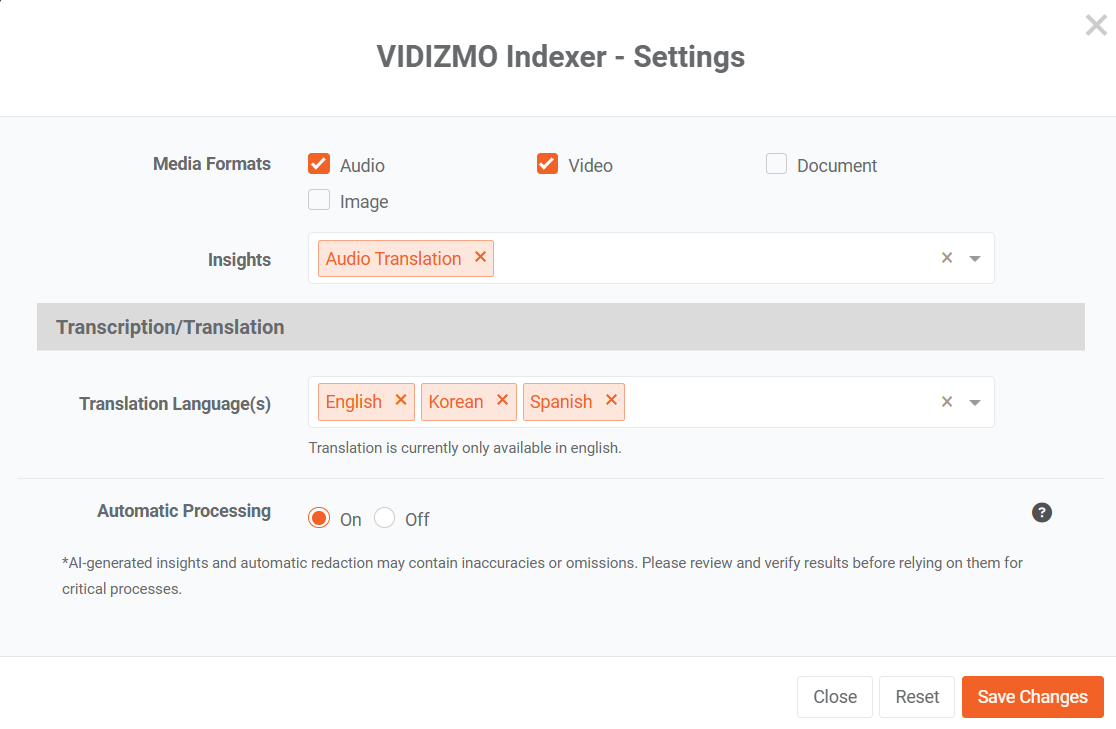
Use this setting to automatically start the translation process when a file is uploaded.
When you set up the app, turn on Automatic processing. The translation workflow starts automatically each time you upload an audio or video file to the portal.
Automatic processing applies in the following situations:
- When content is created or uploaded
- When content is ingested
- When a VIDIZMO Live stream is saved and published
To view the typical settings for audio translation, see the screenshot below.
Generate translation during custom upload
If the Custom upload option is enabled in the portal, you can generate a translation while uploading a file instead of processing it later.
- Select Add Media and choose Upload Media to upload an audio or video file.
- On the Settings page, open the Process tab.
- Select Generate AI Insights.
- Add Translation under Insights.
- Select Save.
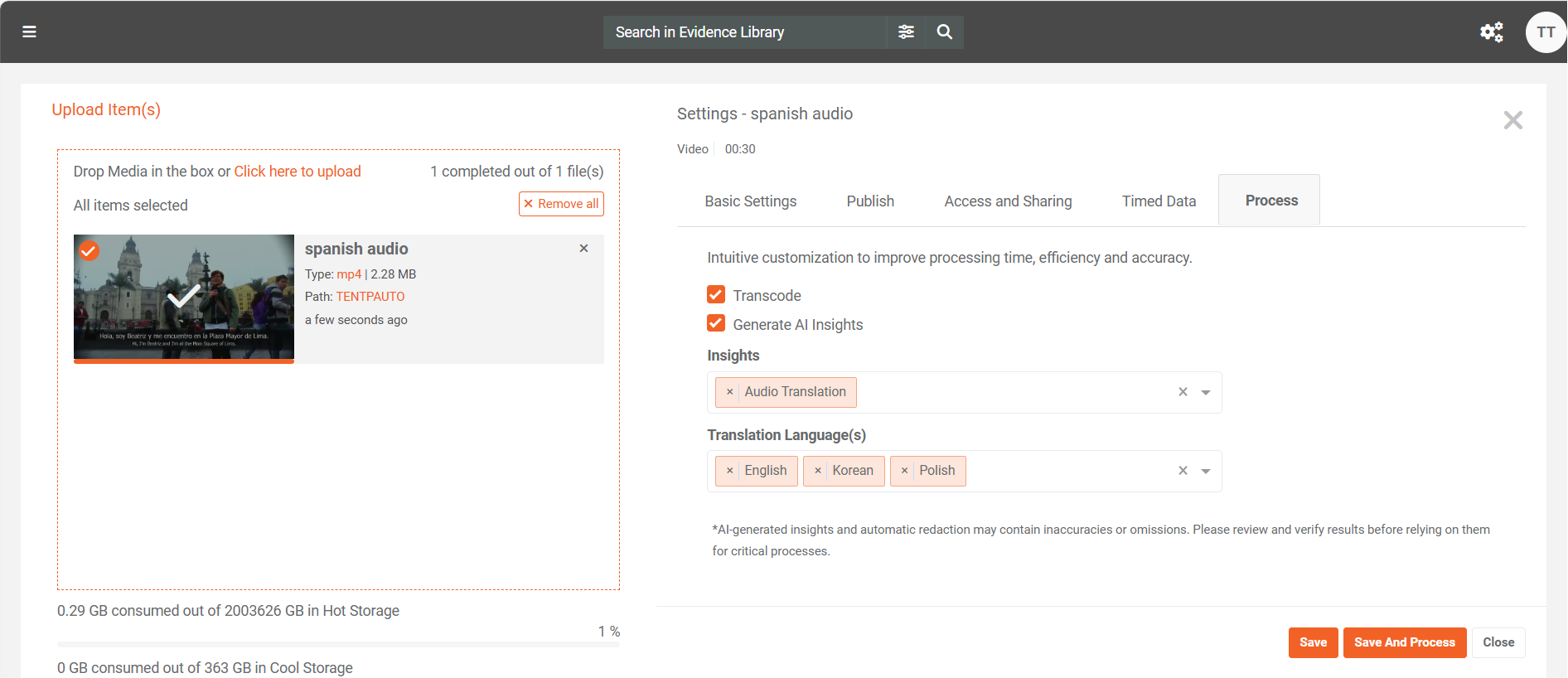
Note: The translation workflow in this custom upload process works the same way as on-demand processing. You can view the results in the View translation results section.
Configure on-demand processing
Use this option when you want to manually start the translation workflow for specific files. You can process single files or multiple files in bulk.
On-demand processing from the Process Modal
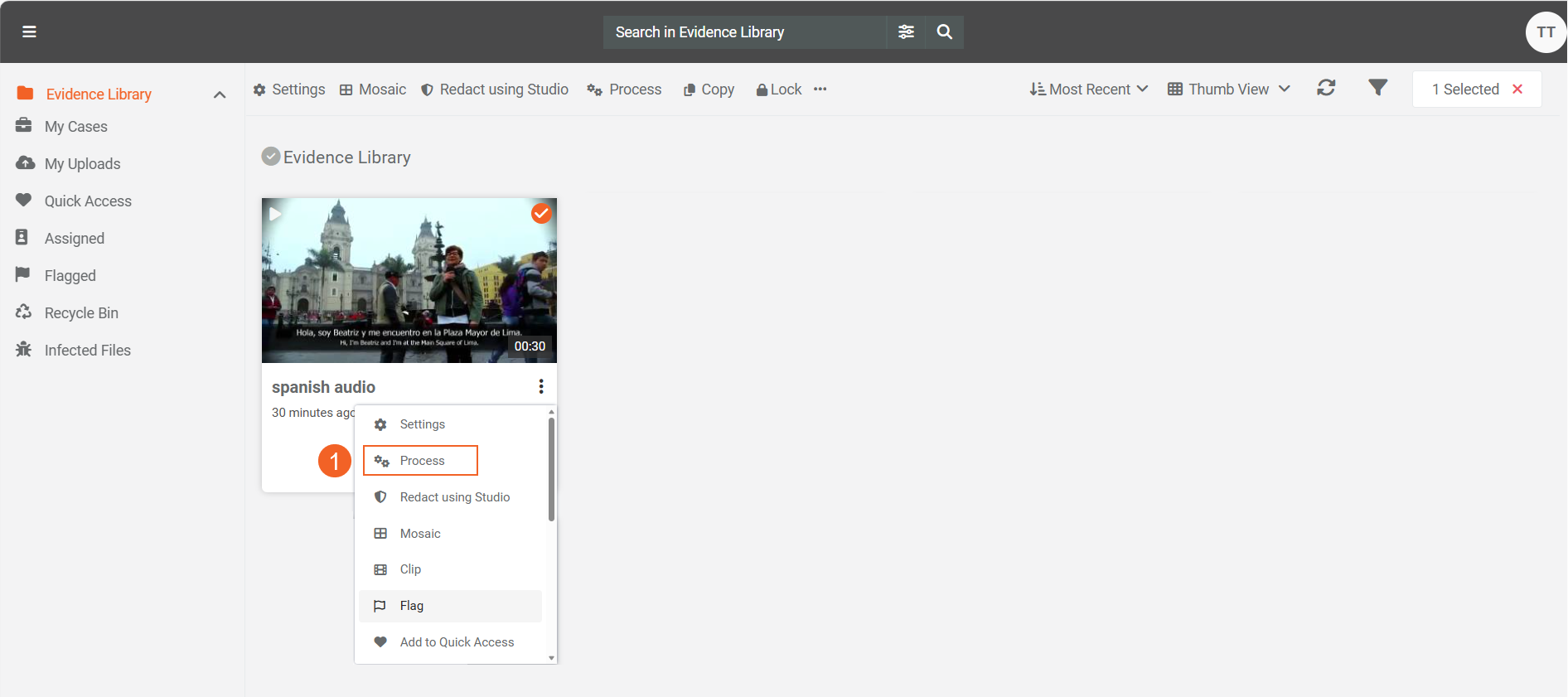
- Go to the audio or video file you want to translate. From the overflow menu, choose Process. To translate multiple files, select them and choose Process from the header menu.
-
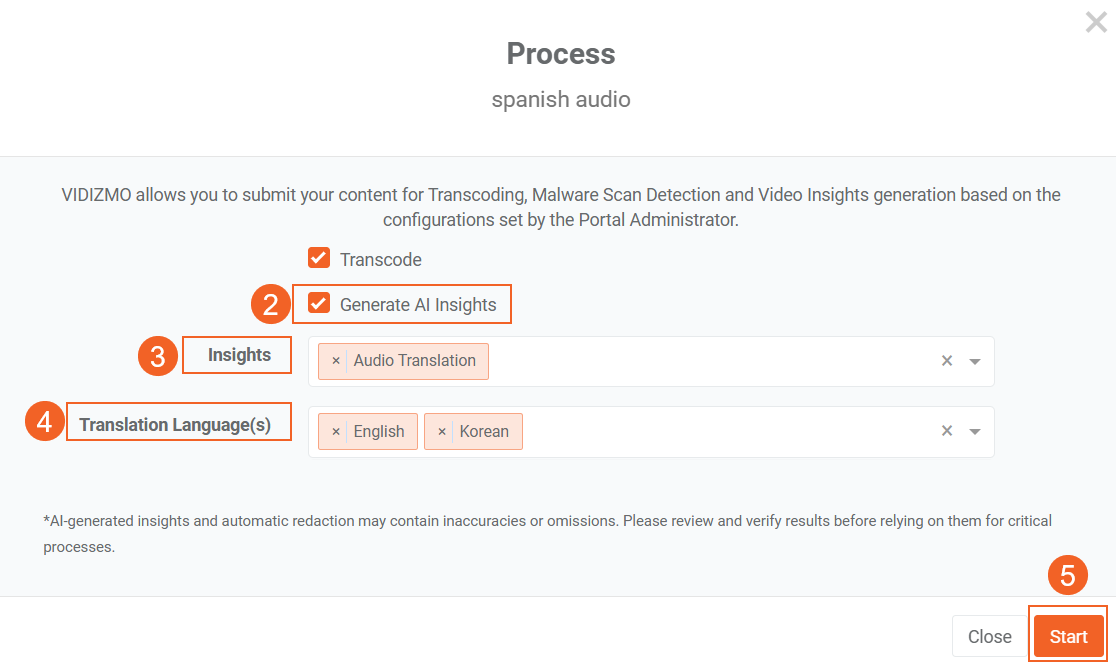
On the Process Modal, select Generate AI Insights.
-
Add Audio Translation to the Insights.
-
Select Translation Language(s).
-
Select Start to begin the translation process.
Note: Studio Space supports generating transcriptions but does not support generating translations directly. To generate translations, use automatic processing, custom upload, or the Process Modal. Once translations are processed, you can view them in Studio Space.
View translation results
After processing is complete, open the processed audio or video file.
-
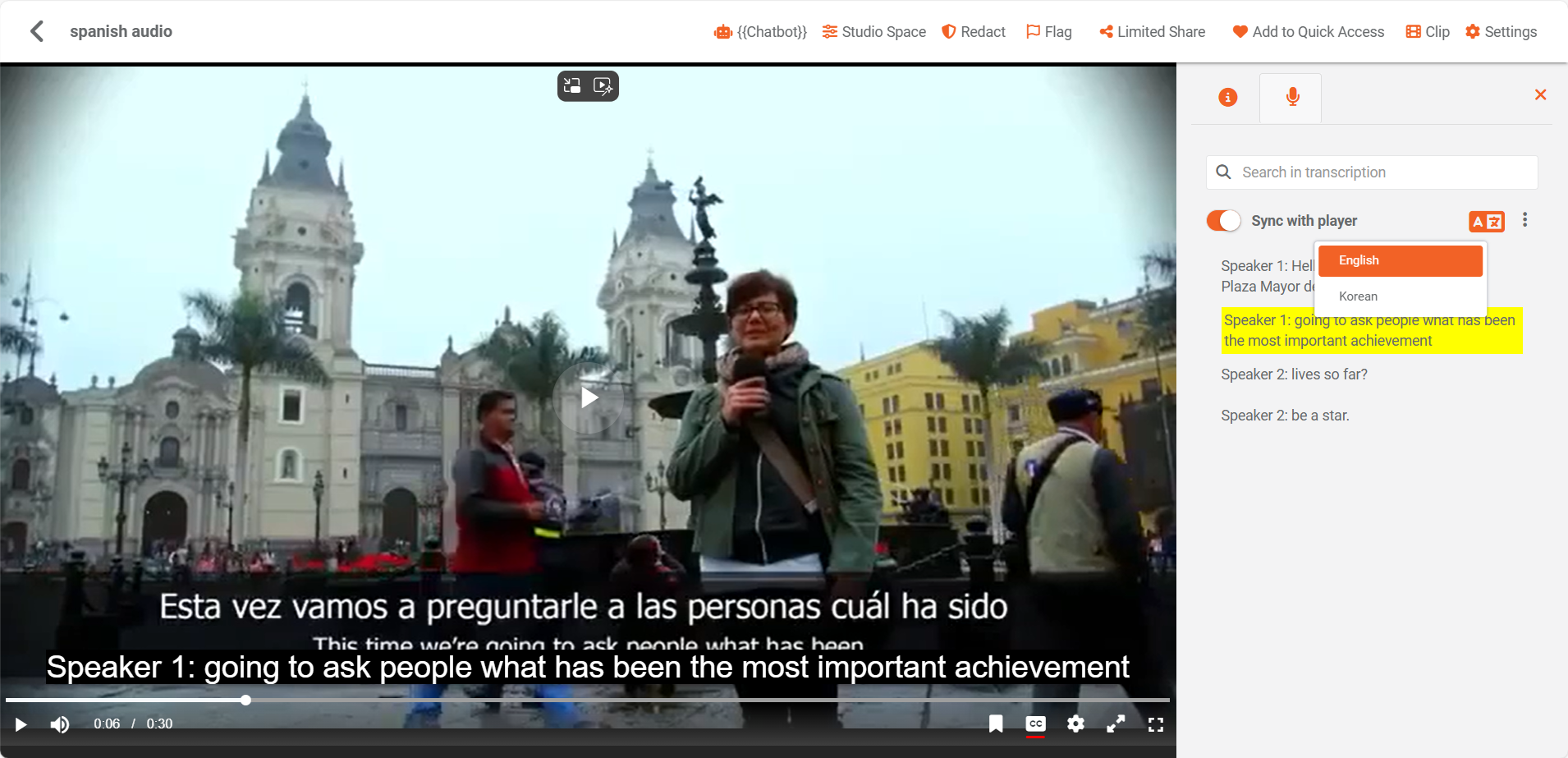
On the playback page, select the Transcription icon to open the transcription pane.
-
The translated text appears in the transcription pane. If both transcription and translation were generated, use the Select Language button to switch between:
- Original: The transcript in the detected source language.
- Translation: The transcript translated into your target language.
Using translations with closed captions
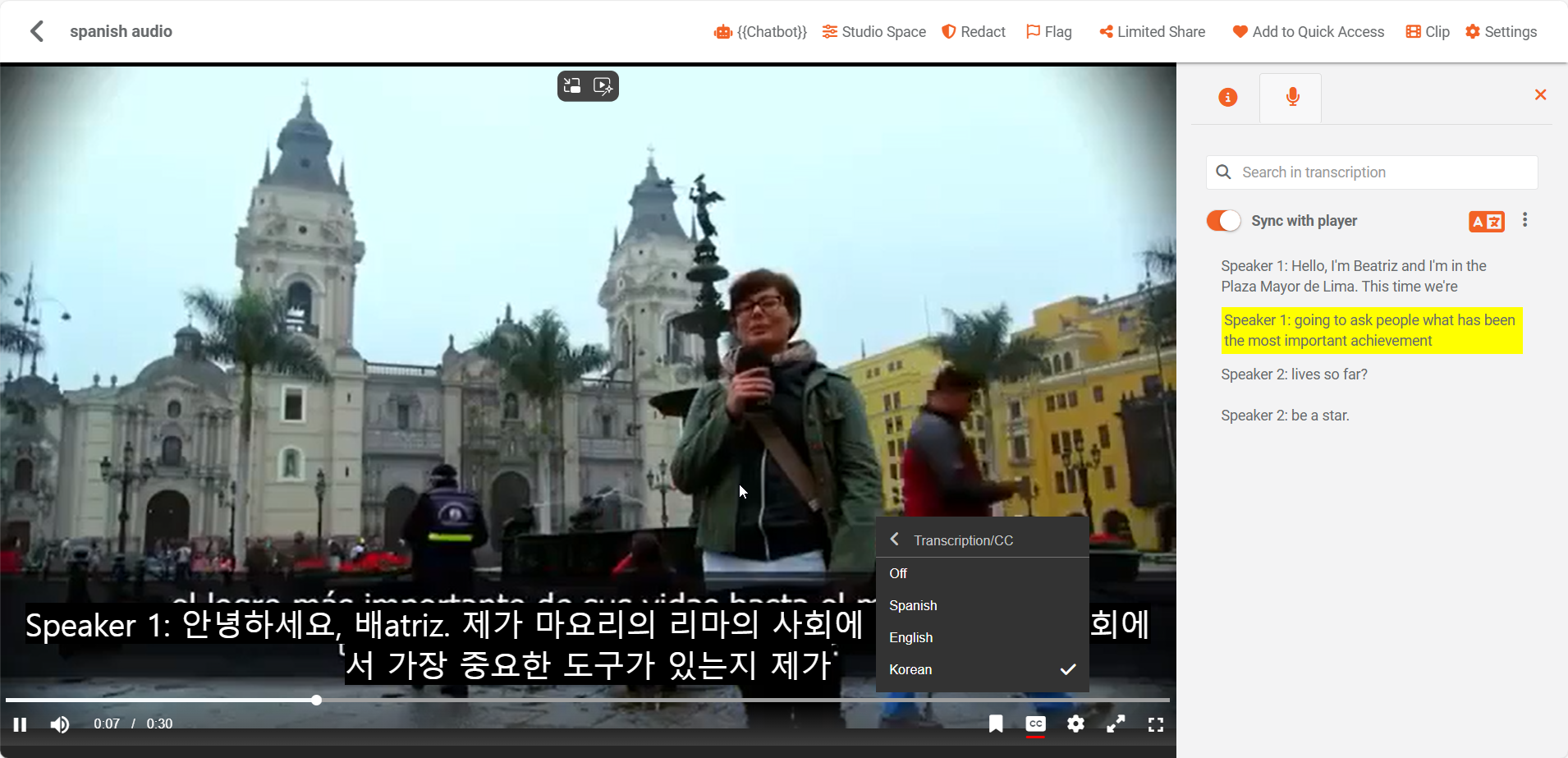
When audio translation is enabled, the translated text can also appear as closed captions (CC) during video playback. This allows viewers to read the translated content in real time as the video plays.
To enable this:
- Make sure Transcription/Closed Caption (CC) and Audio Translation are both selected in the VIDIZMO Indexer settings.
- Use the Process Modal to process the file with both insights enabled.
- During playback, select the CC icon and choose the translated language track.
See also
- Configuring VIDIZMO Indexer for Translations
- Translating Documents and Images using VIDIZMO Indexer
- Understanding Transcriptions via VIDIZMO Indexer
- How to Generate Transcriptions using VIDIZMO Indexer