Variables
Variables allow you to store reusable values that can be referenced across workflows in VIDIZMO Agentic AI. They help improve consistency, simplify maintenance, and reduce the need for repeating values across multiple nodes.
VIDIZMO provides two types of variables:
-
User-defined variables: custom values created by users.
-
System variables: predefined, read-only values supplied by VIDIZMO.
Variables are primarily used inside node configuration panels, where any field that supports expressions allows you to insert a variable through the Expression selector.
Variable Types
VIDIZMO Agentic AI supports two variable categories, each serving a different purpose in workflow automation.
User Defined Variables
User Defined variables are custom values created by users to store credentials, URLs, configuration settings, and reusable data across workflows.These variables exist at the workflow level and can be referenced throughout the workflow using expression syntax.
Key Characteristics:
-
Created and managed by users
-
Editable and deletable
-
Stored at the workflow level
-
Accessible across all nodes within the workflow
-
Used for general configuration, credentials, and reusable values
-
Display a scoped tag when used within Loop or Parallel Processing nodes
Examples
| Variable Name | Type | Use Case |
|---|---|---|
URL | String | API or service endpoint |
vtt_urls | Array | List of files or URLs to process |
Note: Variable names must be unique and cannot start with the word
system.
System Variables
System variables are predefined by VIDIZMO and provide global environment information that applies across all workflows. These values are read-only and cannot be modified or deleted.
Examples include:
-
Portal details
-
Tenant identifiers
-
User-specific metadata
System variables support expression-based insertion and are accessible through the same Expression dialog in the node configuration panel.
Creating User Defined variables
To create a new user-defined variable:
-
Open the Workflow Designer.
-
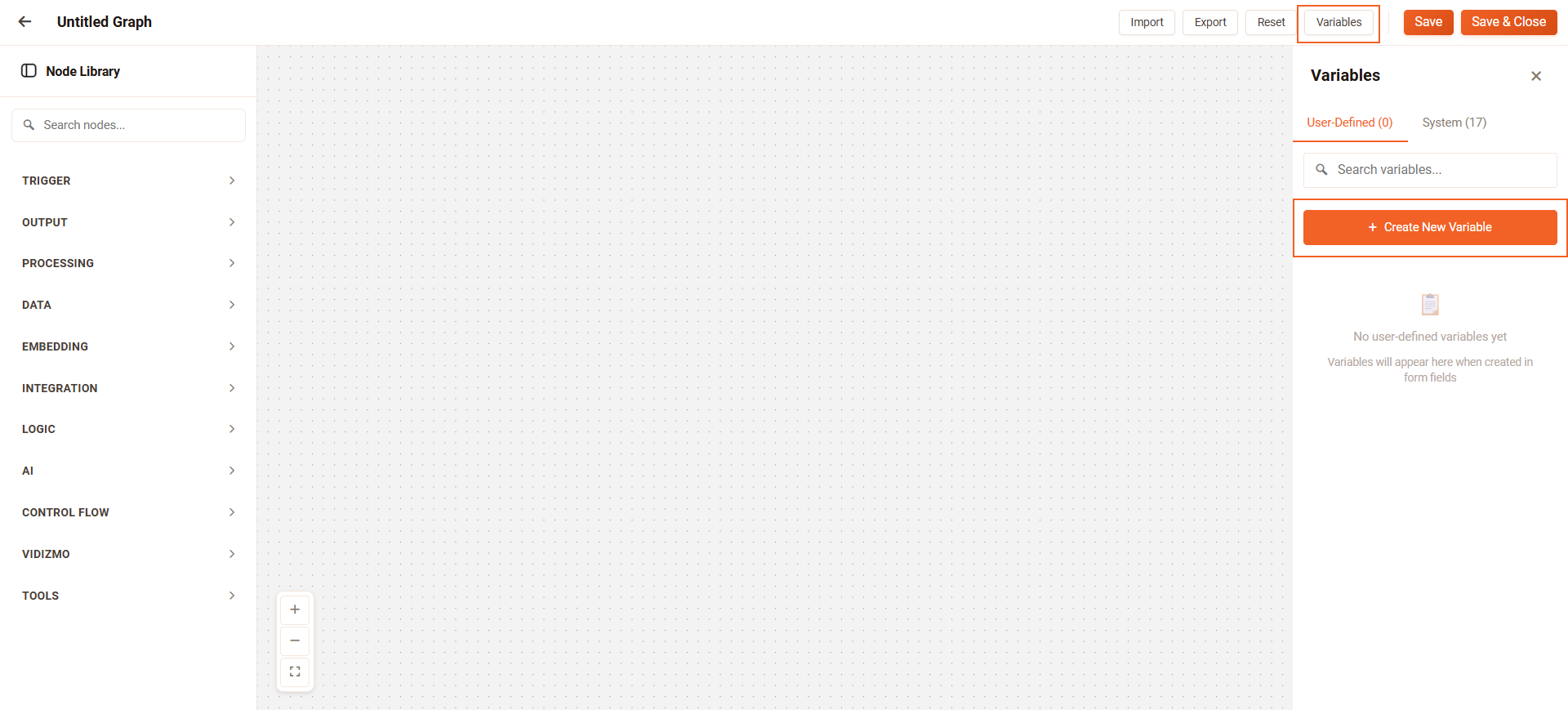
On the header bar, select Variables.
-
In the panel, select the User Defined tab.
-
Click + Create New Variable.
-
In the dialog box, enter the following information:
-
Name: Must be unique and not begin with the word system.
-
Type: Choose from:
-
String
-
Boolean
-
Number
-
Date
-
Array
-
Object
-
-
Description: Optional but recommended.
-
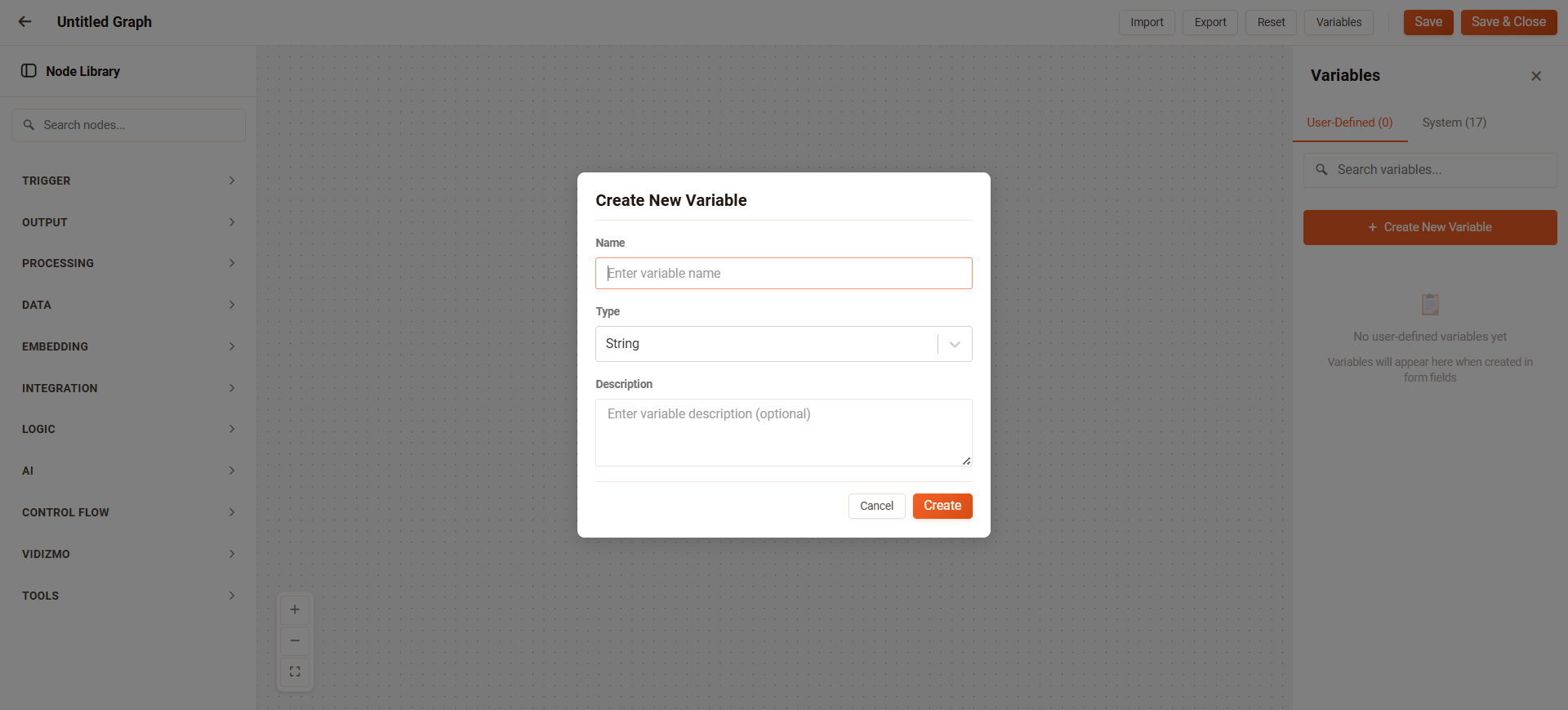
- Select Create.
The variable appears under the User Defined tab and is available for use across nodes. You can now reference this variable inside any field that supports the Expression option.
Managing User Defined Variables
Edit a Variable
-
In the Variables panel, open the User Defined tab.
-
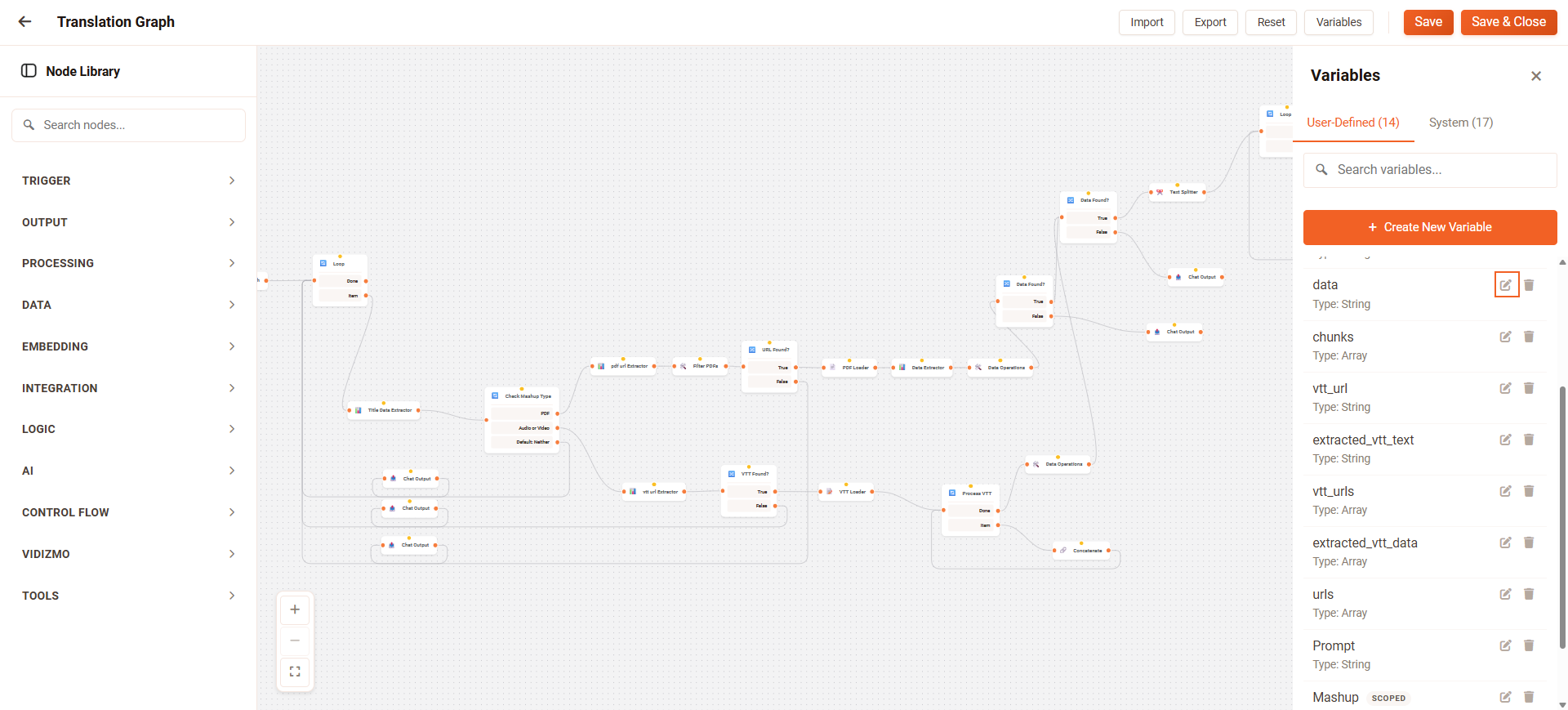
Select the Edit (pencil) icon next to the variable.
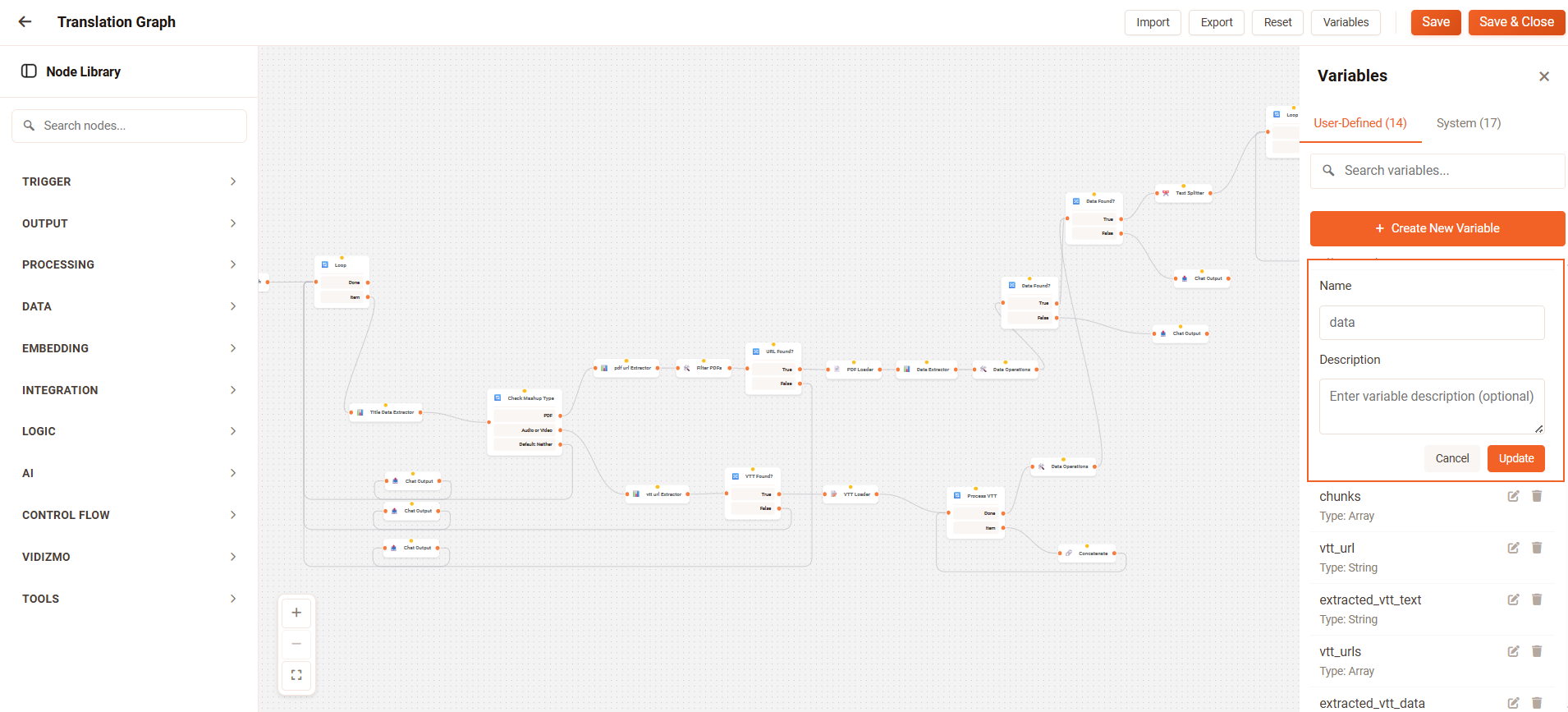
- Update the Name and Description.
Note: The variable type cannot be changed after creation.
- Click Update.
Delete a Variable
-
In the User Defined tab, select the Delete (trash bin) icon.
-
A confirmation dialog appears: “Are you sure you want to delete the variable ‘[Variable Name]’?”
-
Select Delete to confirm.
Note: Deleting a variable may break workflows that reference it. Update affected nodes before or after deletion.
Using Variables in Workflows
Variables can be used inside node fields to dynamically insert values at runtime. This is especially useful in automation scenarios such as building dynamic prompts, constructing API URLs, or iterating over arrays in loop nodes.
Access Variables in Nodes
-
Open a workflow in the Workflow Designer.
-
Select a node from the canvas.
-
In the Node Configuration Panel, locate a field that supports the Expression option.
-
Click Expression.
-
The dialog opens with two tabs:
-
User Defined
-
System
- Choose a variable and insert it.

Variable Syntax
VIDIZMO variables use a unified expression format. When inserted, they appear as:
${User Prompt}
${User Name}
${Tenant Name}
You can combine multiple variables within fields for example:
User ${User Name} from tenant ${Tenant Name} submitted: ${User Prompt}
Highlight Colors:
-
Green highlight: The variable is valid and recognized by the system. The field is operating in Expression mode, and the variable will be correctly evaluated at runtime.
-
Red highlight: The variable is invalid or cannot be declared. This usually occurs when:
- The variable name does not exist in User Defined or System variables
- The user attempts to overwrite a System variable
- The variable syntax is incorrect
If a variable is highlighted in red, the system will not evaluate it when the workflow runs.
Summary
Variables in VIDIZMO Agentic AI allow you to store reusable values and reference them across nodes and workflows. User-defined variables provide flexibility for storing custom values, while system variables supply global context that cannot be modified.